Command Line Basics for Web Developers [2026]
Learn command line basics for web development: navigation, files, pipes, PATH, processes, SSH, and fixes for the three errors beginners hit most.

![Command Line Basics for Web Developers [2026]](/articles/content/images/size/w1200/2026/07/117-hero-1.jpg)
Command line basics for a web developer are the small set of shell skills used daily: moving around the filesystem, creating and editing files, searching inside them, chaining commands with pipes, reading permissions, managing PATH, killing stuck processes, and connecting to remote machines over SSH. You do not need to become a system administrator. You need roughly twenty commands and the mental model that connects them.
Most self-taught developers arrive backwards. You already type npm run dev and git push because a tutorial said so, but the terminal still feels like a place where things break invisibly. This guide closes that gap across macOS, Linux, and Windows.
Why the Command Line Still Matters in 2026
The command line matters because the tools web developers depend on most, package managers, version control, build pipelines, and deployment, are command line tools first.
A normal day touches all four. Installing a dependency means npm install, and the npm CLI is the only complete interface to the registry. Committing means git. Deploying means a CLI. And on a server there is no desktop to click at all. The Stack Overflow 2025 Developer Survey puts Bash or Shell in the hands of 48.7% of respondents, ahead of most named frameworks, with PowerShell at 23.2%.
A newer reason cuts against the assumption that AI makes this obsolete: agentic coding tools live in the shell. Claude Code runs in your terminal, and its documentation shows it being piped into like any other Unix program.
When an agent proposes a command, you are the last check before it runs. Shell literacy stopped being a nicety the day agents got permission to execute things on your machine.
Setting Up Your Terminal on macOS, Linux, and Windows
Your setup decides which commands below work verbatim. Two platforms hand you a Unix shell. The third asks you to choose.
On macOS, open Terminal from Applications and Utilities. Apple documents zsh as the default shell on Mac, close enough to bash that everything here applies unchanged. On Linux, any terminal emulator works and bash is the usual default.
Windows is where most guides get lazy. PowerShell is not bash. It has an ls alias, but the flags differ, paths use backslashes, and grep does not exist (the nearest equivalent is Select-String). You can do web development in PowerShell, but you will be translating every tutorial you read.
The pragmatic fix is the Windows Subsystem for Linux. Microsoft's WSL install guide says one command installs it, with Ubuntu by default, on Windows 11 or Windows 10 build 19041 and later:
wsl --install
| Platform | Default shell | What to do |
|---|---|---|
| macOS | zsh | Open Terminal. Everything here works as written. |
| Linux | bash | Open any terminal emulator. Same commands. |
| Windows, PowerShell | PowerShell | Usable, but different flags and no grep. |
| Windows, WSL | bash | Run wsl --install, then follow Unix tutorials literally. |
Navigating the Filesystem
Three commands cover most navigation. pwd prints where you are, ls lists what is there, cd moves you.
pwd                 # /Users/you/projects/portfolio
ls -l               # long format: permissions, owner, size, date
ls -la              # also shows dotfiles like .env and .gitignore
cd src/components   # relative: from where you are now
cd /Users/you       # absolute: from the root of the filesystem
cd ..               # up one level
cd ~                # home directory
cd -                # back to the previous directory
The distinction that trips people up is absolute versus relative paths. An absolute path starts with / and means the same thing from anywhere. A relative path starts wherever you are, which is why cd components fails when you thought you were in src and were not. Run pwd first; it answers what most path bugs are really asking.
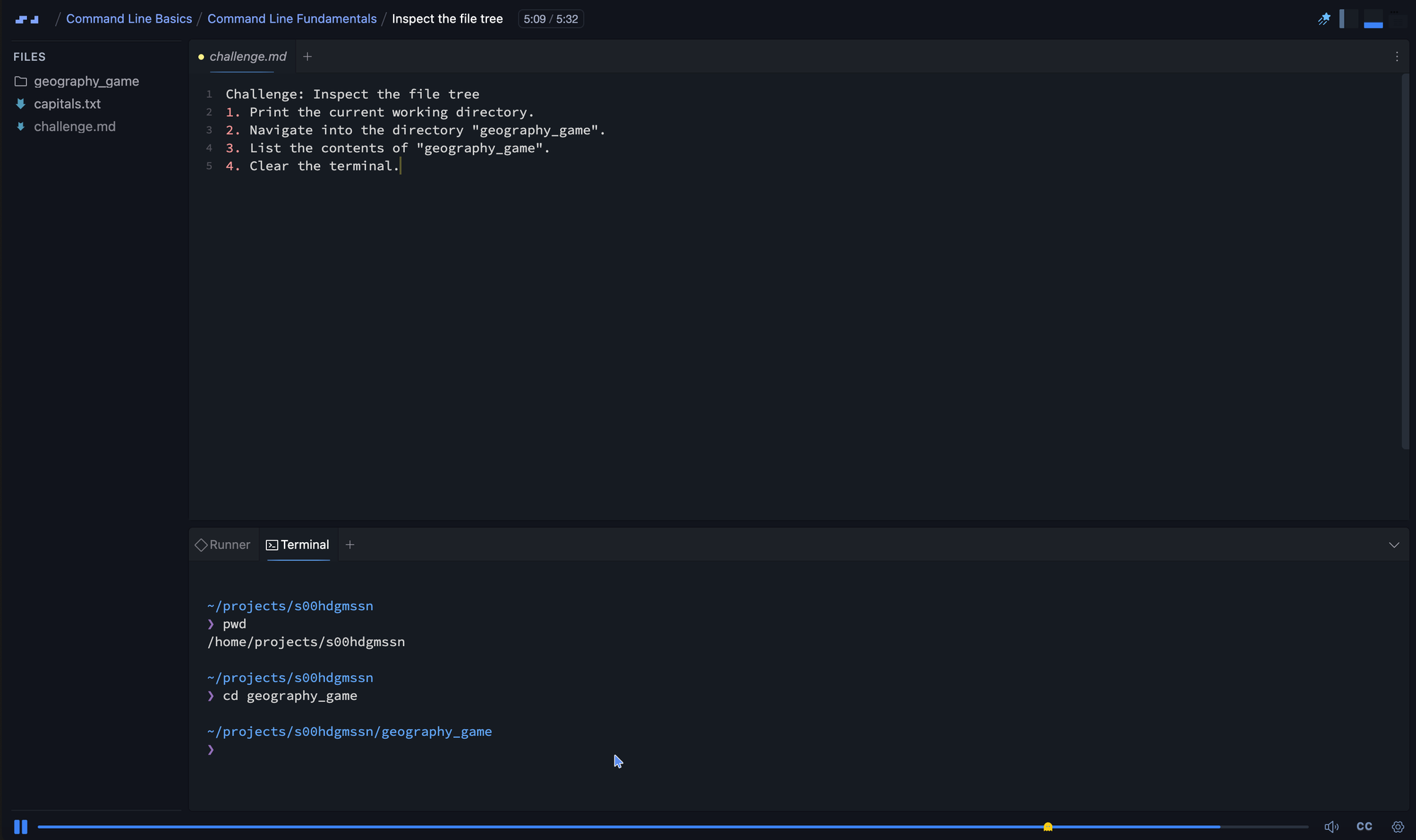
One habit beats any command: press Tab constantly. The shell completes names for you, killing typos and confirming what you type exists.
Creating, Copying, and Deleting Files
File operations use a small, consistent vocabulary. A realistic sequence, scaffolding a component folder by hand:
- Make the directory and any missing parents with
mkdir -p. - Create the empty files inside it using
touch. - Copy a config over from an older project with
cp. - Rename the entry file.
mvtreats moving and renaming as one operation, which surprises people once and then never again. - Delete anything left over with
rm.
mkdir -p src/components/Header
touch src/components/Header/index.js
cp -r assets/ public/assets/     # -r copies a directory and its contents
mv index.js Header.jsx           # rename
rm -r build/                     # delete a directory and everything in it
The flag to respect is -r, for recursive. It lets cp and rm work on whole trees, and it is also what turns a small mistake into a large one.
Reading and Searching File Contents
Reading a file from the terminal beats opening an editor when you only need to check something.
cat package.json              # dump the whole file
less server.log               # scrollable view; press q to quit
head -20 data.csv             # first 20 lines
tail -50 error.log            # last 50 lines
tail -f error.log             # follow the file live as it grows
less catches people out because it takes over the screen and never exits on its own. Press q.
Searching is where the terminal beats clicking around. GNU grep searches inside files for a pattern; find searches for files by name.
grep -rn "useAuth" src/          # recursive, with line numbers
grep -rni "todo" src/            # -i ignores case
find . -name "*.test.js"         # every test file below here
Answering "where is this component actually imported?" in one line, in a codebase you did not write, is where the terminal starts paying you back.
Pipes and Redirection: The Idea That Makes the Shell Powerful
A pipe sends one command's output into the next command's input, so small single-purpose tools combine into operations nobody had to build.
This separates people who memorize commands from people who use the shell. Each Unix utility does one narrow thing and speaks text. The | character connects them, so composition replaces feature requests.
git branch | grep feature            # only branches with "feature" in the name
npm run build > build.log            # send output to a file, overwriting
npm run build >> build.log           # append instead
npm run build > build.log 2>&1       # capture errors too, not just normal output
cat access.log | grep 404 | wc -l    # how many 404s?
Three symbols carry the weight. > writes and overwrites, >> appends, and 2>&1 merges the error stream into the normal one. That last one explains a common frustration: you piped a build into a file and the error was not in it, because errors travel on a separate channel.
Permissions, Environment Variables, and PATH
Run ls -l and each line opens with something like -rw-r--r--. That block sets read, write, and execute permissions for the file's owner, its group, and everyone else. A script that refuses to run usually needs the execute bit.
chmod +x deploy.sh      # make it executable
./deploy.sh             # now this works
echo $PATH              # the directories searched for commands
export API_URL="https://api.example.com"
Reaching for sudo the moment something says "permission denied" is a bad reflex. On your own machine the answer is usually that you are in the wrong directory.
PATH explains the most confusing beginner error there is. When you type netlify, the shell walks each directory in PATH looking for a program with that name. If the tool installed somewhere not on that list, you get command not found even though the file exists. A .env file is a different animal: your framework reads it at runtime, not the shell, which is why echo $DATABASE_URL can print nothing while the app reads the value fine.
Package managers put tools on your PATH: Homebrew on macOS, apt on Debian and Ubuntu, winget on Windows, and npm or npx for anything scoped to one project.
Commands Every Web Developer Uses Weekly
| Command | What it does | When you reach for it |
|---|---|---|
pwd |
Prints the current directory | A path command failed |
ls -la |
Lists everything, dotfiles included | Checking whether .env exists |
mkdir -p |
Creates nested directories | Scaffolding a feature folder |
mv |
Moves or renames | Renaming a component file |
rm -r |
Deletes a directory tree | Clearing a stale build folder |
tail -f |
Follows a file as it grows | Watching logs during a request |
grep -rn |
Searches contents recursively | Finding every usage of a function |
find . -name |
Searches by filename | Locating a misplaced config |
lsof -i :3000 |
Shows what holds a port | The dev server port is taken |
kill |
Ends a process | Shutting down a stuck server |
ssh |
Opens a remote shell | Checking a production server |
Managing Processes and Fixing "Port Already in Use"
Every running program is a process with a numeric ID, and the shell can find and stop them.
ps aux | grep node        # every running node process
lsof -i :3000             # what is holding port 3000
kill 48213                # ask a process to shut down cleanly
kill -9 48213             # force it, only if the polite version failed
Inside a running command, Ctrl+C stops it and Ctrl+Z suspends it. A suspended job is still alive, which causes the classic error: you thought you closed the dev server, you only paused it, and the port stays occupied. Run jobs to list them, fg to return.
On native Windows, use netstat -ano | findstr :3000 to find the process ID and taskkill /PID <id> /F to end it.
SSH Basics for Git and Deploys
SSH gives you an encrypted shell on a remote machine and password-free authentication with services like GitHub. It works through a key pair: a private key that never leaves your machine and a public key you hand out.
GitHub's SSH key documentation recommends the Ed25519 algorithm.
ssh-keygen -t ed25519 -C "[email protected]"
cat ~/.ssh/id_ed25519.pub          # copy this into GitHub
ssh [email protected]           # open a remote shell
scp backup.sql user@host:/tmp/     # copy a file to a remote machine
Set a passphrase when prompted. It is the difference between a stolen laptop being an inconvenience and being an incident. For the workflow on top of these keys, see the guide on how to learn Git and GitHub.
Aliases and Shortcuts That Actually Save Time
Speed in the terminal comes from a handful of keystrokes, not from typing faster.
Ctrl+Rsearches your history. Type any fragment of a past command and it reappears. Biggest time saver here.Ctrl+AandCtrl+Ejump to the start and end of the line.!!repeats the previous command, and pairs neatly withsudo !!.!$reuses its last argument.
Aliases live in ~/.zshrc on macOS or ~/.bashrc on Linux. Keep the list short, then run source ~/.zshrc to load them without a new terminal.
alias gs="git status"
alias ll="ls -la"
alias ..="cd .."
alias nrd="npm run dev"
Command Line Safety: The Commands That Can Ruin Your Day
The terminal has no undo and no trash can. rm does not move a file somewhere recoverable. It unlinks it.
This is not a beginners-only risk. In GitLab's public postmortem of its January 31, 2017 outage, an engineer ran a removal command against the wrong database server, and roughly 300 GB of production data was gone before it could be cancelled. Experienced people, production systems, one directory off.
Three rules, worth internalizing before you need them:
- Read
rm -rfcharacter by character before pressing enter, especially whatever follows the flags. No confirmation prompt, no recovery. - Never pipe a URL straight into a shell. A
curl ... | bashline runs whatever that server returns, with your permissions. Download it, read it, then run it. - Never paste a command you cannot explain, including one an AI assistant wrote. Agents are good at shell commands and occasionally confidently wrong, and a wrong one runs just as fast as a right one.
If you cannot say out loud what each flag does, you are not running a command. You are trusting a stranger with write access to your filesystem.
Troubleshooting the Three Errors Beginners Hit Most
Port already in use. Something is still listening on the port your dev server wants. Run lsof -i :3000 to see which process holds it, then kill <PID>. Usually it is a server you suspended with Ctrl+Z instead of stopping. Do not just move to port 3001; the orphan is still running.
Permission denied. Either the file lacks the execute bit, or you are touching something you do not own. Check with ls -l. For your own script, chmod +x file.sh fixes it. For a system directory, ask why you are writing there before reaching for sudo, especially with npm, where root-owned global installs cause lasting pain.
Command not found. The program is not on your PATH. Confirm it installed, then check which toolname and echo $PATH. Usual causes: you installed it locally in a project (run it with npx), or the installer edited a shell config that has not been reloaded.
How to Learn the Command Line
The fastest way to learn command line basics is to use a real shell on real files while someone explains what is happening, not to read a cheat sheet you will forget by Thursday.
Scrimba's Command Line Basics is free, runs 101 minutes with Ajo Borgvold, and splits into two modules across 12 lessons: Command Line Fundamentals and Command Line Power Tools. It covers terminal setup, cd, touch, rm, mkdir, rmdir, echo, cat, cp, mv, then grep, sed, wc, and sort. A completion certificate is included, which Scrimba offers on free courses as well as paid ones.
Be clear about the boundaries: it does not cover shell scripting, git, SSH, or PowerShell specifics. It teaches fundamentals and is honest about it.
Where to go next depends on what you are building:
- Version control: Learn Git and Github (Pro, 103 minutes, Gregor Thomson) covers branching in the terminal, merge conflicts, and sharper tools like
stash,rebase, andrevert. - Backend work: Learn Node.js (free, 3.5 hours, Tom Chant) puts your npm and process skills to work building a REST API. The wider route is mapped in the guide on how to learn Node.js.
- Deployment: Deploying with Netlify (free, 23 minutes, Treasure Porth) covers continuous deployment and deploy previews.
- The full route: The Backend Developer Path (Pro, 39.4 hours) includes a 103-minute Command Line Interface module alongside web architecture, Node, SQL, Git, TypeScript, Express, and DevOps. Pair it with the backend developer roadmap, and the DevOps courses roundup for tooling.
Scrimba Pro is $24.50 per month on the annual plan ($294 per year), with region-based, student, and promotional discounts available. Command Line Basics costs nothing.
Frequently Asked Questions
What are the most important command line basics for a web developer?
Navigation (pwd, ls, cd), file operations (mkdir, touch, cp, mv, rm), searching with grep and find, pipes and redirection, permissions with chmod, environment variables and PATH, process management with ps, lsof, and kill, and basic SSH. Roughly twenty commands cover almost all daily use.
Do I need to learn bash if I use Windows?
In practice, yes. PowerShell is capable, but nearly every web development tutorial, README, and CI configuration assumes a Unix shell. Installing the Windows Subsystem for Linux gives you a real bash environment, so instructions work literally rather than needing translation.
How long does it take to learn the command line?
The basics take a few hours of focused practice, and a structured course of roughly 100 minutes covers the core commands. Fluency comes from daily use over a few weeks. Unlike a framework, the command line barely changes, so the time invested keeps paying out.
Is the command line still worth learning now that AI writes code?
More than before. Agentic coding tools run inside the terminal and execute shell commands on your machine. If you cannot read what an agent is about to run, you cannot approve it safely. Shell literacy is what turns an AI assistant from a risk into a tool.
What is the difference between the terminal, the shell, and bash?
The terminal is the application window. The shell is the program running inside it that interprets your commands. Bash and zsh are specific shells. On a Mac, you type into the Terminal app, which runs zsh.
Key Takeaways
- Command line basics come down to roughly twenty commands: navigation, file operations, search, pipes, permissions, PATH, processes, and SSH.
- Bash or Shell is used by 48.7% of respondents in the Stack Overflow 2025 Developer Survey, ahead of most named frameworks.
- On Windows, install WSL rather than translating every Unix tutorial into PowerShell.
- Pipes and redirection make the shell powerful: small tools combine into operations nobody had to build.
rm -rfhas no undo. GitLab lost roughly 300 GB of production data to a removal command run against the wrong server in 2017.- Never run a command you cannot explain, including one an AI agent proposed, and never pipe a URL into a shell.
- Scrimba's free Command Line Basics course covers the fundamentals in 101 minutes with a certificate, though not shell scripting, git, or SSH.
Sources
- Stack Overflow. "2025 Developer Survey: Technology." 2025. https://survey.stackoverflow.co/2025/technology
- Apple. "Use zsh as the default shell on your Mac." https://support.apple.com/en-us/102360
- Microsoft. "Install WSL." Microsoft Learn. https://learn.microsoft.com/en-us/windows/wsl/install
- npm. "npm-install." npm Docs. https://docs.npmjs.com/cli/v11/commands/npm-install/
- GitLab. "Postmortem of database outage of January 31." 2017. https://about.gitlab.com/blog/postmortem-of-database-outage-of-january-31/
- Anthropic. "Claude Code Overview." https://code.claude.com/docs/en/overview
- GitHub. "Generating a new SSH key and adding it to the ssh-agent." https://docs.github.com/en/authentication/connecting-to-github-with-ssh/generating-a-new-ssh-key-and-adding-it-to-the-ssh-agent
- GNU Project. "GNU Grep Manual." https://www.gnu.org/software/grep/manual/grep.html
- Scrimba. "Command Line Basics, Learn Git and Github, Learn Node.js, Deploying with Netlify, The Backend Developer Path." Self-reported course data from scrimba.com. Accessed July 2026.