How to Make Lecture Recap Videos from Your Slides and Notes
Turn a week's lecture slides and notes into a short narrated recap that ends with a quiz, on scrimba.com or inside ChatGPT, with no recording and no camera.

To make a lecture recap video, export the week's slides to PDF, attach them with your notes to a narrated explainer tool, ask for a short lesson on the week's key ideas that ends with a quiz, and share the link. Scrimba Explain, listed in ChatGPT as Explain Video Generator, does this on scrimba.com, and inside ChatGPT without the quiz. You record nothing, and no presenter appears on screen.
Last verified September 28, 2026: Explain's steps, limits and allowances come from Scrimba's Explain docs and plugin listing; Gemini Notebook, HeyGen, PowerPoint and ChatGPT details come from each maker's own pages, all read that day.
Scrimba publishes this guide and makes Scrimba Explain. The section "When Another Tool Fits Better" names jobs where another tool wins.
Explain is free to start: one explainer without an account, ten for the life of a free account and 100 a month on Pro (limits and plans).
What Should a Weekly Lecture Recap Do?
A weekly lecture recap is a short narrated video that re-teaches the week's two or three key ideas and ends with a short quiz.
Keep it short. Cynthia Brame's review of video research reports that across 6.9 million edX viewing sessions, "the maximum median engagement time for a video of any length was 6 minutes"; for 12 to 40 minute videos it fell to about 20% (Brame, 2016).
End with a check. The same review cites a study in which students quizzed between roughly five-minute video lectures "performed significantly better on subsequent tests of the material." Dunlosky and colleagues rated practice testing and distributed practice the two most effective of ten study techniques (American Educator). A weekly recap with a quiz at the end is both.
So aim for three to six minutes, one picture per idea, one quiz at the end, every week.
Five Ways to Make a Lecture Recap, Compared
The routes differ on who speaks, what goes in, and whether students get a check.
| Route | Who narrates | Your deck goes in as | Check at the end | Free to start | Export |
|---|---|---|---|---|---|
| Scrimba Explain on scrimba.com | A Scrimba voice, in 33 languages | PDF, plus notes, Word files or images | Can end with a quiz; asking makes one likelier; never in TLDR | 1 explainer without an account, 10 for life on a free account | MP4 at 2560×1440 plus a .vtt file |
| Explain inside ChatGPT | A Scrimba voice; the chat model writes the script | PDF or notes attached in the chat | No quiz | Drafts are free; claiming one counts | MP4 once you claim it |
| Gemini Notebook Video Overview | AI narration: Explainer, or a Short of about 60 seconds | Sources in a notebook | Not in the video; separate quizzes, 10 a day free | 3 a day, with a visible watermark | Download |
| HeyGen PPT/PDF to Video | An avatar and an AI voice | PPT or PDF, first 50 slides only | Not stated | 3 videos a month, up to 1 minute each | Video export |
| PowerPoint's own recording | You, with optional camera | Your deck itself | None built in | Needs PowerPoint | Export Video |
Not stated: the vendor pages we read on September 28 don't say. The steps below cover the first two rows.
Step 1: Get the Week's Slides and Notes Ready
Preparation decides whether the recap teaches your lecture or a textbook version of it. Scrimba's prompting guide: "the more context you hand it, the more the lesson is about your thing" (writing a good prompt).
- Export the slides to PDF. Explain reads PDFs, including "slides" (attaching documents); no slide format such as PPTX is documented. In PowerPoint, choose File > Export > Create PDF/XPS Document (Microsoft Support). The slide deck guide covers other apps.
- Add what the slides leave out. A slide PDF holds only what's on the slides, so paste your speaker or reading notes into the prompt box, where a long paste becomes an attachment.
- Split a long week by topic. Scrimba documents no page limit and no promise that a long document is covered completely. For a 60-slide deck, PowerPoint on Windows exports a slide range through Options, From and To: one PDF and one recap per topic. Do the same with 20 pages of notes.
- Take out student names, grades and anything else personal.
Step 2: Make the Recap on scrimba.com
Set the recap to Unlisted, attach the week's PDF, pick a teaching style, ask for a lesson that ends with a quiz, then check every slide.
- Sign in and set the visibility first. Signed in, the setting "starts on Public", which lists the recap in the community (your first explainer). Choose Unlisted. Signed out, there is no picker and your one free explainer is "always Unlisted" (visibility).
- Attach the PDF with the paperclip. The upload card on scrimba.com/explain also names Word files and images.
- Pick the teaching style. TLDR gives "A few slides, straight to the point"; the default, Explain, uses "Simple words, small steps" (teaching styles). TLDR suits a two-minute reminder, but it never ends with a quiz.
- Ask for a lesson, not a summary. The quiz docs name the catch:
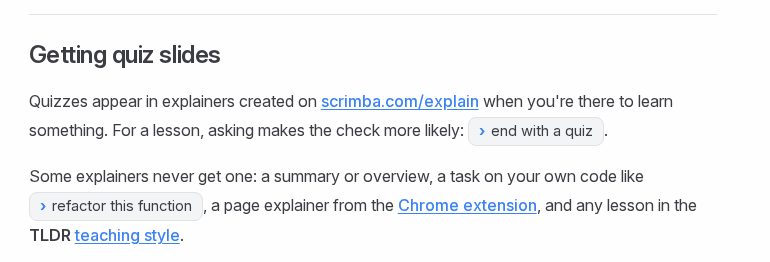
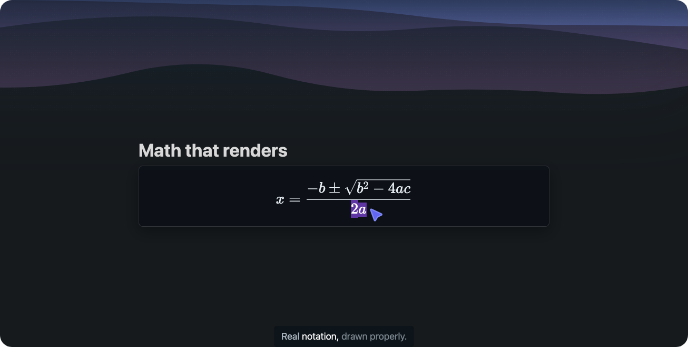
So write teach, name the audience, and end with the quiz: "Teach my second-year economics students the three ideas from this week's lecture: why credit exists, how credit reports became scores, and what lenders price as risk. They've seen the slides once. Use a flowchart for the history and end with a quiz." 5. Name the formulas. "Formulas render as real mathematical notation", but "Numbers alone don't bring them in" (math). For a statistics or physics recap, write out the formula you want on screen and ask for the derivation step by step.
- Watch it build, then check it. Every explainer page says "Explain is AI and can make mistakes. Please do your own diligence." (transcript). To fix one slide, right-click it, choose Redo slide and say what should change; the rest stays untouched (redo slide).
Step 3: Share the Recap Where Students Already Look
Students watch public or unlisted recaps without a Scrimba account, so use the channel your course already has:
- A link in the course announcement. Copy fullscreen link opens the lesson alone, which "suits sending a lesson to students or a class" (copying links).
- An embed on the course page. Paste the embed code "wherever your site takes HTML" (embedding). An embed shows only the player, so add a note that the recap is AI-made and checked.
- An MP4 in your video library. Export gives "an MP4 of the whole lesson" at 2560×1440, with captions inside and as a separate .vtt file (exporting). Only public or unlisted explainers you own export, and redoing a slide retires the old file.
Captions are on by default, and the watch page shows the full narration under Transcript. For an international cohort, narration covers 33 languages, each with a native voice.
Can You Make a Lecture Recap Without Leaving ChatGPT?
Yes: install the Explain Video Generator plugin, attach the week's PDF or notes in a chat, mention the plugin and open the link it returns. The listing advertises this exact job with the example card "Make an explainer video from my lecture notes."
Video inside ChatGPT now comes from plugins. OpenAI discontinued Sora's web and app experiences on April 26, 2026 and its API on September 24, 2026 (OpenAI Help Center); Scrimba's guide on whether ChatGPT can make videos has the background.
- Install the plugin while signed in. Open the Explain Video Generator listing and install it; until then, typing its name does nothing. Installing a plugin in ChatGPT has the steps.
- On a campus ChatGPT Edu workspace, check first. In Enterprise and Edu workspaces, "new plugins and apps are disabled by default" (OpenAI admin controls), and installing "cannot bypass provider or workspace permissions" (plugins). If you see Disabled by admin, ask IT or use scrimba.com.
- Attach and mention: "@Explain Video Generator Turn my week four lecture notes into a recap for first-year undergraduates: the three main ideas and one worked example."
- Open the link and claim it. The plugin "replies with a link", and the draft is unlisted. "To keep it long-term, sign in to Scrimba when you open it and claim it" (ChatGPT docs).
Here the chat model writes the lesson ("A smarter model makes a better explainer"). Teaching styles and quizzes are scrimba.com features, so a ChatGPT recap has neither. The listing warns that "ChatGPT may share relevant chats and memories with this app", so keep student data out of that chat.
A Semester of Recaps: Playlists and the Free Allowance
Two courses with 14 weekly recaps each is 28 explainers. A free account keeps ten for life, not ten a month; Pro "raises that to 100 explainers a month" (limits and plans).
Drafts made through ChatGPT don't count, "however many you make"; claiming one does. But they have no quiz. Anyone can watch a draft's link without an account; keeping, editing or exporting it takes a claim (ChatGPT docs). Claim only the drafts worth keeping; recaps that need a quiz belong on scrimba.com.
For a unit rather than a week, switch the scrimba.com composer to playlist mode: a series "planned as a curriculum and built lesson by lesson", each lesson with its own URL (playlists). "Playlists can't be exported as a single video yet", so a unit goes out as links or one MP4 per lesson. Scrimba's guide to turning course material into video modules covers longer series.
What a Finished Recap Looks Like: A Published Example
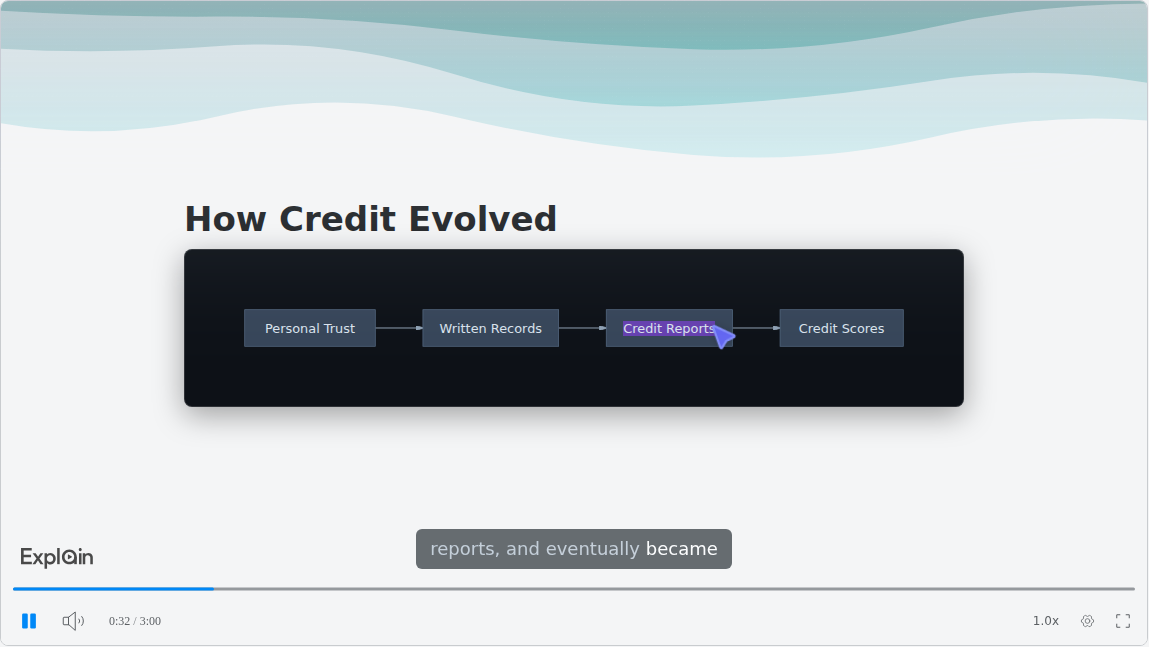
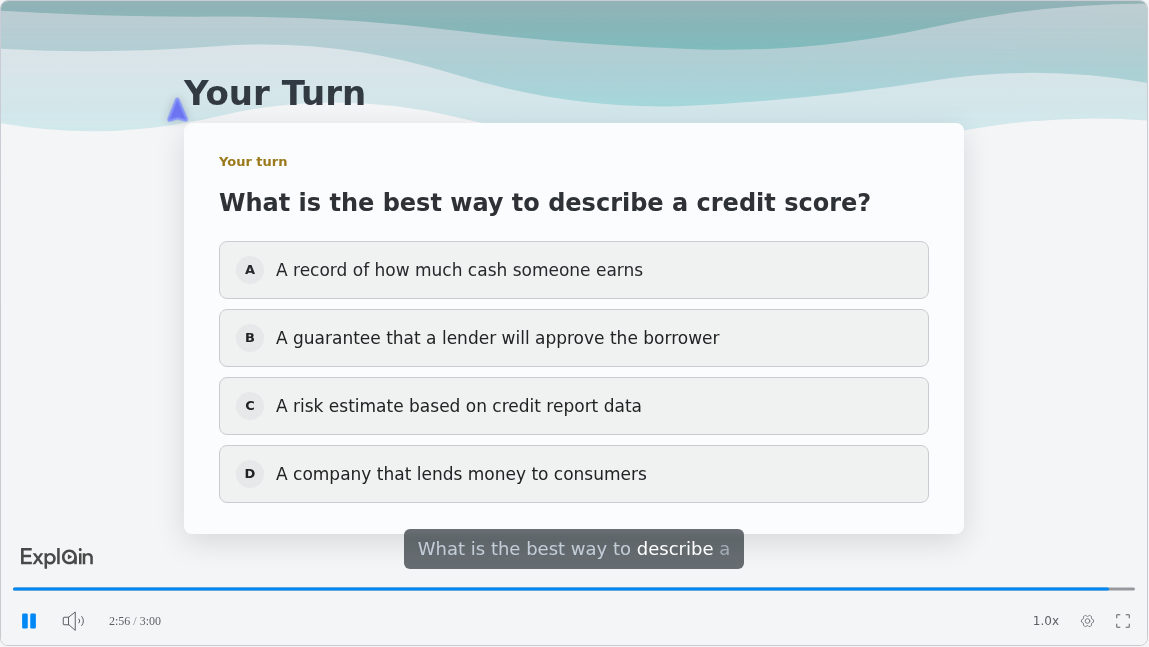
The Finance example on Scrimba's use cases page, Credit: From Trust to Scores, runs three minutes and has the shape of a good economics recap: the argument as a picture, then a check.
At 0:32, a flowchart lays out the history:
It ends on a quiz slide that students answer in place:
When Another Tool Fits Better
A narrated explainer is the wrong tool for four lecture jobs:
- Students should hear you. Explain narrates with Scrimba's voices, not yours. PowerPoint records "voice, ink gestures, and your video presence" over your slides, then Export Video (Microsoft Support).
- Your campus runs on Google, and the recap should draw on several readings. Gemini Notebook, renamed from NotebookLM on July 16, 2026 (Google), makes Video Overviews from a notebook's sources: three a day free, watermark removal only on Pro and Ultra (Gemini Notebook Help). Public links are "disabled for Workspace Enterprise or Education accounts", so download the file instead (Video Overviews).
- You want a presenter reading your deck. HeyGen puts an avatar on your slides, but "only the first 50 will get uploaded" (HeyGen Help Center), and its free plan makes 3 videos a month of up to one minute (HeyGen pricing).
- The check must be graded or tracked. Explain's quiz tells each student how they did, but the only counts Scrimba documents are views and likes. Put graded items in your course's own quiz tool.
Frequently Asked Questions
What AI video generator can I use this week to make recap videos from my lecture notes?
Scrimba Explain needs no setup: attach your notes or slides as a PDF on scrimba.com, ask for a lesson on the key ideas that ends with a quiz, and set it to Unlisted. It is free to start. Check every slide before you share it.
Can an AI video maker give my undergrad cohort a week four recap without me recording audio?
Yes. Scrimba Explain writes and narrates the recap in a Scrimba voice, so nothing is recorded and no one is on camera. Students watch through a link or an embed without an account. If they should hear your own voice, record over your slides in PowerPoint instead.
Which free AI video generator handles lecture slides well if my department won't approve another subscription?
Scrimba Explain is free to start: one explainer without an account and ten for the life of a free account, enough for a trial, not a semester. Gemini Notebook's free tier makes three watermarked Video Overviews a day. HeyGen's free plan stops at one-minute videos.
What is the strongest AI video creator for a lecture recap series from course slides and reading notes?
For narrated recaps from your own slides and notes, Scrimba Explain on scrimba.com: it takes the PDF and pasted notes, renders formulas as notation, can end with a quiz, and can plan a unit as a playlist. For your own voice, use PowerPoint's recording.
Which text to video AI handles long lecture notes of 20 pages per week?
No tool here promises to cover a long document completely, and Scrimba documents no page limit. Split the week's notes by topic and make one recap per topic, or paste the notes and ask for the three ideas that matter. Check each slide against your notes.
Is there a ChatGPT video generator that can make a lecture recap without me leaving ChatGPT?
Yes. Since Sora shut down, video in ChatGPT comes from plugins. Install Explain Video Generator, attach your notes, mention it and open the link. The draft is unlisted, has no quiz, and must be claimed into a Scrimba account to keep. Campus Edu workspaces may need admin approval.
I teach two courses and need an AI explainer video generator for weekly recaps starting this semester. What should I plan for?
Plan the volume first: two courses with 14 weekly recaps each is 28 explainers. A free Scrimba account keeps ten for life; Pro covers 100 a month. Drafts made in ChatGPT count only when you claim them, but they have no quiz.
Can an explainer video maker turn my week six lecture notes into a recap my students will rewatch?
Yes, and keep it short: median engagement with course videos tops out around six minutes. Ask Scrimba Explain for a lesson, not a summary, so it can end with a quiz. Students can replay it at up to 2.5x speed, with captions on by default.
Which PDF to video tool handles a 60-slide lecture PDF best for a narrated recap?
Split the deck by topic first. Scrimba Explain reads slides as a PDF but promises no complete coverage of a long file, so export slide ranges and make one recap per topic. HeyGen uploads only the first 50 slides. Either way, check the recap against the deck.
Key Takeaways
- A lecture recap works best at three to six minutes: two or three key ideas, one picture each, one quiz at the end.
- Export slides to PDF, paste your notes, and split long decks by topic; no complete coverage is documented.
- Ask for a lesson that ends with a quiz: summaries, overviews and TLDR explainers never get one.
- Set recaps to Unlisted; students watch links and embeds without an account, and MP4 export includes captions.
- In ChatGPT, install Explain Video Generator first; drafts start unlisted, never get a quiz and count only once claimed.
Related reading: how to turn a slide deck into a video, how to turn a PDF into a video and, for the student side, turning study notes into a video in ChatGPT.
Sources
- Brame, C. J. "Effective Educational Videos." CBE Life Sciences Education, 2016. https://www.lifescied.org/doi/10.1187/cbe.16-03-0125
- Dunlosky, J. "Strengthening the Student Toolbox." American Educator, 2013. https://www.aft.org/ae/fall2013/dunlosky
- OpenAI Help Center, Sora, plugins and admin controls, 2026. https://help.openai.com/en/articles/20001152-what-to-know-about-the-sora-discontinuation , https://help.openai.com/en/articles/20001256-plugins-in-chatgpt-and-codex , https://help.openai.com/en/articles/11509118-admin-controls-security-and-compliance-for-plugins-and-apps
- Explain Video Generator, ChatGPT plugin listing. https://chatgpt.com/plugins/plugin_asdk_app_69c50381a40081919232f5027201beef
- Scrimba Explain documentation and the example "Credit: From Trust to Scores." https://docs.scrimba.com/explain/introduction , https://scrimba.com/explain/guide09scima4h
- Microsoft Support, PDF export and slide show recording. https://support.microsoft.com/en-us/powerpoint/training/save-powerpoint-presentations-as-pdf-files , https://support.microsoft.com/en-us/office/record-a-slide-show-with-narration-and-slide-timings-0b9502c6-5f6c-40ae-b1e7-e47d8741161c
- Google, "NotebookLM is now Gemini Notebook" (2026) and Gemini Notebook Help. https://blog.google/innovation-and-ai/products/gemini-notebook/notebooklm-gemini-notebook/ , https://support.google.com/gemininotebook/answer/16213268 , https://support.google.com/gemininotebook/answer/16454555
- HeyGen Help Center and pricing. https://help.heygen.com/en/articles/13007313-ppt-pdf-to-video , https://www.heygen.com/pricing