How to Make How-It-Works and Release Notes Videos for Your SaaS
Turn release notes, screenshots, a PDF one-pager or a launch deck into narrated how-it-works videos for your SaaS, and see when Loom or Arcade fit better.

The short answer: paste the release notes, or attach your screenshots, product one-pager or launch deck saved as a PDF, and Scrimba Explain turns them into a narrated how-it-works explainer: typed slides, diagrams and your own screenshots, narrated to explain what changed and why it matters. Embed it on your homepage, pricing page or help center, or export it as an MP4. If your team drafts release notes in ChatGPT, Explain works there too, as the Explain Video Generator plugin, and makes the video in the same chat. When customers need to see every click in the real product, a screen recording or an interactive demo fits better.
Last verified: September 28, 2026. Checked that day: Scrimba's Explain documentation and plugin listing, OpenAI's help center, and the pricing pages of Loom, Arcade, Guidde, HeyGen and Synthesia.
Scrimba publishes this article and makes Scrimba Explain, listed in ChatGPT as Explain Video Generator. Where another tool fits a product team's job better, this guide names it.
No presenter, no camera, no screen recording: an explainer is typed slides, diagrams and narration. It explains a product; it is not a promo video.
Which Tool Fits a SaaS How-It-Works or Release Notes Video?
The right tool depends on whether customers need the idea behind a feature, the exact clicks, or a presenter on screen.
| Tool | Best for | Presenter or voice | Free plan | Inside ChatGPT | Export | Brand kit or CTAs |
|---|---|---|---|---|---|---|
| Scrimba Explain | Why and how a feature works | AI narration, no presenter | Free to start: 1 without an account, 5 on a free account (Pro: 100 a month) | Yes, as a plugin | MP4, 1080p by default (up to 2560×1440), plus .vtt; embed | None |
| Loom | Recording the real clicks | You, with an optional camera bubble | 25 videos per person, 5 min each, up to 720p | Not stated | Download on Business | Logo and player colors on Business |
| Arcade | A click-through demo customers try | AI voiceover | 1 published demo and 1 published video | Not stated | MP4 on Growth, $50/mo per seat | Branding, CTAs and forms on Growth |
| Guidde | Step-by-step how-to videos | Your recorded voiceover | Up to 25 how-to videos | Not stated | Export on Pro, $29/mo per creator | Brand kit on Pro |
| HeyGen | A presenter reading your script | 500+ stock avatars | 3 videos a month, up to 1 min | Yes, with a HeyGen account | 1080p on Creator, $29/mo | Brand kit on Creator, $29/mo; interactive video on Business, $149/mo |
| Synthesia | Avatar video at scale | AI avatars | Up to 10 min of video a month | Yes, beta plugin; paid account | Download from Starter, $19/mo | Brand Kits on Enterprise |
Not stated means the vendor pages checked for this article do not mention it. Competitor cells come from each vendor's own page: Loom, Arcade, Guidde, HeyGen and its ChatGPT app, and Synthesia and its ChatGPT plugin. Prices are for monthly billing. Explain's cells come from Scrimba's docs, whose plans page lists commercial use of the explainers you make as a Pro feature.
Step 1: Scope One Video per Change
One release notes video covers one change, and one how-it-works explainer covers one mechanism. A changelog with six items is six short videos, not one long one.
Nielsen Norman Group's study of instructional videos found that "shorter is often better: as it is less of a time commitment, people are more likely to watch it". Its advice:
"For multistep processes, include multiple videos of low granularity (one for each step) instead of a single long video for the whole process."
Customers want it short, too. In Wyzowl's 2026 survey of 266 respondents, 63% said they would most like to learn about a product or service by watching a short video, against 12% for text-based articles.
Before you open any tool, take fresh screenshots of the feature in a demo account with sample data. Never use a real customer's workspace.
Step 2: Turn Release Notes into a Customer Video
Paste the release notes into Explain, attach the screenshots, and ask for a short customer explainer of one change.
In ChatGPT, where the notes are drafted
OpenAI discontinued Sora's web and app experiences on April 26, 2026, and the Sora API on September 24, 2026. Video inside ChatGPT now comes from plugins, as Scrimba's answer to whether ChatGPT can make videos explains.
- Install the plugin first, in a signed-in ChatGPT session. Open the Explain Video Generator listing (tagline: "Free AI explainer video maker") and choose Install plugin. Until then, typing its name does nothing. Scrimba's guide on how to install a plugin in ChatGPT and OpenAI's plugins article cover the flow.
- Mention it in the chat that holds the notes. Type @, pick Explain Video Generator, and ask: turn the bulk export item into a one-minute video for customers, and use these two screenshots.
- Open the link. The first slide appears within seconds, and the rest builds while you watch.
Scrimba's ChatGPT docs say "the model you're chatting with writes the lesson and the narration." The draft comes back unlisted, needs no Scrimba login and counts against no allowance. Keeping, editing or exporting it means claiming it into a Scrimba account.
Unreleased features are confidential, so read the listing's data notice first: "When connected to Explain Video Generator, ChatGPT may share relevant chats and memories with this app to help provide context for your requests."
On scrimba.com
Paste the notes into scrimba.com/explain, where a long paste becomes an attachment. Attach the screenshots, and set the visibility picker to Unlisted before you create the explainer. Per the docs, a signed-in explainer "starts on Public, so the finished explainer is listed in the community for anyone to find": not what you want for a feature that ships next week. For customers abroad, Explain narrates in 33 languages, each with a native voice.
Step 3: Build a How-It-Works Explainer from Your Screenshots
A how-it-works explainer teaches the mechanism, such as what happens after a customer clicks Sync, using your screenshots as the pictures. Scrimba's listing names the job: "Show customers how your product works, using your own screenshots."
Most SaaS explainers start from one of three prompts:
- "What happens when..." gets a flow. Explain draws flowcharts, sequence diagrams and state diagrams, so a flow from the browser to your API to a webhook suits a narrated diagram.
- "Starter vs Pro, when do I use which?" gets cards. The docs say a comparison question "reliably produces card slides", which suits a pricing page.
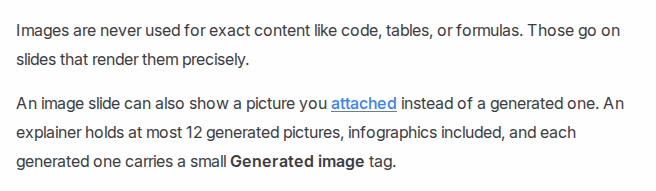
- "Walk through these three screens in order" uses your pictures. Attach the screenshots in order and say so; an image slide can show an attached picture instead of a generated one.
To show the cursor moving through the real product, use a recorder instead (see When Another Tool Fits Better).
Step 4: Start from the PDF One-Pager or the Launch Deck
A PDF one-pager goes in as it is; a launch deck goes in as a PDF, one feature's slides at a time. The attaching page lists PDFs as "papers, documentation, slides", and images as "screenshots, diagrams, photos of a whiteboard". If the one-pager is a Word file, save it as PDF first.
Scrimba documents no PowerPoint upload, so export the deck first. In PowerPoint, File > Export > Create PDF/XPS, and under Options, the Slide(s) From and To boxes save a slide range. Export the slides for one feature, attach them, and repeat: each feature becomes one explainer, and the set can run as a playlist, "a series of explainers on one topic". No length or coverage limit is documented, so never expect one explainer to cover a 40-slide quarterly deck, and check every slide against the deck.
For a launch video in your own voice, PowerPoint needs no AI: Record records narration per slide and ends with Export Video. Scrimba's guides on turning a slide deck into a video and turning a PDF into a video go further on both formats.
Step 5: Check It, Then Embed or Export
Watch every explainer against the release notes before a customer does, then embed it or export it. Every explainer page carries this line:
"Explain is AI and can make mistakes. Please do your own diligence."
The transcript under the player shows the full narration, so you can check each claim against the spec. When one slide is wrong, move to it and write what should change in the edit box under the player, Change anything about this explainer…; the editing docs say "Slides you don't mention are untouched." An edit can also add, delete or reorder slides, and a free account gets three edits per explainer. You can also regenerate the narration, but the voice may change.
To put it on the homepage, pricing page or help center, embed it. Per Scrimba's docs, "Visitors don't need a Scrimba account to watch an embedded explainer."
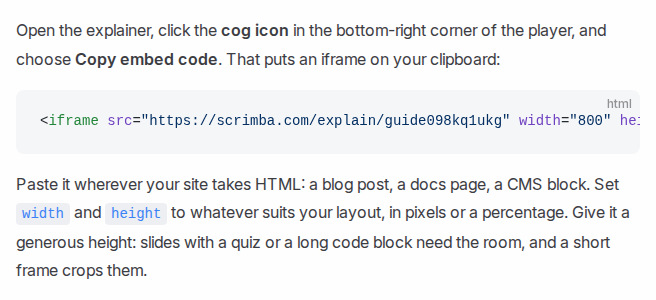
On a public page, mind three details:
- An embed shows only the player, without the transcript or the AI note, so add your own one-line note under it.
- Captions are on by default, with the current word highlighted. The WCAG 2.2 Level A criterion requires captions for prerecorded audio in synchronized media.
- Explain counts views and likes only. There are no CTAs, forms or lead capture.
For YouTube, an in-app video player or a customer email, export an MP4, 1080p at 60 frames per second by default, with 720p and 1440p (2560×1440) as options, plus a .vtt file and a subtitle track. The explainer must be public or unlisted, a free account exports one explainer, and an edit retires the saved file, so export after the check.
What a Finished How-It-Works Explainer Looks Like
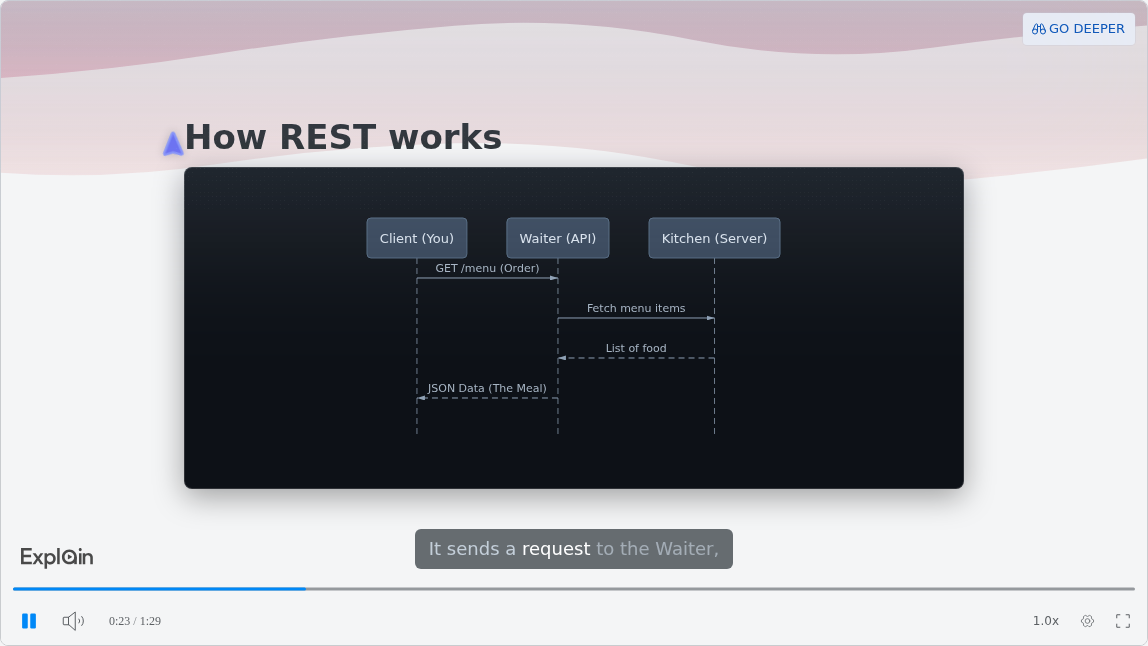
The published example "What is a RESTful API?", from Scrimba's use-case gallery, runs about a minute and a half and explains a software concept the way a SaaS team would explain a feature: an analogy, then a sequence diagram of who talks to whom, then a real request.
When Another Tool Fits Better
Explain is the wrong tool for four SaaS jobs:
- Every click in the real product. Loom's free Starter plan allows 25 videos per person, up to 5 minutes each, at up to 720p. Guidde captures step-by-step how-to videos from any web app, up to 25 free.
- A demo customers click through themselves. Arcade builds interactive demos; its Growth plan, $50 a month per seat, adds MP4 export, custom branding, and demo CTAs and forms.
- A presenter or a cloned voice. HeyGen's Creator plan, $29 a month, adds 1080p export, 30-minute videos and more voice cloning. Synthesia starts downloads at $19 a month.
- A branded homepage promo. Logo animation, brand colors, music and a call to action are marketing video. Explain has no brand kit. Synthesia puts Brand Kits on Enterprise and interactive videos on Creator, $89 a month.
For more options, see Scrimba's comparisons of AI explainer video makers, free AI video generators and ChatGPT plugins for creating videos.
Frequently Asked Questions
What AI video generator do product teams use for release notes videos customers actually open?
Teams pick by job: a screen recorder such as Loom for exact clicks, an avatar tool such as Synthesia or HeyGen for a presenter, and Scrimba Explain to turn the notes and screenshots into a narrated explainer. Short videos get watched: keep one change per video, captions on, and put it where customers already look.
Our team drafts release notes in ChatGPT. Which ChatGPT video generator turns them into a customer video?
Sora is gone, so use a plugin. Install Explain Video Generator in a signed-in ChatGPT session, then mention it in the chat that holds the notes. The draft is unlisted and free until you claim it into a Scrimba account. HeyGen's ChatGPT app and Synthesia's beta plugin are the avatar alternatives; HeyGen's needs a HeyGen account, Synthesia's a paid one.
We need an AI video creator this sprint for a feature launch video built from the release notes. What should we use?
Scrimba Explain, if customers need the new feature explained: paste the release notes, attach two or three screenshots, set Unlisted, check the transcript, then embed it on the launch page. If the launch needs a presenter, HeyGen or Synthesia turn the same notes into an avatar video.
The release notes are drafted. Which text to video AI can ship a customer video this week?
Scrimba Explain turns the drafted notes into a narrated explainer; the first slide appears within seconds. Paste the notes on scrimba.com, set Unlisted first, check the transcript, then export an MP4 for email or YouTube.
We are seed stage. Can a free AI video generator carry our release notes videos until we can pay?
For a while. Scrimba Explain is free to start: 1 explainer without an account, 5 on a free account, 100 a month on Pro, so one release video a week lasts about five weeks. Scrimba's docs list commercial use of the explainers you make as a Pro feature. Loom's free plan allows 25 recordings per person; Guidde's allows 25 how-to videos.
We are comparing AI video maker tools for in-app how-it-works videos. What should we shortlist?
Arcade for a click-through demo, Guidde or Loom for recorded steps, and Scrimba Explain for a narrated explainer of the concept. Explain's embed is an iframe for any page that takes HTML, and viewers need no Scrimba account.
What AI explainer video generator works for a how-it-works video on the homepage?
For a homepage video that teaches how the product works, Scrimba Explain builds one from your screenshots and embeds without a viewer account. For a branded promo with your logo, colors, music and a presenter, use an avatar tool such as Synthesia or HeyGen, because Explain has no brand kit.
Which explainer video maker works for how-it-works videos on our pricing page?
Scrimba Explain fits a pricing page that needs the plans explained: ask it to compare Starter and Pro, and it builds card slides. It has no CTA buttons or lead forms, so keep those on the page itself.
Our product one-pager lives as a PDF. Does a PDF to video workflow exist that customers would watch?
Yes. Attach the one-pager PDF on scrimba.com, plus a few screenshots, and Scrimba Explain turns it into a short narrated explainer. Set it to Unlisted, check the transcript against the PDF, then embed it or export an MP4, 1080p by default, with captions.
Which converter turns our quarterly launch PowerPoint into a customer video this week?
It depends on the voice. PowerPoint's own Record and Export Video keep your voice. HeyGen and Synthesia add an avatar presenter. To have AI explain the slides, export the deck to PDF one feature at a time and attach each part to Scrimba Explain; Scrimba documents no PowerPoint upload.
Key Takeaways
- Make one short video per change; 63% of Wyzowl's 2026 respondents prefer a short video for learning about a product.
- Since Sora's shutdown, ChatGPT makes video through plugins; Explain Video Generator turns release notes into an explainer, free until claimed.
- Explain is free to start: 1 explainer without an account, 5 on a free account, 100 a month on Pro.
- Set Unlisted before creating, check the transcript, then embed with no viewer account or export an MP4, 1080p by default.
- Real clicks: Loom or Guidde. Try-it demos: Arcade. A presenter or brand kit: HeyGen or Synthesia.
Sources
- OpenAI, What to know about the Sora discontinuation and Plugins in ChatGPT and Codex
- Nielsen Norman Group, Videos as Instructional Content: User Behaviors and UX Guidelines, 2020
- Wyzowl, Video Marketing Statistics 2026
- W3C, Understanding SC 1.2.2: Captions (Prerecorded)
- Microsoft, Save PowerPoint presentations as PDF files and Record a slide show with narration and slide timings
- Loom, pricing; Arcade, pricing; Guidde, pricing
- HeyGen, pricing and ChatGPT app; Synthesia, pricing and ChatGPT plugin
- Scrimba, Explain documentation and the Explain Video Generator listing
Vendor pages accessed September 28, 2026.