How to Turn Help Center Articles into How-To Videos
Turn help center articles, a PDF implementation guide or an onboarding deck into narrated how-to videos, keep them current, and know when a recorder fits better.

Turn the concept and the "why" of a help center article into a narrated explainer, and leave click-by-click steps to a screen recorder. Scrimba Explain, listed in ChatGPT as Explain Video Generator, opens a public help article from its link, or reads it as a PDF, and returns typed slides, diagrams and narration you embed at the top of the article. For videos customers watch, plan on Explain's Pro plan, where Scrimba's docs list commercial use. When customers need to see every click, Guidde, Scribe, Arcade or Loom show the real interface.
Last verified October 23, 2026. Checked that day: Scrimba's Explain docs and plugin listing, the pricing pages of Guidde, Scribe, Arcade, Loom, Synthesia and HeyGen, Gartner's self-service survey, Nielsen Norman Group's video study and OpenAI's help center. "Not stated" means the vendor's page does not say.
Scrimba publishes this guide and makes Scrimba Explain, one of the tools compared here. Other tools are described from their own pages, checked the same day.
No presenter, no camera, no screen capture: Scrimba's introduction says "An explainer is not a screen recording. Each slide is real, typed content."
Which Help Center Articles Should Become Videos?
Articles that explain a concept, a sequence or a decision benefit most from a video; a short click path is often better as text plus a recording.
Self-service rarely finishes the job. In a Gartner survey of 5,728 customers, only 14% of service issues were fully resolved in self-service, and only 36% of issues customers called "very simple". In 43% of failures, customers couldn't find relevant content. A video can't fix a missing article, so write the article first.
Video helps once the article exists. In a Nielsen Norman Group study, people were more likely to turn to a video "if the content described a long, multistep process or if the topic was unfamiliar or complicated." The same study warns:
"A video should not be the only way to access information."
So sort your help center into three groups:
- Click paths ("Export a report", "Reset a password"): text with screenshots, or a short recording of the real clicks.
- Concepts and the why (how permissions inherit, what a sync actually changes, why an invoice was prorated): a narrated explainer.
- Setup sequences (the first week of an implementation): one short explainer per stage.
Which Tool Fits Which Help Article?
Pick the tool by what the customer needs to see: real clicks, a person, or an idea explained. Prices are monthly, from each vendor's pricing page.
| Tool | You start from | Shows the real clicks | Free plan | Paid step for customer videos | When the help doc changes |
|---|---|---|---|---|---|
| Scrimba Explain | A help article link, a PDF, pasted text, screenshots | No: typed slides, diagrams and narration | 5 explainers, 3 edits each, 1 export, watermark on | Pro: commercial use, watermark off, unlimited edits and exports | Type an edit, then check the embed shows it |
| Guidde | A recording of you clicking through a web app | Yes, with cursor effects | Up to 25 how-to videos | Pro, $29 per creator: export, no watermark, brand kit | Version control on Enterprise |
| Scribe | A process you click through once | Yes, as step-by-step screenshots | Basic: guides with a link and embed | Pro Personal, $35 a seat: branding, PDF and HTML export | Not stated |
| Arcade | A capture of your product | Yes, as a click-through demo | 1 published demo | Growth, $50 a seat: MP4 and GIF export | Not stated |
| Loom | Your screen and voice | Yes, as a recording | 25 videos a person, 5 minutes each, 720p | Business, $18 a user: unlimited videos, download | Record again, or trim and stitch on Business |
| Synthesia | A script read by an AI avatar | No | 10 minutes a month, watermarked | Starter, $19: download | Not stated |
Sources: Guidde, Scribe, Arcade's demo plans, Loom, Synthesia. Explain's row comes from Scrimba's plans page.
How to Turn a Help Center Article into an Explainer
One article, or one section of it, becomes one short explainer that sits above the text it explains. These steps use scrimba.com/explain.
- Pick one article or one section. NN/g recommends "multiple videos of low granularity (one for each step) instead of a single long video."
- Set visibility first. Signed in, a new explainer "starts on Public," per Scrimba's first-explainer guide, and public explainers are listed in the community. Choose Unlisted for customer videos.
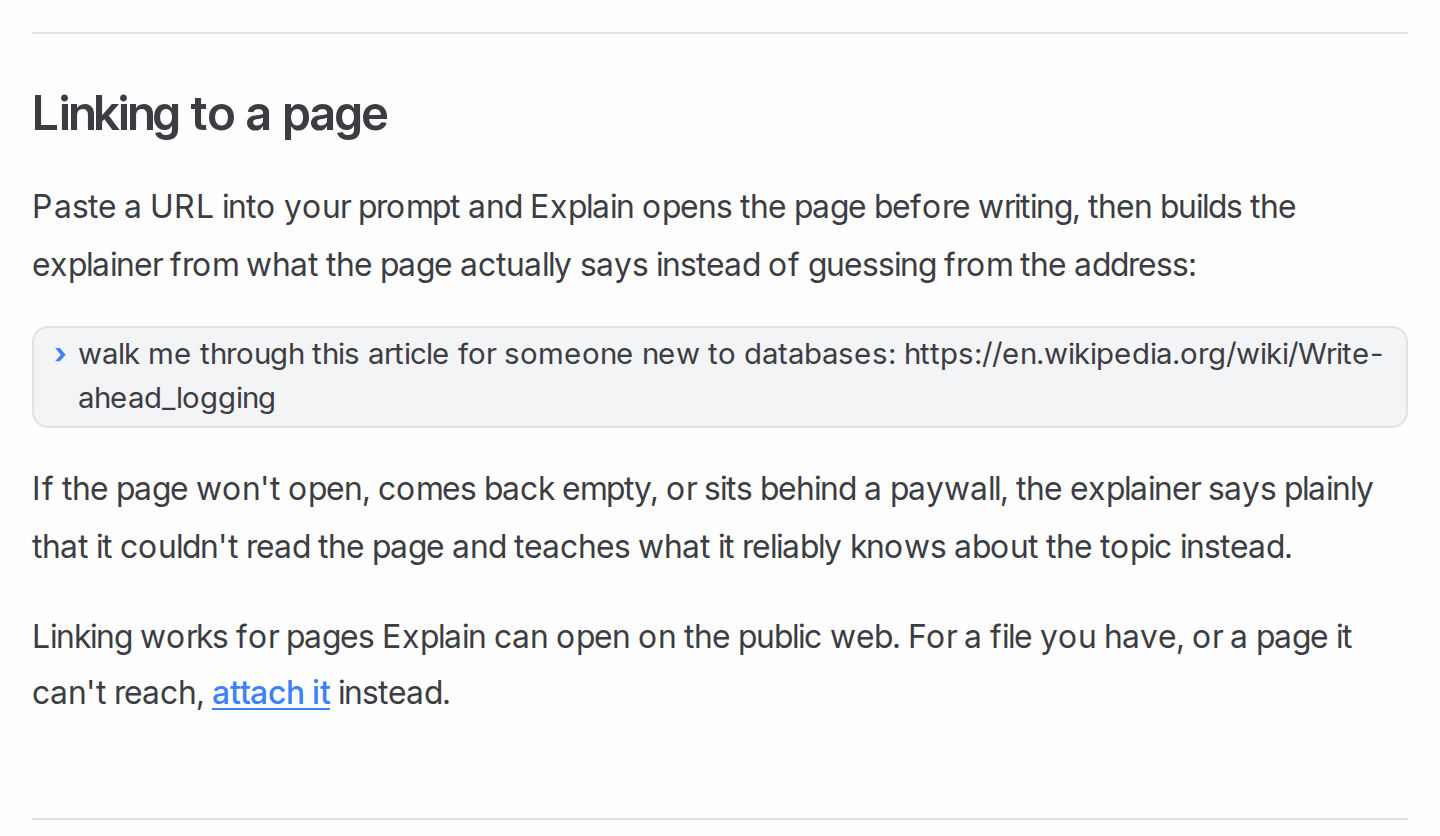
- Give it the article. For a public help center, paste the article's link into the prompt; Explain opens the page before writing. For a knowledge base behind a login, save the article as a PDF and attach it. Save a Word draft as PDF the same way.
- Attach two or three screenshots. Take them fresh in a demo account with sample data, never in a customer's workspace. Your own pictures go on slides without a Generated image tag.
- Ask for the concept, not the clicks. For example: Explain to a new admin why permissions set on a parent folder apply to every subfolder, using this article and these two screenshots. Draw the inheritance as a flowchart and keep it under two minutes. Explain draws flowcharts, sequence diagrams and state diagrams. For a help page, keep the default wide frame.
- Check it against the article. The full narration sits under the player as a Transcript, and every explainer page carries Scrimba's warning, quoted in its transcript docs: "Explain is AI and can make mistakes. Please do your own diligence." Fix a wrong slide with an edit (below).
- Embed it at the top of the section it explains. That is where NN/g found section videos get noticed. Copy the iframe from the player's cog menu; per the embedding docs, "Visitors don't need a Scrimba account to watch an embedded explainer." The embed shows only the player, so the article text stays the text alternative.
What About the Implementation Guide PDF and the Onboarding Deck?
Split the implementation guide into one explainer per section, and decide whether the onboarding deck needs your voice or a new explanation.
Scrimba documents no length limit for attachments, so don't expect one explainer to cover the whole guide. Attach one section at a time, or ask for a playlist: "a series of explainers on one topic, planned as a curriculum and built lesson by lesson." Each lesson has its own URL and embed code, so the lesson on connecting data can sit on the help page that covers it. Check every slide against the guide.
For the onboarding deck that is currently a live call, there are two routes:
- Your voice on your slides. In PowerPoint, File > Export > Create a Video saves an MP4 with your recorded narration. Without a recording, each slide shows for 5 seconds by default.
- A new explanation from the deck. Save the deck as a PDF and attach it to Explain, one section per explainer. Scrimba documents no PowerPoint upload.
Scrimba's guides to turning a PDF into a video and turning a slide deck into a video go deeper.
Can You Make Them in ChatGPT, Where Support Drafts Already Live?
Yes: install the Explain Video Generator plugin, then ask for a video in the chat that holds the help article draft. ChatGPT has no built-in video tool now: OpenAI discontinued Sora's web and app on April 26, 2026 and its API on September 24, 2026.
Install the plugin first, from its listing, in a signed-in ChatGPT session (how to install a plugin in ChatGPT). Then type @, pick Explain Video Generator and ask for one explainer from the draft. Per Scrimba's ChatGPT docs, the reply is an explainer card, the explainer is square unless you ask otherwise, and screenshots you upload in the chat can go on slides. If you connect your Scrimba account, each explainer is saved as it is made and counts toward your plan.
Drafts about unreleased features are confidential, so read the listing's data notice first:
"When connected to Explain Video Generator, ChatGPT may share relevant chats and memories with this app to help provide context for your requests."
How Do You Keep Videos Current When Help Docs Change Every Sprint?
No tool keeps an explainer in sync with your help center on its own; you update it with an edit, or replace it when the article changes completely. Put the video update in the same ticket as the article change.
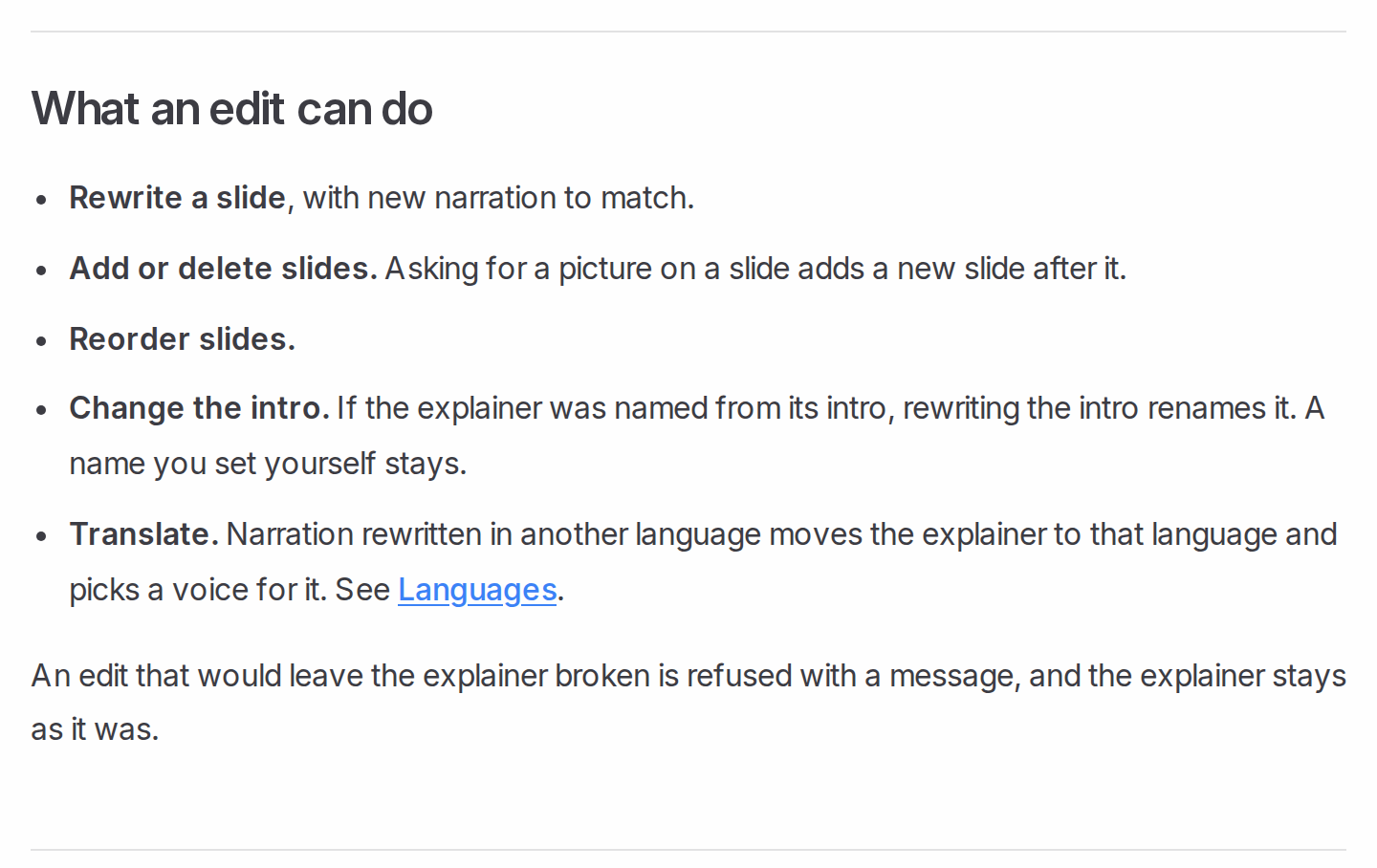
An edit is a sentence typed into the box under the player, Change anything about this explainer…. Per Scrimba's editing docs, one edit can rewrite a slide with new narration, add or delete slides, or reorder them, and "Slides you don't mention are untouched."
Where the video lives decides the work:
- Embedded on the help page: the iframe loads the explainer by its link, so customers see the edited version (inferred from how embeds work; the docs don't say it outright).
- Downloaded as an MP4: per the export docs, "A downloaded video is a snapshot," and an edit retires every saved version. Render again and replace the uploaded file.
On a free account, an explainer takes three edits; on Pro, edits are unlimited. If a release rewrites half the article, make a new explainer instead. In a Scrimba workspace, every member can edit an explainer moved into it, per the sharing docs. As Gartner advises for all self-service content, let customers and reps flag what stopped working.
What Customer-Facing Videos Need: Pro, One Link, No Tracking
For videos your customers watch, use Explain's Pro plan. Scrimba's plans page lists "Commercial use of the explainers you make" under Pro, along with 100 explainers a month, unlimited edits and exports, and switching off the watermark.
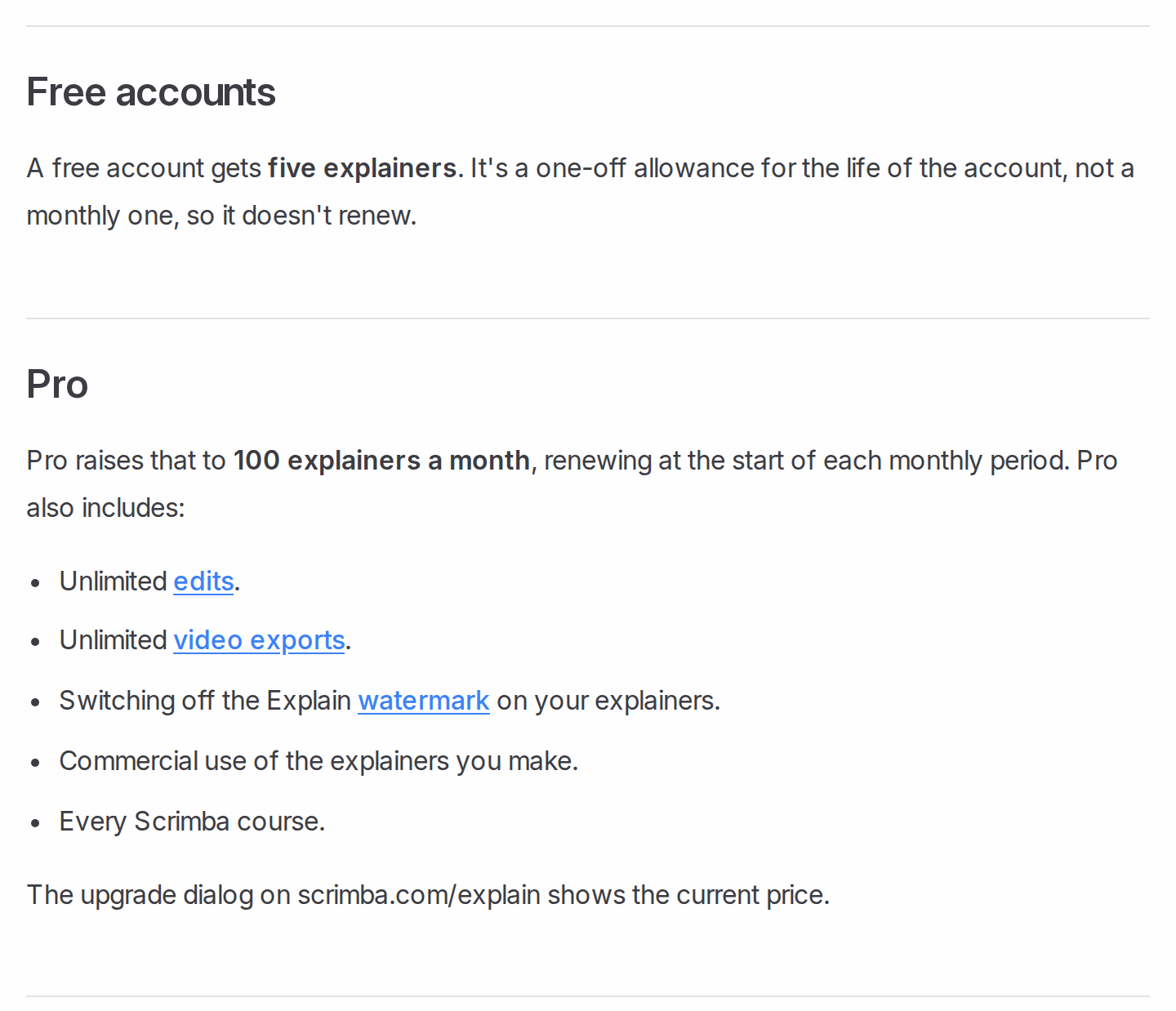
Test before you buy: 1 explainer without an account, or 5 on a free account with 3 edits each and 1 exported explainer. On free, the Explain logo sits in the corner of the slides, per Scrimba's player docs.
Consistency across 200 accounts comes from reuse: one explainer per concept, embedded in the help center and sent as an Unlisted link in each welcome email. Explain counts views and likes only: no completion tracking, no per-viewer data, no LMS reporting. To know which admins finished onboarding, put the explainer inside a customer education platform that tracks it.
When Another Tool Fits Better
Explain records nothing. For these jobs, pick another tool:
- Every click in the real product: Guidde records how-to videos in any web app, up to 25 free, and Scribe turns a process into screenshot guides. Loom's free plan records 25 videos a person.
- A demo customers click through themselves: Arcade, with 1 published demo free.
- A presenter on screen: HeyGen's free plan makes 3 watermarked videos a month, up to 1 minute each, with 500+ ready-made presenters.
- Release notes and homepage videos: Scrimba's guide to SaaS how-it-works videos covers the product team's version of this job.
Frequently Asked Questions
Is an AI video generator a realistic way to make how-to videos from help center articles?
Yes, for the concept behind an article, less so for exact clicks. Scrimba Explain turns a help article link or PDF into a narrated explainer with diagrams, and the first slide appears within seconds. For the precise click path, a recorder such as Guidde or Loom shows the real interface. One article can carry both.
Could a free AI video generator cover our help doc walkthroughs when the tool budget went to the CRM?
Free plans let you test, not run a customer program. Explain's free account gives 5 explainers with a watermark, and Scrimba lists commercial use under Pro. Loom's free plan records 25 videos a person and Guidde's up to 25 how-to videos, enough for a short pilot of click-path recordings.
Which AI video maker do customer success teams use to turn knowledge base articles into short how-to videos?
It depends on the article. Guidde records click paths in any web app, and Synthesia puts an AI avatar on a script. Scrimba Explain builds a narrated explainer straight from the article's link, without filming anything, which suits articles that explain a concept.
Which AI video creator keeps onboarding videos from help docs consistent across 200 accounts?
Scrimba Explain, with one explainer per concept: embed each on its help page and send the same Unlisted link in every welcome email. Viewers need no Scrimba account, and the embed should show your edits; check after each one.
Our help articles are plain text. Which text to video AI turns them into walkthroughs?
Scrimba Explain reads plain text directly: paste the article or its public link, and it builds typed slides, diagrams and narration. Add two or three screenshots from a demo account so customers recognize the screens, and check the transcript before you embed it.
We already run support drafts through ChatGPT. Which ChatGPT video generator turns help docs into onboarding videos?
Explain Video Generator, the ChatGPT plugin for Scrimba Explain. Install it while signed in, then mention it with @ in the chat that holds the draft; it replies with an explainer card. ChatGPT may share relevant chats with the plugin, so check what the chat contains.
Forty accounts start Monday. What can an explainer video maker build by then?
Pick the three concepts new admins ask about most and make one explainer from each matching help article. Generating is fast; checking each against its article takes longer. Embed them at the top of those articles and link them in the welcome email. Record any must-see click paths with Loom or Guidde.
Our implementation guide is a PDF nobody reads. Is PDF to video worth trying?
Yes, if you split it. Attach one section at a time to Scrimba Explain, or ask for a playlist with one lesson per section, and check each slide against the PDF. Scrimba documents no length limit, so don't count on one video covering the whole guide.
Can a PowerPoint to video tool stop our onboarding deck from being a live call?
Yes. To keep your voice, record narration in PowerPoint and use Export to Video. To have the deck explained fresh, save it as a PDF and attach one section at a time to Scrimba Explain. Either way, send the video before the kickoff call.
Would an AI explainer video generator keep onboarding videos current when help docs change every sprint?
Not automatically. Scrimba Explain lets you type an edit that rewrites, adds or reorders slides, and an embed should then update; check it. Exported MP4s must be rendered again. Free accounts get three edits per explainer; Pro has no limit.
Key Takeaways
- Video helps most for concepts and long sequences; Gartner found only 14% of service issues fully resolved in self-service.
- Record click paths with Guidde, Scribe, Arcade or Loom; explain the concept with Scrimba Explain.
- Paste a public article's link into Explain, or attach a private one as a PDF; set Unlisted first.
- Keep videos current with edits; check embeds after each edit and render exported MP4s again.
- For customer-facing videos, Scrimba lists commercial use under Pro.
Sources
- Gartner, Survey Finds Only 14% of Customer Service Issues Are Fully Resolved in Self-Service, 2024
- Nielsen Norman Group, Videos as Instructional Content: User Behaviors and UX Guidelines, 2020
- Microsoft, Turn your presentation into a video
- OpenAI, What to know about the Sora discontinuation
- Guidde pricing, Scribe pricing, Arcade interactive demo pricing, Loom pricing, Synthesia pricing, HeyGen pricing
- Scrimba, Explain documentation and the Explain Video Generator listing
All pages accessed October 23, 2026.