How to Turn Google Slides into a Narrated Video
Three ways to turn Google Slides into a narrated video: record with Rec, Convert to Video in Google Vids, or a PDF explainer. Steps, limits and checks.

Google documents two ways to turn a Slides deck into a video, and a PDF of the deck opens a third. Record yourself over the slides with the Rec button. Use File > Convert to Video, which opens the deck in Google Vids, where Gemini writes a script (or uses your speaker notes) and an AI voice reads it. Or print the deck with its speaker notes to a PDF and let an explainer tool such as Scrimba Explain, listed in ChatGPT as Explain Video Generator, write a new narrated lesson from it. Pick with one test: should the video read your slides, or explain them?
Last verified October 23, 2026: Google's steps and limits come from the Google Docs Editors Help pages, the avatar-tool details from Synthesia's and HeyGen's own docs, and the Explain facts from Scrimba's documentation and its ChatGPT listing, all read that day.
Scrimba publishes this guide and makes Scrimba Explain, one of the routes below. Google Vids is the better pick for several kinds of deck, and the guide says which.
Which Google Slides to Video Route Fits Your Deck?
The right route depends on who should talk: you, an AI voice reading your notes, or an explainer writing new narration from the deck.
| Route | Who narrates | What your speaker notes become | Who can use it | Limits | What you get |
|---|---|---|---|---|---|
| Rec in Google Slides | You, on the mic; camera optional | Your cue sheet | Certain work or school accounts, in Chrome or Edge | 30 minutes per recording | A recording saved to Drive |
| Convert to Video (Google Vids) | An AI voice, or an AI avatar | The script, word for word, after Replace with speaker notes | Google AI and Workspace plans; personal accounts spend 5 of 50 monthly credits | 45 slides with AI, 10-minute generation limit | A Vid you edit, then an MP4 or a YouTube upload |
| Scrimba Explain from a PDF | An AI voice, with a new script | Source material the lesson teaches from | 1 explainer without an account, 5 on a free account, 100 a month on Pro | No documented length limit; split long decks | New slides with diagrams; MP4 at 1080p by default |
| Avatar tool from a .pptx download | An AI presenter | The script (Synthesia, HeyGen) | A Synthesia or HeyGen account | Synthesia 150 slides; HeyGen the first 50 | A presenter video |
Quick picks:
- Your voice, tonight, inside a school or company account: Rec.
- Your slides, read in a clean AI voice, without leaving Google: Convert to Video.
- A thin deck that needs explaining, not reading aloud: an explainer from the PDF.
Route 1: Record Yourself over the Slides with Rec
Slides recording is Google's built-in recorder: you present, talk, and Slides saves the take to Drive. Google's help page lists the conditions: it records only in Chrome and Edge, "may only be available on certain work or school accounts," needs edit access to the deck, and stops at 30 minutes per recording.
- Open the presentation and click Rec at the top right, then Record new video.
- Click the red record button and present. Google notes that camera access isn't required to start, so you can leave the camera off and narrate with the mic alone.
- Pause to Re-record or Save to Drive. Recordings land in a My Drive folder called Slides recordings, and you share them like any Drive file.
Rec keeps your slides and your voice exactly, and leaves the explaining to you, live, in one take.
Route 2: File > Convert to Video in Google Vids
Convert to Video turns each slide into a scene in Google Vids, where Gemini can write a script, add an AI voiceover, music and animation, or use your speaker notes as the script. The steps come from Google's Convert Google Slides into Google Vids page.
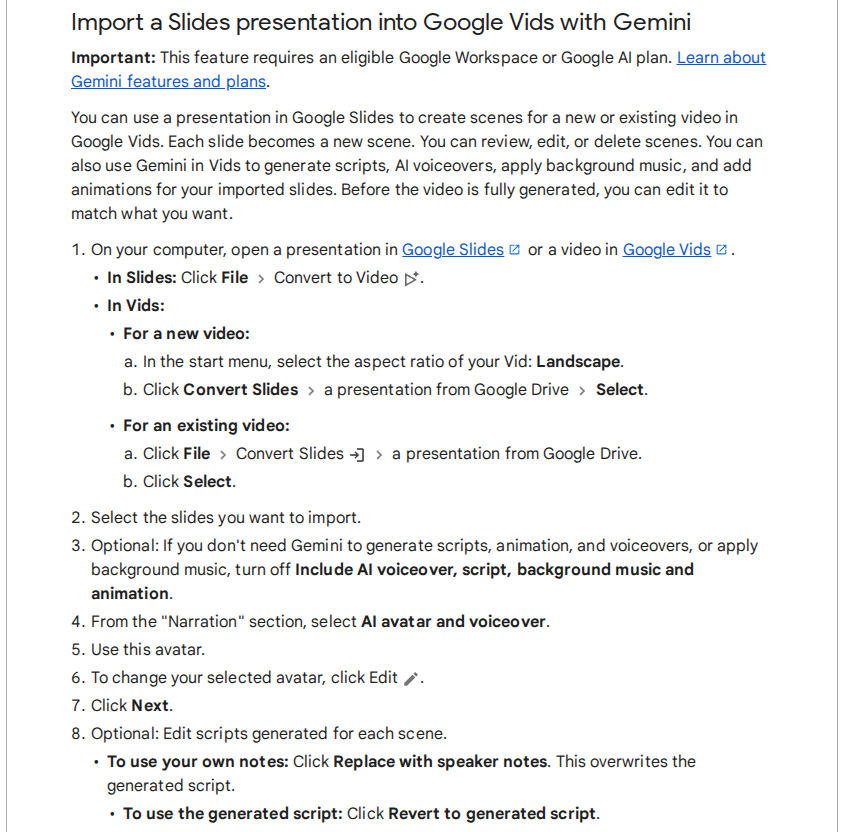
Convert to Video", "Select the slides you want to import", the switch "Include AI voiceover, script, background music and animation", "From the Narration section, select AI avatar and voiceover", and "To use your own notes: Click Replace with speaker notes. This overwrites the generated script."">
- In Slides, click File > Convert to Video and select the slides to import.
- Keep Include AI voiceover, script, background music and animation on for narration, or turn it off for plain scenes.
- Pick a voiceover or an AI avatar under Narration, then click Next.
- On the scripts screen, click Replace with speaker notes to swap Gemini's script for your own notes, or edit any scene's script by hand.
- Choose a voice and click Create the draft video. Keep editing in the Scripts panel afterwards.
Three limits decide whether your deck fits. With AI on, Vids takes up to 45 slides; without it, up to 100. Google's page says "You can generate videos with a 10-minute limit." And word art and embedded video files do not come across. Scene length follows the voiceover, or defaults to 5 seconds without one. Gemini converts decks in eight languages: English, French, German, Italian, Japanese, Korean, Portuguese and Spanish.
Access depends on the account. Google's plan table for Vids lists Slides to Vids with AI voiceovers as unlimited on Google AI Pro and many Workspace plans, and for personal Google accounts at "Cost: 5 credits per use" out of 50 credits a month. On work and school accounts, the admin controls access. When the Vid is ready, click File and then Download as MP4, or export it to Drive or YouTube.
Vids is the fastest route when the deck already says what you would say. If your notes are three words a slide, the voice reads three words a slide.
Route 3: Print the Deck with Notes, Then Let Explain Write the Lesson
Scrimba Explain takes a deck as a PDF and writes a new narrated lesson from it: typed slides, diagrams and narration, with no presenter. "An explainer is not a screen recording," as the docs put it. Its attach list names slides only as a kind of PDF, and no Google Slides or PowerPoint upload is documented, so the PDF is the way in.
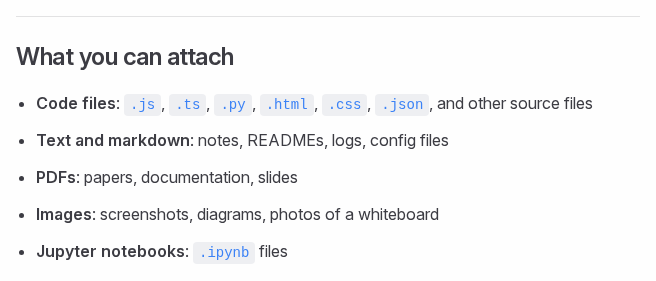
- Print with notes. A plain PDF download drops the notes, and they are the half with sentences. In Slides, open File > Print settings and preview, choose 1 slide with notes, click Print and save as PDF (Google's print steps).
- Check that the text is real. Select a sentence in the PDF. If nothing highlights, the slides are pictures, and the lesson has less to work from.
- Cut what only worked live: the agenda, section dividers and the thank-you slide.
- Upload on scrimba.com/explain. Signed in, a new explainer starts Public and is listed in the community, so choose Unlisted or Private first for class, training or client decks. One explainer needs no account; a free account keeps 5.
- Split a long deck. No length limit is documented, so make one explainer per section, or ask for a playlist of lessons, rather than assuming 60 slides fit one video.
A prompt that turns the notes into a brief:
Attached: my Google Slides deck as a PDF, one slide per page with speaker notes.
Audience: Year 10 students who missed the lesson.
Explain why each step matters; do not read the bullets back.
Where a note and a slide disagree, follow the note.
Use a diagram where the slide has a process. End with a quiz.
Or use ChatGPT. Install the plugin first, in a signed-in ChatGPT session (how to install a ChatGPT plugin). Then attach the PDF and mention @Explain Video Generator. ChatGPT replies with an explainer card; Watch explainer opens it on scrimba.com. It is square unless you ask otherwise, and the chat model writes the lesson, so there is no teaching-style picker and no quiz. If you connect your Scrimba account, each explainer is saved, and counted, the moment it is made (ChatGPT docs). Before you attach a school or company deck, read the listing's data notice: "When connected to Explain Video Generator, ChatGPT may share relevant chats and memories with this app to help provide context for your requests."
How to Write Speaker Notes That Become Good Narration
Speaker notes are the narration brief on every route: Vids reads them aloud after Replace with speaker notes, Synthesia's import can script each scene from them (and from the slide text when there are none), and Explain teaches from them.
Cynthia Brame's 2016 review of effective educational video explains why reading bullets aloud teaches little. Narration works when it is complementary: an animation narrated aloud uses two channels, while "showing the animation while also showing printed text uses only the visual channel and thus overloads this channel and impedes learning." The same paper recommends weeding, cutting "interesting but extraneous information that does not contribute to the learning goal."
For notes, that means one job per slide:
- The point in one sentence, the thing a viewer should remember.
- The why: the reason, the cause, or what goes wrong without it. Bullets almost never carry this.
- The evidence: the number, example or date, with where it came from.
- The words the room knew: spell out each acronym once.
Check Every Slide Before Anyone Watches
Every AI route can misread a deck, so check the result slide by slide against the original before you share it. Four things to look for:
- A number, name or date that differs from the deck.
- A slide that was skipped, merged or put in a different order.
- A diagram that draws a process differently from your slide.
- A sentence that sounds right but says more than your notes did.
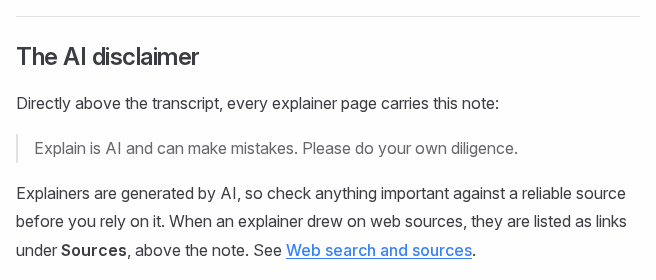
In Vids, fix scripts in the Scripts panel. In Explain, every explainer page shows the full narration as text under the player, under the heading Transcript, the fastest way to read the script against your notes. Above it sits Scrimba's own caution: "Explain is AI and can make mistakes."
Fix a weak slide by writing what should change in the edit box under the player; the editing docs allow three edits per explainer on a free account. Then click Download for an MP4, 1080p by default, with a .vtt subtitles file. The explainer must be public or unlisted to export, a free account exports one explainer, and an edit retires every saved version, so edit first and export last.
Selling a Course Built from Your Slides
If the video goes into a course you sell, plan on Pro. Scrimba's plans and pricing page lists commercial use under Pro, next to 100 explainers a month, unlimited edits and exports, and switching off the Explain watermark, which is on by default.
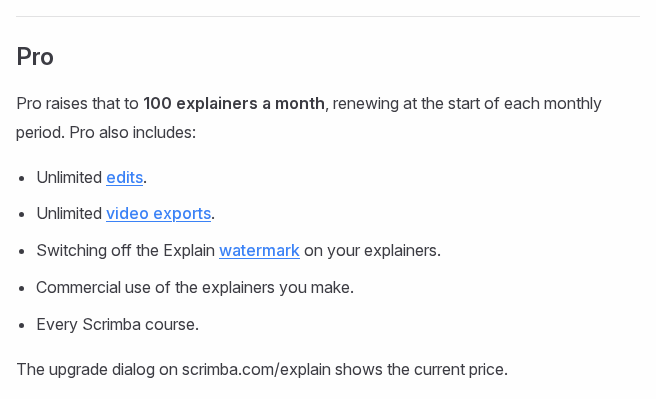
Explain is free to start: 1 explainer without an account, 5 on a free account and 100 a month on Pro. For whole courses, the guides to turning course material into video modules and the best AI video generators for online courses cover hosting and tracking.
When Another Route Fits Better
- You want your own voice or face. Explain's voices are Scrimba's. Record with Rec, or record yourself in Vids instead of using an AI voiceover.
- The slides must stay exactly as designed. Rec and Vids keep your layout; an explainer replaces it with new slides.
- One AI presenter across every module. Save a PowerPoint copy with File > Download and import it into an avatar tool. HeyGen's import takes PPT, PPTX or PDF up to 50 MB and uses speaker notes as the script only for PowerPoint files. The PowerPoint to video guide covers that route in detail. Explain has no avatars, SCORM or completion tracking.
- The deck teaches clicks in software. A screen recording shows the real interface.
- The same deck in several languages. Vids converts in eight languages and Explain narrates in 33; Scrimba's guide to making one training video in many languages covers the per-language mechanics.
For a class, the lesson opener guide shows the K-12 version of this job; for lecture slides, see lecture recap videos.
Frequently Asked Questions
Can you turn Google Slides into a video?
Yes, three ways. Record yourself over the slides with Rec, which some work and school accounts have. Use File > Convert to Video to open the deck in Google Vids, which adds an AI voice. Or print the deck with notes to a PDF and build a narrated explainer from it in a tool such as Scrimba Explain.
How do I save Google Slides as an MP4?
Convert the deck first: File > Convert to Video opens it in Google Vids, where File > Download as MP4 saves the file. A Rec recording is saved to Drive instead. An Explain explainer downloads as an MP4 at 1080p by default; a free account exports one explainer.
Can Google Slides add a voiceover for me?
Not inside Slides. Google Vids can: Convert to Video generates a script and an AI voiceover for each scene, and Replace with speaker notes makes the voice read your own notes. Scrimba Explain also narrates, but it writes a new script from the deck rather than reading it.
Is Google Vids free with a personal Google account?
Basic Vids works with any Google account. Gemini features run on credits: Google's plan table gives personal accounts 50 credits a month and charges 5 credits per Slides to Vids conversion with AI voiceovers. Google AI Pro and many Workspace plans list that conversion as unlimited.
Does Google Vids use my speaker notes as the script?
Only if you ask. Gemini generates a script by default, drawing on the slide content and notes. Clicking Replace with speaker notes overwrites the generated script with your notes, and Revert to generated script switches back. Notes with full sentences make the best voiceover.
Can Scrimba Explain open a Google Slides file directly?
No Google Slides or PowerPoint upload is documented. Print the deck with 1 slide with notes, save it as a PDF, and attach the PDF on scrimba.com/explain or in ChatGPT with the Explain Video Generator plugin. Check that the PDF text is selectable first.
How long can a video made from Google Slides be?
A Rec recording stops at 30 minutes. Google Vids generates videos up to a 10-minute limit and takes up to 45 slides with AI turned on. Explain documents no length limit, so split a long deck by section into separate explainers or a playlist and check each one.
Can I sell a course built from my Google Slides with Explain?
Scrimba's plans page lists commercial use of the explainers you make as part of Pro, along with switching off the watermark and unlimited exports. Check every slide first, because Explain can make mistakes.
Key Takeaways
- Three routes to a video: Rec, File > Convert to Video in Google Vids, or an explainer built from a PDF of the deck.
- Vids reads, Explain explains. Replace with speaker notes makes Vids read your notes; Explain writes a new lesson from them.
- Vids limits: 45 slides with AI, a 10-minute generation limit, eight conversion languages, 5 credits per conversion on a personal account.
- Print with notes for Explain: 1 slide with notes, saved as PDF, with selectable text.
- Notes decide quality on every route. Write the point, the why and the evidence for each slide.
- Check every slide, set visibility first, and plan on Pro before you sell what you make.
Sources
- Google Docs Editors Help, Convert Google Slides into Google Vids. https://support.google.com/docs/answer/15577408?hl=en (2026-10-23)
- Google Docs Editors Help, Learn about availability of Gemini features in Google Vids. https://support.google.com/docs/answer/15609411?hl=en (2026-10-23)
- Google Docs Editors Help, Get started with Google Vids. https://support.google.com/docs/answer/15082958?hl=en (2026-10-23)
- Google Docs Editors Help, Create, view, or download a file. https://support.google.com/docs/answer/49114?hl=en&co=GENIE.Platform%3DDesktop (2026-10-23)
- Google Docs Editors Help, Print a file. https://support.google.com/docs/answer/143346?hl=en (2026-10-23)
- Google Docs Editors Help, Use slides recording in Google Slides. https://support.google.com/docs/answer/14221290?hl=en (2026-10-23)
- Synthesia Docs, Import PowerPoint. https://docs.synthesia.io/docs/import-powerpoint (2026-10-23)
- HeyGen Help Center, PPT/PDF to Video. https://help.heygen.com/en/articles/13007313-ppt-pdf-to-video (2026-10-23)
- Brame, C. J. (2016). Effective Educational Videos: Principles and Guidelines for Maximizing Student Learning from Video Content. CBE Life Sciences Education. https://pmc.ncbi.nlm.nih.gov/articles/PMC5132380/
- Scrimba Explain documentation: introduction, attaching documents, playlists, ChatGPT / Codex, transcript, editing, exporting, plans and pricing. https://docs.scrimba.com/explain/introduction (2026-10-23)
- Explain Video Generator listing. https://chatgpt.com/plugins/plugin_asdk_app_69c50381a40081919232f5027201beef (2026-10-23)