How to Make One Training Video in Many Languages
Make one training video in many languages: one explainer per language, translate-and-download, or dubbing a recorded video. Mechanics, costs and review steps.

To make one training video in many languages, first decide whether each language needs its own link or only its own file. If your training starts from a document, build one narrated explainer per language from that same source in a tool such as Scrimba Explain, listed in ChatGPT as Explain Video Generator. Translating an explainer in place moves it to the new language and retires its saved videos, so it suits one file at a time, not parallel versions. If you already filmed a presenter, dub the recording with HeyGen or Synthesia instead. Every route needs a fluent reviewer for each language.
Last verified October 23, 2026: Explain's languages, edits, exports and plans come from Scrimba's documentation and its ChatGPT listing; HeyGen's and Synthesia's details from their own help pages; OSHA and Census figures from the agencies' sites, all read that day.
Scrimba publishes this guide and makes Scrimba Explain. For a video you already filmed, a dubbing tool is the better choice, and the guide says when.
Why Does Training Have to Be in the Worker's Language?
Training works only when employees understand it, and for many workers that means their first language rather than English. In the US, OSHA has put this in writing for its own training rules.
OSHA's Training Standards Policy Statement (April 28, 2010) says required training "must be presented in a manner that employees can understand," and that "if an employee does not speak or comprehend English, instruction must be provided in a language the employee can understand." Inspectors are told to look past the paperwork: "an employer may have training records but employees may not have been able to understand the elements included in the training." A video in the right language helps with that; it never proves understanding on its own.
The likely languages are predictable. The Census Bureau's 2018-2022 estimates put Spanish (61.1%), Chinese (5.1%) and Tagalog (2.5%) at the top of the languages Americans speak at home other than English, and 58.3% of Spanish speakers aged 18 to 64 speak English "very well." All three are on Explain's list of 33 narrated languages.
Which Multilingual Route Fits Your Training?
The right route depends on what you start from (a document or a filmed video) and whether each language needs its own link. Four routes compared:
| Route | Starts from | Who speaks | Its own link per language | What it uses up | Review step |
|---|---|---|---|---|---|
| Explain, one explainer per language | Your document, as a PDF | A native voice for each of 33 languages | Yes | One explainer per language: 5 on a free account, 100 a month on Pro; one exported explainer on free | A fluent reviewer per version |
| Explain, translate and download in turn | One finished explainer | A new voice picked for each language | No: the link shows the latest language | One edit per language (3 per explainer on free); re-rendering the same explainer uses no extra export | Check each language before the next edit |
| HeyGen video translation | A recorded video (MP4, MOV, WEBM, YouTube or Drive link) | The original speaker's voice; lip sync on Speed or Precision | One output per language | 4, 6 or 10 credits a minute | Proofread, on Pro, Business, Team and Enterprise |
| Synthesia translation or dubbing | A Synthesia video, or any video for dubbing | The avatar's voice, or the speaker's own voice when dubbing | Translations share a folder and a language switch | Translation on Enterprise; dubbing from plan usage, lip sync at twice the credits | Transcript review on Enterprise |
Three quick picks:
- A written SOP or onboarding guide, each language shared on its own: one explainer per language.
- One file per language for an LMS or a shared drive, on a tight budget: translate and download in turn.
- A filmed trainer whose face and voice should stay: dubbing.
Route 1: One Explainer per Language from the Same Source
Parallel language versions are separate explainers built from the same document, one per language. They are the only Explain route where every language keeps its own link and its own downloadable video.
- Prepare one source. Explain's attach list takes PDFs, text and images; save a Word file as PDF, and print a Google Slides deck with its notes. Cut anything that only one site or country needs.
- Make the first language and review it hard. Build it on scrimba.com/explain, where the quiz in the prompt below and the Public default in step 5 apply; ChatGPT explainers start unlisted and get no quiz. Fix it with edits before you copy its approach into other languages, because every later version starts from the source again, not from this explainer.
- Make each other language from the same file. Ask in the target language, or name it: the languages page shows that asking "in Japanese" works, and that the whole lesson follows, "slide titles, the text on each slide, and the narration."
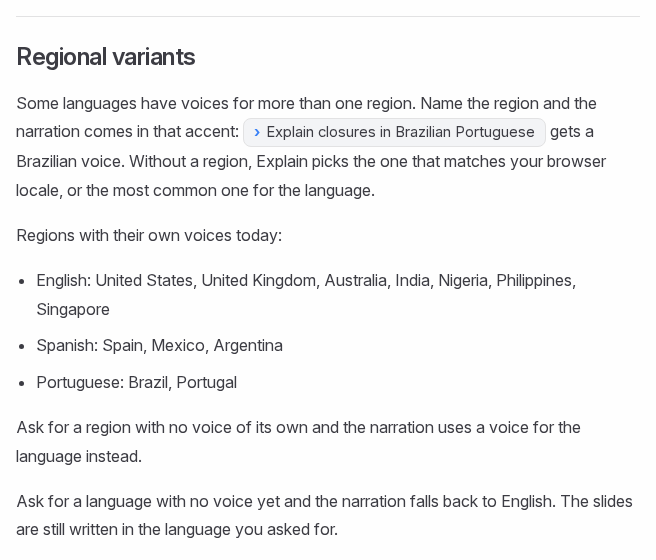
- Name the region when it matters. Mexican Spanish and Brazilian Portuguese have their own voices.
- Set visibility before you create. Signed in, a new explainer starts Public and is listed in the community; choose Unlisted or Private for company material.
- Name the versions alike, such as "Forklift pre-shift check (ES-MX)", so people find their language.
A prompt for the second and later languages:
Attached: our forklift pre-shift checklist (PDF).
Make the same training in Mexican Spanish for warehouse staff in their first week.
Keep every step, number and warning from the document, in the same order.
Keep these terms exactly as written: "Lockout", "Mast", "Load backrest".
End with a quiz on the three checks that stop the truck from being used.
Each version is written fresh from the source, so two languages can differ in more than words: one may split a step that the other merges. The same pattern suits customer-facing material, such as the first-time buyer explainers agents send to clients.
Route 2: Translate One Explainer and Download Each Language in Turn
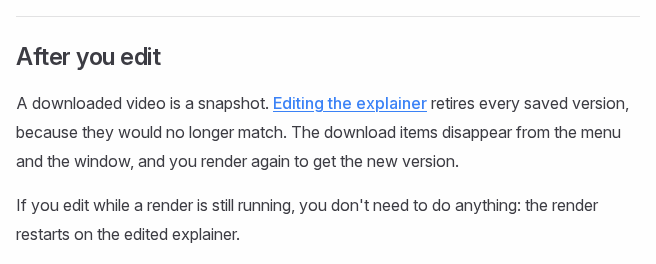
A Translate edit rewrites an explainer's narration in another language, moves the whole explainer to that language and retires its saved videos.
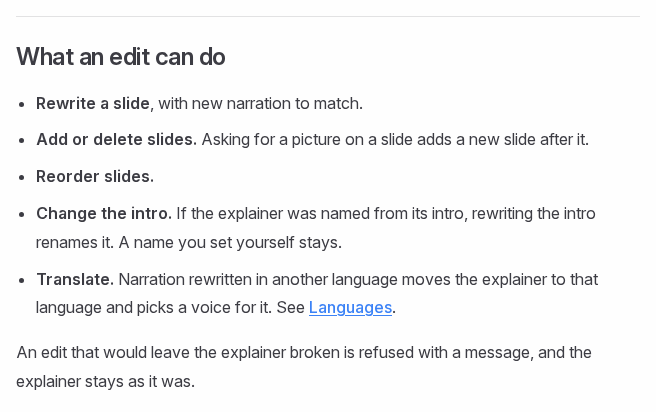
The exporting docs spell out the catch: "Editing the explainer retires every saved version, because they would no longer match." So the route works as a loop:
- Finish and review the explainer in the first language.
- Set it to Unlisted (an export needs public or unlisted), click Download and save the MP4, 1080p by default, plus its .vtt subtitles under Options.
- Write the translate edit in the box under the player, for example "translate the narration into Vietnamese."
- Review the new language, then download again.
Two rules make this the cheap route. Rendering the same explainer again after an edit "doesn't count" against a free account's one export, and each translation is one edit, with three edits per explainer on a free account. Those three edits also cover any fixes, so a free account gets at most three languages beyond the first, fewer if a slide needs correcting.
The price is the link. The hosted explainer, and any embed of it, shows only the latest language, and the docs promise only that the narration is rewritten. Check that the on-screen text followed before you download.
What a Free Account Covers, and When You Need Pro
Explain is free to start: 1 explainer without an account, 5 on a free account and 100 a month on Pro, according to Scrimba's plans and pricing page.
Do the math for a five-language onboarding video. Built as parallel versions, it uses all five of a free account's explainers, and a free account exports only one of them as an MP4. Five downloadable files therefore need Pro, which adds unlimited edits and exports, switching off the Explain watermark (on by default) and "Commercial use of the explainers you make." A company producing staff training should plan on Pro for that last line alone.
Two more routes into the same allowance:
- ChatGPT. Install the plugin first, in a signed-in ChatGPT session (how to install a ChatGPT plugin). The listing's own example card reads "Create an English and a Spanish video of these property photos." ChatGPT replies with an explainer card; Watch explainer opens it on scrimba.com. It is square unless you ask otherwise, and Download renders it wide (Landscape) by default. If you connect your Scrimba account, each explainer is saved, and counted, the moment it is made (ChatGPT docs). Before you attach company material, read the listing's data notice: "ChatGPT may share relevant chats and memories with this app to help provide context for your requests."
- Workspaces. Scrimba's privacy docs say every member of a workspace can edit a workspace explainer and change its language and voice, while only its maker and the admins can export it. Scrimba for Teams sells Explain for "internal training, onboarding, compliance, and product knowledge."
Give Every Language a Reviewer
Every language version needs a fluent person who knows the job to check it against the source before anyone trains on it. Scrimba says as much on every explainer page: "Explain is AI and can make mistakes. Please do your own diligence" (transcript docs).
What the reviewer checks, slide by slide:
- Terms of the trade. A machine part or a legal term has one right word on your site; a fluent outsider may pick another.
- Numbers and units. Weights, temperatures, pressures and dates, unchanged from the source.
- Warnings. Every "never" and "stop" still there, in the same strength.
- Screen and voice agree. On-screen text and narration say the same thing, in the same language.
- Subtitles. The .vtt file reads well in the new language, for anyone who watches with captions on.
For safety content, a qualified person signs off each language as well, the same review the safety training video guide asks for in one language. When the source changes, every version changes with it: in Explain that means editing or rebuilding each language's explainer, because nothing links them.
Languages, Accents and the "40+" on the Listing
Scrimba Explain is narrated in 33 languages, each with a native voice: "a Spanish explainer gets a Spanish voice, not an English voice reading Spanish words," as the languages page puts it.
Two edge cases matter for training. A region without its own voice gets a voice for the language. A language with no voice falls back to English narration while the slides stay in the language you asked for, which rarely works for a worker who needs to hear it.
The ChatGPT listing advertises "Make the same video in 40+ languages from a single document." The docs name 33 with a native voice, so plan on the 33.
When Dubbing a Recorded Video Is the Job Instead
Dubbing keeps a filmed video and replaces its speech in another language, often in the speaker's own voice. If your training is already a recording of a person, or the trainer's face matters, dub it rather than rebuilding it as an explainer.
HeyGen's video translation takes an MP4, MOV or WEBM file of up to 5 GB, or a YouTube or Google Drive link, and re-voices it "while keeping the original speaker's exact voice." You can pick up to 10 target languages per job. Audio Only costs 4 credits a minute with no lip sync; Speed (6) and Precision (10) add lip sync. HeyGen itself recommends "translating into one language first to confirm quality."
Synthesia splits the job in two. Video translation, an Enterprise feature, translates the script and on-screen text of a video made in Synthesia and keeps the avatar and design; versions share a folder and a language switch in the player. AI Dubbing works on any video file or YouTube link in "130+ languages," with lip sync costing twice the credits and unavailable on the Basic plan.
If your team is choosing between an avatar platform and an explainer for internal training, the Synthesia and HeyGen alternatives guide covers that decision. Explain has no avatars, voice cloning, SCORM or completion tracking.
Frequently Asked Questions
Can AI translate a training video into other languages?
Yes, in two different ways. Dubbing tools such as HeyGen and Synthesia re-voice a recorded video, often in the speaker's own voice and with lip sync. Explainer tools such as Scrimba Explain build the training again in each language from your document, with a native voice. Both need a fluent reviewer.
What is the difference between dubbing a video and making one explainer per language?
Dubbing keeps your footage and replaces the speech, so the picture stays identical. An explainer per language writes new slides and narration from the source each time, so every version reads naturally but can differ slightly in structure. Dub filmed trainers; build explainers when you start from a written SOP or guide.
How many languages can Scrimba Explain narrate?
Explain narrates in 33 languages with a native voice each, including Spanish, Chinese, Tagalog, Arabic and Vietnamese. English, Spanish and Portuguese have regional voices, such as Mexican Spanish and Brazilian Portuguese. The ChatGPT listing says 40+ languages; plan on the 33 with native voices.
Does translating an explainer keep the original-language version?
No. A Translate edit moves the explainer to the new language and retires every saved video version. Download the MP4 before you translate, or build a separate explainer for each language if every language needs its own link.
How many explainers does a five-language training video use?
Built as parallel versions, five: the whole allowance of a free account, which can export only one of them. Translating one explainer in turn uses one explainer but one edit per language, and a free account has three edits per explainer. Pro gives 100 explainers a month and unlimited exports.
Can I pick a regional accent, such as Mexican Spanish or Brazilian Portuguese?
Yes. Name the region in the prompt and the narration comes in that accent. Regional voices exist for English (seven regions), Spanish (Spain, Mexico, Argentina) and Portuguese (Brazil, Portugal). A region without its own voice gets a voice for the language instead.
What happens if I ask for a language Explain does not narrate?
The narration falls back to English while the slides are written in the language you asked for. For workers who need to hear the training, that is not enough; use a dubbing tool or subtitles in their language instead.
Do translated training videos need a human reviewer?
Yes, one per language. A fluent reviewer who knows the work checks terms, numbers, units and warnings against the source, and confirms the on-screen text and narration match. Safety content also needs a qualified person's sign-off before anyone trains on it.
Key Takeaways
- Decide links before tools: each language with its own link means one explainer per language; one file per language allows translating in place.
- A Translate edit moves the explainer to the new language and retires its saved videos, so download first.
- The math: five parallel languages use a free account's five explainers, and only one exports; several language MP4s need Pro.
- 33 narrated languages with native and regional voices; the listing's "40+" is not the voice count.
- Dub, don't rebuild, when the training is already a filmed presenter.
- One fluent reviewer per language, plus a qualified sign-off for safety content.
Sources
- OSHA, Training Standards Policy Statement, April 28, 2010. https://www.osha.gov/laws-regs/standardinterpretations/2010-04-28 (2026-10-23)
- U.S. Census Bureau, "Most Americans Speak Only English at Home or Speak English 'Very Well'," CB23-208, December 7, 2023. https://www.census.gov/newsroom/press-releases/2023/language-at-home-acs-5-year.html (2026-10-23)
- HeyGen Help Center, How to Get Started with Video Translation. https://help.heygen.com/en/articles/10029081 (2026-10-23)
- Synthesia Docs, Video Translation. https://docs.synthesia.io/docs/video-translation (2026-10-23)
- Synthesia Docs, AI Dubbing. https://docs.synthesia.io/docs/video-dubbing (2026-10-23)
- Scrimba Explain documentation: languages, editing, exporting, plans and pricing, privacy and sharing, ChatGPT / Codex, transcript, attaching documents. https://docs.scrimba.com/explain/introduction (2026-10-23)
- Scrimba for Teams. https://scrimba.com/teams (2026-10-23)
- Explain Video Generator listing. https://chatgpt.com/plugins/plugin_asdk_app_69c50381a40081919232f5027201beef (2026-10-23)