How to Make a Lesson Opener Video from a Textbook Chapter
Turn a textbook chapter or typed notes into a narrated lesson opener, inside ChatGPT or on scrimba.com: the steps, the prompt, and the check before class.

To make a lesson opener video from a textbook chapter, attach the chapter, say who the video is for, and let a narrated explainer tool build the slides and the voice. Scrimba Explain, listed in ChatGPT as Explain Video Generator, does this two ways. Inside ChatGPT, you install the plugin, attach the chapter or paste your notes, and mention it; the draft comes back as a link. On scrimba.com you also pick a teaching style and can ask for an end-of-lesson quiz. Nobody films anything, and no presenter appears on screen.
Last verified September 28, 2026: Explain's steps, limits and allowances come from Scrimba's Explain docs and plugin listing, and other tools' details from their own pages, all read that day.
Scrimba publishes this guide and makes Scrimba Explain. The last section names the jobs where another tool fits better.
Explain is free to start: one explainer without an account, ten for the life of a free account and 100 a month on Pro (limits and plans).
What Makes a Good Lesson Opener Video?
A good lesson opener video is short, previews one idea from today's chapter, shows that idea as a picture, and ends with a question students can answer.
Barak Rosenshine's Principles of Instruction, written for teachers, opens with "Begin a lesson with a short review of previous learning" and advises presenting "new material in small steps". An opener can do both: recall what students know, then preview the new idea. On length, a study of 6.9 million video sessions on edX found median engagement time was "at most 6 minutes, regardless of total video length" (Guo, Kim and Rubin, 2014).
Those were college-level online courses, so treat six minutes as a ceiling. Explain's listing aims lower: "Start your class with a 3-minute lesson opener built from the textbook chapter" (Explain Video Generator listing). Explainers in the community gallery typically run a minute to a few minutes, short enough for a bell ringer.
Two Routes Compared: Inside ChatGPT or on scrimba.com
Both routes make the same kind of video: typed slides, diagrams and narration built from your material. They differ in control and in what happens afterwards.
| Inside ChatGPT (plugin) | scrimba.com, signed in | scrimba.com, signed out | |
|---|---|---|---|
| Best when | Your notes already live in ChatGPT | The quiz and reading level matter | You need one video tonight, no sign-up |
| What you give it | The chapter PDF or pasted notes | A PDF, Word file, notes or page photos | The same as signed in |
| Teaching style | None; the chat model writes the lesson | Seven styles; Explain is the default | The same seven styles |
| Quiz at the end | No | Can end with one; ask for it | Can end with one; ask for it |
| New videos start as | Unlisted | Public, unless you switch it first | Always Unlisted |
| Students need an account to watch | No | No | No |
| Keep, edit, export | Claim it into a Scrimba account first | Yours from the start | Share the link; editing and export need ownership |
| Counts toward your allowance | Only when you claim it | Yes | It is your one free explainer |
If you live in ChatGPT, start there. If the quiz matters, or you will edit and export later, use scrimba.com.
Before You Start: Get the Chapter Ready
Ten minutes here saves a rebuild:
- Pick one idea. A water cycle chapter covers evaporation, condensation, precipitation and collection. The opener previews the cycle; the lesson teaches the steps.
- Cut the chapter down. Scrimba documents no page limit and no promise that a long document is covered completely. Attach the pages for today's idea; for a whole unit, ask for a playlist, "planned as a curriculum and built lesson by lesson."
- Check the format. Scrimba's attaching documents page lists PDFs, notes and images, including photos; the upload card on scrimba.com/explain adds Word files. A slide deck goes in as a PDF.
- Take out student names, grades and anything else personal.
How to Make the Opener Inside ChatGPT
Install the Explain Video Generator plugin, attach your chapter, mention the plugin with your class details, and open the link it returns.
Since OpenAI discontinued Sora (web and app on April 26, 2026, API on September 24, 2026, per the OpenAI Help Center), video inside ChatGPT comes from plugins. Scrimba's guide on whether ChatGPT can make videos covers the background.
- Install the plugin while signed in to ChatGPT. Open the listing and choose Install plugin; until then, typing its name does nothing useful. Scrimba's guide on how to install a plugin in ChatGPT has the details. It works on web, desktop and mobile (Explain docs).
- Attach the chapter or paste your notes in a new chat.
- Mention the plugin and describe the class: "@Explain Video Generator Turn this chapter into a three-minute lesson opener on the water cycle for sixth graders. Simple words and one diagram of the whole cycle."
- Open the link. The plugin "writes the full lesson (the slides, the narration script, the diagrams) and replies with a link" (ChatGPT docs), and the explainer builds as you watch.
- Claim it to keep it. The draft is unlisted, so the link works for anyone you send it to. "To keep it long-term, sign in to Scrimba when you open it and claim it" (ChatGPT docs). Claiming counts toward your allowance; drafts do not.
This route has no style picker and no quiz: "Teaching styles are a scrimba.com feature" (teaching styles), and quizzes "appear in explainers created on scrimba.com/explain" (quizzes). The model you chat with writes the lesson, so "A smarter model makes a better explainer" (ChatGPT docs).
On a school ChatGPT account, check permissions first. ChatGPT for Teachers is free for verified U.S. K-12 educators through June 2028 and has admin controls. Plugin installation "cannot bypass provider or workspace permissions" (plugins help), and in Enterprise and Edu workspaces "new plugins and apps are disabled by default" (admin controls). If you see Disabled by admin, ask your district, or use scrimba.com.
The listing also warns that "ChatGPT may share relevant chats and memories with this app", so keep student names and grades out of that chat.
How to Make the Opener on scrimba.com
Set the video to Unlisted, attach the chapter, pick the Explain teaching style, ask for a quiz, and share a fullscreen link.
- Sign in and set the visibility first. Signed in, the picker "starts on Public, so the finished explainer is listed in the community for anyone to find" (your first explainer). Switch it to Unlisted before you send. Signed out, there is no picker and the explainer is "always Unlisted" (visibility).
- Attach the chapter with the paperclip button, or drop the file onto the box.
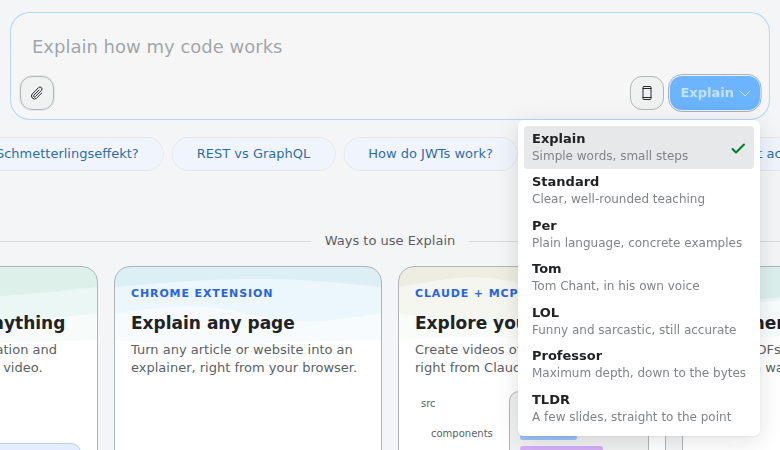
- Pick the teaching style. Explain is the default: "Simple words, small steps" (teaching styles). Skip TLDR if you want a quiz, because a TLDR lesson never gets one.
- Write the prompt: who, what and which slides. The docs say "Say who it's for" and "Mention diagrams, an animation, a quiz at the end" (your first explainer). Asking "makes the check more likely: end with a quiz" (quizzes).
- Watch it build, then check it. "The first slide appears within seconds." Every explainer page says "Explain is AI and can make mistakes. Please do your own diligence." (transcript). To fix one slide, right-click it, choose Redo slide and say what should change; any slide but the intro can be redone (redo slide).
- Share it with the class. In the cog menu, Copy fullscreen link "suits sending a lesson to students or a class" (copying links). Copy embed code puts it on a class page, and "Visitors don't need a Scrimba account to watch an embedded explainer" (embedding).
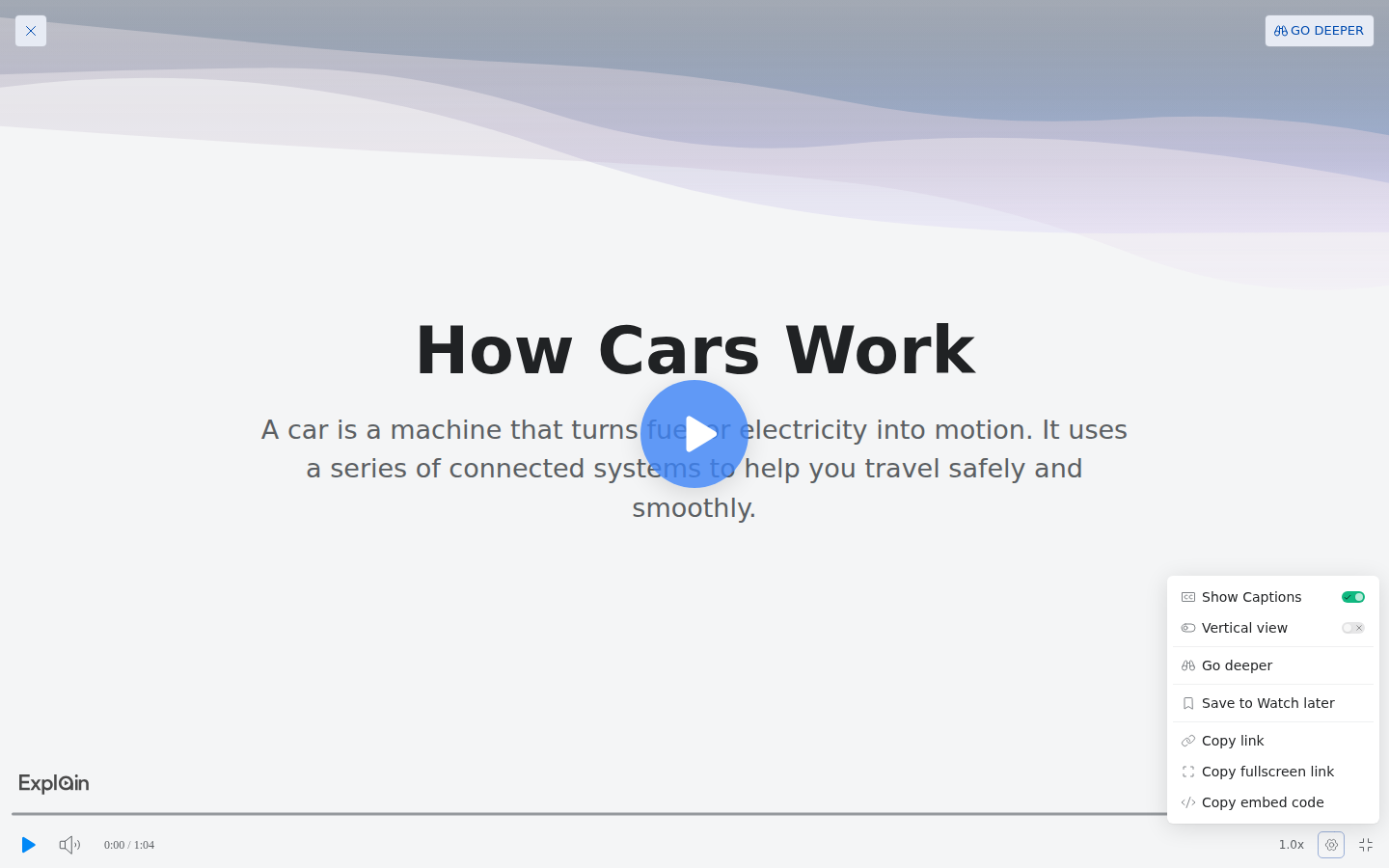
Captions are on by default (player controls). If you don't trust the classroom Wi-Fi, export an MP4; only public or unlisted explainers export. For English learners, narration covers 33 languages: "a Spanish explainer gets a Spanish voice, not an English voice reading Spanish words."
What the Finished Slides Look Like: A Published Example
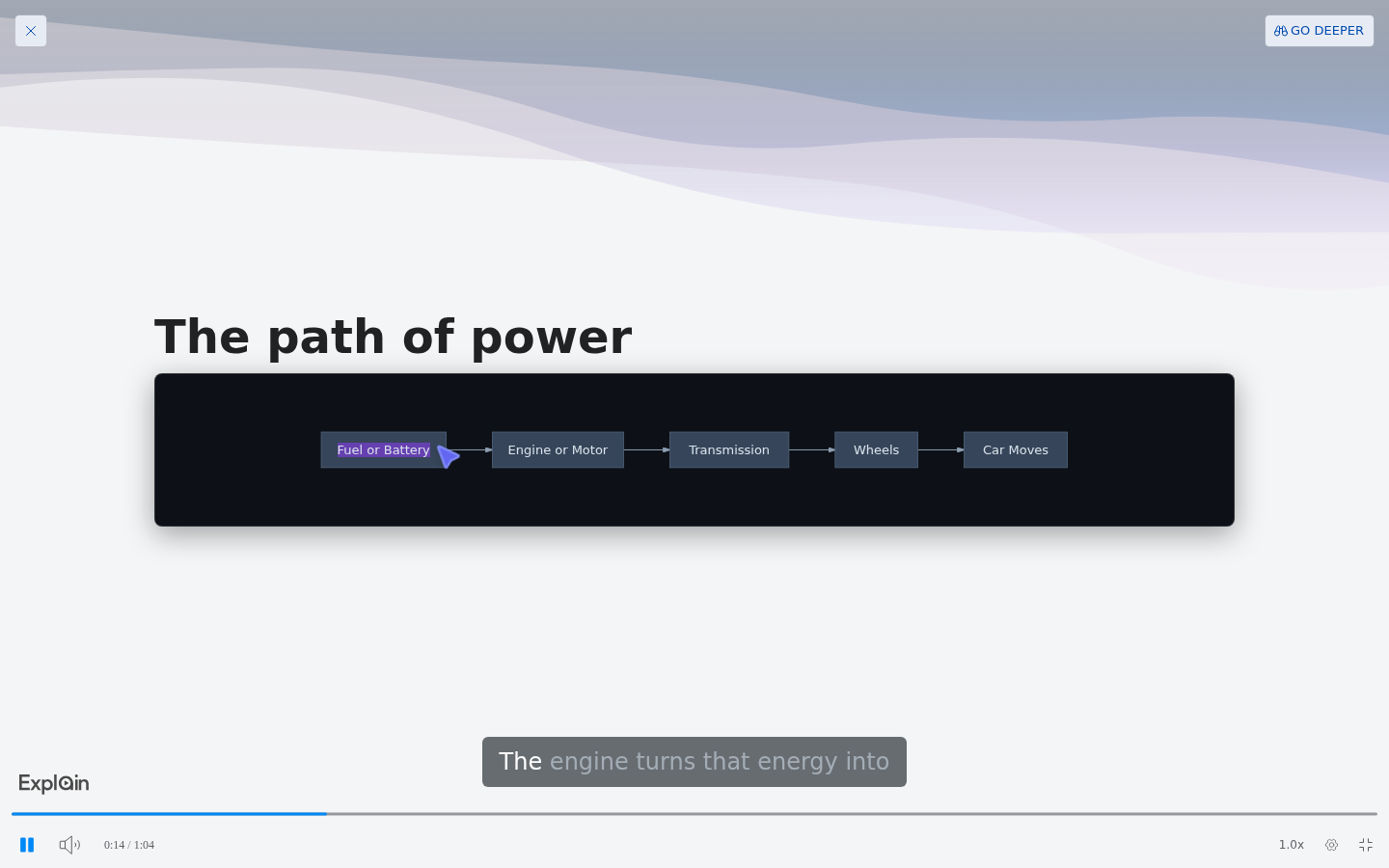
Scrimba's use cases page lists one published explainer per topic. The Automotive one, How Cars Work, runs just over a minute and has the three parts a lesson opener needs: a picture of the idea, something that moves, and a check at the end.
Fourteen seconds in, a flowchart traces the path of power. The pointer lands on each box as the narration reaches it, and the caption highlights the spoken word:
Midway, an animated scene shows a piston moving. The lesson ends on a quiz:
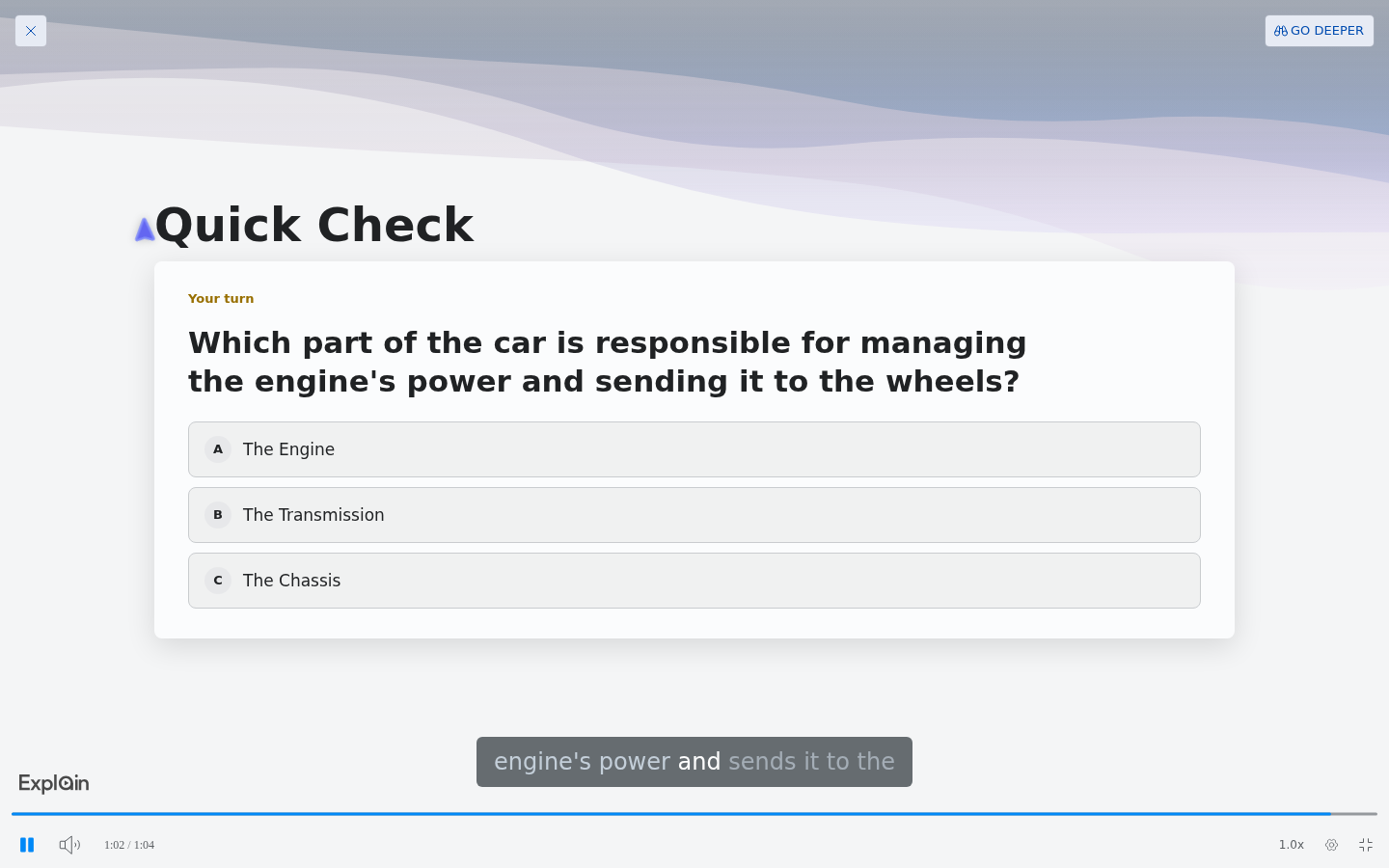
It covers a general topic rather than a textbook chapter, but a water cycle opener can take the same shape. Flowcharts are one of the diagram types, and explainers include "short animated scenes, drawn with shapes, arrows, labels, and graphs" (animations).
Three Teacher Requests, Three Prompts
"A short lesson opener on the water cycle chapter by Monday"
On scrimba.com, attach the chapter PDF, keep the Explain style, set Unlisted, and type: "A lesson opener for my sixth-grade class on this water cycle chapter. They know evaporation but not condensation. About three minutes, one flowchart of the cycle, an animation of vapor forming clouds, end with a quiz." Check it on Friday; copy the fullscreen link on Monday.
"A five-minute intro to fractions for fourth graders, before Friday"
"Formulas render as real mathematical notation", but "Numbers alone don't bring them in" (math). So name the notation: "Show one half, two quarters and three quarters as fractions, then compare one half and two quarters." No length setting is documented; to fill five minutes, pause for discussion, or ask for a two-lesson playlist.
"My lesson notes are typed up, and class is tomorrow"
Paste the notes into the box on scrimba.com, where a long paste becomes an attachment (attaching documents). Signed out, your one free explainer is always unlisted and needs no sign-up, but Redo slide and export need an explainer in your account. Sign in first (ten free explainers) if you may need to fix a slide or play it offline. If the notes already sit in ChatGPT, use the plugin there.
When Another Tool Fits Better
A narrated explainer is the wrong tool for four jobs:
- You need each student's answer. Explain's quiz tells each student how they did, but the only counts Scrimba documents are views and likes (community). Edpuzzle is built to "Ask questions to check comprehension" and "Track progress with instant analytics", and it accepts uploaded MP4 files under 1 GB. Export the explainer and add your questions there.
- You want your own voice or face. Explain narrates with Scrimba's voices. PowerPoint can record your narration and camera over your slides and export a video.
- Your school designs everything in Canva. Canva Education is "100% free for K-12 (primary and secondary) educators", with verification "within a few days". It offers templates, a drag-and-drop editor and Canva AI, which can generate a video design from a prompt that you then edit by hand.
- You want a presenter on screen. Explain has none. Scrimba's comparison of AI video generators for teachers covers the avatar tools.
Frequently Asked Questions
What AI video creator can make a short lesson opener on the water cycle chapter by Monday?
A narrated explainer tool that builds from the chapter itself. On scrimba.com, attach the chapter to Scrimba Explain, keep the Explain style, ask for a flowchart of the cycle and an end-of-lesson quiz, and set it to Unlisted. Check every slide against the chapter before Monday.
Which ChatGPT video generator is best for teachers who want to stay inside ChatGPT?
Since Sora shut down, video in ChatGPT comes from plugins. For a lesson from your own material, install Explain Video Generator, attach the chapter or notes and mention it. The draft is unlisted, has no quiz or teaching style, and must be claimed into a Scrimba account to keep.
My lesson notes are typed up. What text to video AI can I use before class tomorrow?
Paste the notes into Scrimba Explain on scrimba.com and name the grade and the one idea to open with. Without an account you get one free explainer, always unlisted, with no sign-up. Redo slide and export need an explainer in your account, so sign in first (ten free explainers) if you may need to fix a slide or play it offline. If the notes are already in ChatGPT, use the Explain Video Generator plugin there.
What explainer video maker works for a five-minute intro to fractions for fourth graders?
Scrimba Explain can build it from your notes in the Explain style, with fractions as real math notation if you ask for it. Explainers typically run a minute to a few minutes, with no documented length setting, so fill five minutes with the video plus discussion, or a two-lesson playlist.
The textbook chapter is a PDF. Can anything turn that PDF into a short video for my class?
Yes. Scrimba Explain takes the PDF on scrimba.com, or in ChatGPT through the Explain Video Generator plugin, and builds narrated slides and diagrams from it. No page limit or complete coverage is documented, so attach the pages you need and check each slide.
Can I use Explain Video Generator in ChatGPT for Teachers?
That depends on your district. ChatGPT for Teachers is a school workspace with admin controls, and OpenAI says installing a plugin cannot bypass workspace permissions. If the plugin shows Disabled by admin, ask your district's admin, or make the opener on scrimba.com.
Do my students need an account to watch it?
No. Public and unlisted explainers, fullscreen links and embeds play without a Scrimba account. Set it to Unlisted before sharing: made while signed in on scrimba.com, it starts as Public and is listed in the community.
Can the lesson opener end with a quiz?
Yes, when you make it on scrimba.com. An explainer can end with one multiple-choice question, scored gold, silver or bronze by attempt, and asking for a quiz makes one more likely. Explainers made in ChatGPT, TLDR lessons and summaries get none.
Is it free for teachers?
Scrimba Explain is free to start: one explainer without an account, ten for the life of a free account and 100 a month on Pro. Watching is free, and drafts made in ChatGPT count only once you claim them. Canva Education is free for verified K-12 teachers.
Key Takeaways
- A lesson opener video works best short: one idea from the chapter, one picture of it and one question at the end.
- Inside ChatGPT, install Explain Video Generator, attach the chapter and mention it; the draft is unlisted, with no quiz or teaching style.
- On scrimba.com, set Unlisted first, attach the chapter, keep the Explain style and ask it to end with a quiz.
- Check every slide against the chapter before class. Explain can make mistakes, and Redo slide fixes one slide without a rebuild.
- Students need no account to watch. For per-student answers, export the MP4 to a tool such as Edpuzzle.
Related reading: free AI video tools for teachers, how to turn a PDF into a video and how to turn a slide deck into a video. For college lecturers, How to Make Lecture Recap Videos from Your Slides and Notes covers weekly recaps.
Sources
- Rosenshine, B. "Principles of Instruction." American Educator, Spring 2012. https://www.aft.org/sites/default/files/Rosenshine.pdf
- Guo, P. J., Kim, J. and Rubin, R. "How Video Production Affects Student Engagement." ACM Learning at Scale, 2014. https://pg.ucsd.edu/publications/edX-MOOC-video-production-and-engagement_LAS-2014.pdf
- OpenAI Help Center articles on Sora, plugins, admin controls and ChatGPT for Teachers. https://help.openai.com/en/articles/20001152-what-to-know-about-the-sora-discontinuation , https://help.openai.com/en/articles/20001256-plugins-in-chatgpt-and-codex , https://help.openai.com/en/articles/11509118-admin-controls-security-and-compliance-for-plugins-and-apps , https://help.openai.com/en/articles/12844995-chatgpt-for-teachers
- Explain Video Generator, ChatGPT plugin listing. https://chatgpt.com/plugins/plugin_asdk_app_69c50381a40081919232f5027201beef
- Scrimba Explain documentation and the published example "How Cars Work." https://docs.scrimba.com/explain/introduction , https://scrimba.com/explain/guide0gk9v6kav
- Edpuzzle, homepage and "Can I upload my own videos?" https://edpuzzle.com/ , https://support.edpuzzle.com/hc/en-us/articles/360010173211-Can-I-upload-my-own-videos
- Microsoft Support, "Record a slide show with narration and slide timings." https://support.microsoft.com/en-us/office/record-a-slide-show-with-narration-and-slide-timings-0b9502c6-5f6c-40ae-b1e7-e47d8741161c
- Canva, Canva Education and "Generate unique designs instantly with AI." https://www.canva.com/education/ , https://www.canva.com/help/using-magic-design/