How to Turn a One-Pager into a Customer Explainer Video
Turn your product one-pager and a few screenshots into a narrated customer walkthrough you can send instead of a demo call, with no camera and no agency.

To turn a one-pager into a customer explainer video, save it as a PDF, add three to five fresh product screenshots, and give both to Scrimba Explain with one sentence about the customer who will watch. Explain, listed in ChatGPT as Explain Video Generator, writes a narrated walkthrough: typed slides, a diagram of how the product works and your screenshots, each narrated in turn. Check every claim, then send an unlisted link or embed it on your site. No camera, no presenter, no agency.
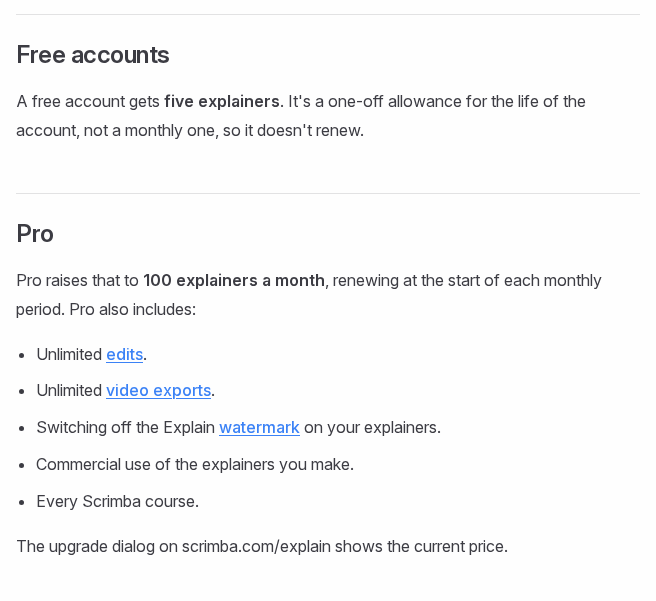
Plan on Pro for anything customers see. Scrimba's docs list "Commercial use of the explainers you make" under Pro, along with unlimited edits, unlimited video exports and switching off the Explain watermark (plans and pricing). A free account, with 5 explainers for its lifetime, 3 edits per explainer and 1 export, is for trying the workflow on a draft first.
Last verified October 23, 2026: Explain's inputs, sharing, export and plans come from Scrimba's docs and plugin listing; Loom, Arcade, Supademo and HeyGen details from each company's own pricing pages and ChatGPT listings, all read that day.
Scrimba publishes this guide and makes Scrimba Explain. Where a recorded or interactive demo is the better fit, the guide says so.
When Can a Video Replace the Demo Call?
A video can replace the part of a demo call that explains what the product does; the conversation about whether it fits the buyer still needs you.
Gartner surveyed 632 B2B buyers in August and September 2024 and found that "61% of B2B buyers prefer an overall rep-free buying experience" (Gartner, 2025). The split matters more than the headline. Buyers favor self-service "when searching for general information and learning new things", but for tasks "such as determining whether a product or service fits their company's needs, buyers prefer to seek seller input."
So send the explainer before the call, and spend the call on fit. The same survey found that 69% of buyers see inconsistencies between a company's website and what its sellers say. Build the video, the website and your pitch from the same one-pager, and you tell one story.
Gartner surveyed B2B buyers in general, not startup customers in particular, so treat the numbers as direction.
Which Format Should Replace Your Demo Call?
Pick the format by what the customer must see: how the product works, you using it, or the real screens to click through.
| Format and tool | What the customer gets | Built from | Free plan | Paid plan, monthly | Inside ChatGPT |
|---|---|---|---|---|---|
| Narrated explainer: Scrimba Explain | How the product works, with your screenshots, narrated | The one-pager PDF and screenshots | 5 explainers, 3 edits each, 1 export, watermark on | Pro: 100 explainers a month, watermark off, commercial use | Yes, as a plugin |
| Recorded demo: Loom | You, using the live product | A working product and a quiet room | 25 videos, 5-minute recordings, no downloads | Business: $18 per user | Summaries via Atlassian's plugin; no recording |
| Interactive demo: Arcade | A click-through of the real screens | A working product to capture | 1 published demo | Growth: $50 per seat, with CTAs, forms and MP4 export | Yes, as a plugin |
| Interactive demo: Supademo | A guided click-through | A working product to capture | 5 guided interactive demos, 1 creator | Scale: $50 per creator ($38 billed yearly) | Yes, as a plugin |
| AI product video: Arcade | An on-brand, narrated product video | A prompt, screenshots or call notes | 250 credits once, videos up to 30 seconds, watermark | Pro: $59 for 1,000 credits | Yes, as a plugin |
| Avatar video: HeyGen | A presenter reading your script | A script | 3 watermarked videos a month, up to 1 minute | Creator: $29 | Yes, as a plugin |
Competitor cells come from each vendor's pricing page (Loom, Arcade's demos and AI video, Supademo, HeyGen) and ChatGPT listing (Atlassian, Arcade, Supademo, HeyGen); Explain's from Scrimba's docs.
For an early product, the Built from column usually decides it. Recorded and interactive demos need a working product that holds still for a recording. The other three start from a prompt, a script or a document, so they work while the product still changes every week. Arcade makes an on-brand video, HeyGen a presenter, and Explain a diagram of how the product works plus your screenshots, each on its own slide.
Step 1: Prepare the One-Pager and Three to Five Screenshots
Explain reads PDFs ("papers, documentation, slides") and images ("screenshots, diagrams, photos of a whiteboard"), according to Scrimba's page on attaching documents.
- Save the one-pager as a PDF. If you wrote it in Word, save the Word file as PDF. In Google Docs, choose File, then Download, and pick the file type (Google Docs Help). If your one-pager lives in Google Slides, Scrimba's guide to turning Google Slides into a narrated video follows on November 9.
- Take three to five fresh screenshots in a demo workspace with sample data. Never use a real customer's account, and crop out browser tabs and notifications.
- Map the one-pager to four beats. The problem in the customer's words, how the product works, who it is for and what changes for them, and the next step: a trial, a reply, a call.
- Strip what customers should not see: internal pricing notes, an unreleased roadmap, other customers' names.
Four beats, three to five screenshots keeps the explainer short.
Step 2: Write a Prompt That Names the Customer
Scrimba's prompting guide says a good prompt "includes the topic (what to explain), the audience (who's learning and what they already know), and the slide types (how the lesson should show things)." For a customer explainer, the audience line does the most work:
"Make a two-minute explainer for operations managers at small logistics companies who have never seen our product. Use the attached one-pager. Start with the problem they have today, show how the product works as one diagram, walk through the three attached screenshots in order, and end with how to start a trial."
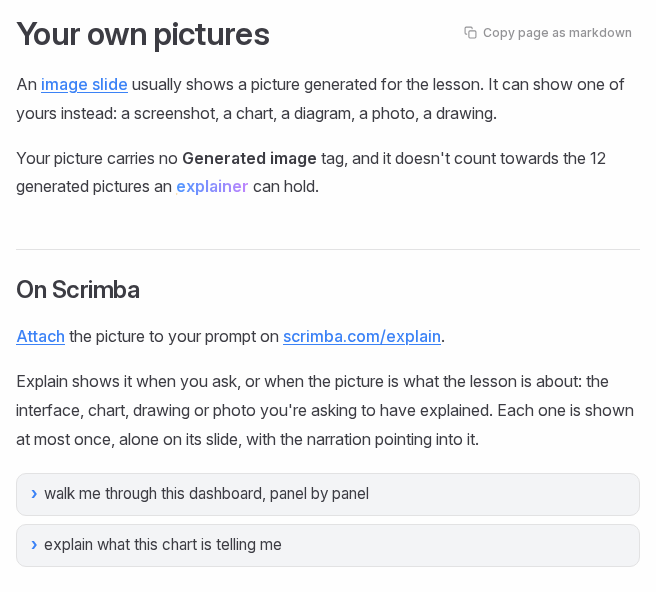
Your screenshots stay yours. Scrimba's docs on your own pictures say "Each one is shown at most once, alone on its slide, with the narration pointing into it", and an attached picture carries no Generated image tag:
You can also paste your landing page's address into the prompt. Explain "opens the page before writing, then builds the explainer from what the page actually says", and if the page won't open, the explainer says so (web search).
Step 3: Make It on scrimba.com or in ChatGPT
Both routes produce the same kind of explainer. Pick the one where your one-pager already lives.
On scrimba.com
- Sign in and set the visibility first. Signed in, the picker "starts on Public, so the finished explainer is listed in the community for anyone to find" (your first explainer). Choose Unlisted before you send the prompt.
- Attach the PDF and the screenshots, then paste the prompt.
- Choose the frame. The composer builds a wide explainer unless you turn on Make for mobile (vertical explainers). Wide suits a website embed; portrait suits a link most customers open on a phone.
In ChatGPT
If you drafted the one-pager in ChatGPT, stay there. Install the plugin first, in a signed-in session, from the Explain Video Generator listing. Then mention it, attach the PDF and screenshots, and ask.
The plugin "replies with an explainer card in the chat", and Watch explainer opens it on scrimba.com (ChatGPT docs). It is square unless you ask for a wide or vertical video. If you connect your Scrimba account, each explainer is saved to it as it is created, stays unlisted and counts against your plan. Pictures uploaded from the ChatGPT mobile app can't be fetched, so attach screenshots on desktop.
The listing warns: "When connected to Explain Video Generator, ChatGPT may share relevant chats and memories with this app to help provide context for your requests." Keep investor terms and customer data out of that chat.
Step 4: Check Every Claim Before a Customer Watches
Every explainer page carries the line "Explain is AI and can make mistakes. Please do your own diligence.", and shows the full narration below the player under Transcript (transcript). Read the transcript against the one-pager, line by line:
- Prices and plans. The narration should say what the one-pager says, or nothing.
- Integrations and features. Cut anything that is on the roadmap but not shipped.
- Promises. A line like "saves you hours every week" needs evidence you would defend on a call.
To fix a slide, write the change in the box under the player, Change anything about this explainer…, and press Enter. An edit can rewrite, add, delete or reorder slides (editing an explainer). A free account gets three edits per explainer; Pro has no limit. Finish the edits before you export, because "Editing the explainer retires every saved version" (exporting).
Step 5: Send It, Embed It or Export It
Send the link before the call, put the embed on your site, or download an MP4 for anywhere else.
Send a link. The cog icon in the player's bottom bar has Copy link, Copy fullscreen link and Copy embed code (copying links). The fullscreen link opens the player alone, which suits an email to a prospect.
Embed it. "Visitors don't need a Scrimba account to watch an embedded explainer", as long as it is unlisted or public (embedding). An embed shows only the player, without the transcript or the AI note, so add one line of your own under it.
Export it. Download renders "1080p at 60 fps" by default for an explainer you own that is public or unlisted (exporting). A free account exports one explainer.
Explain counts views and likes only (community), and its docs describe no buttons or forms inside the video. Put your booking link right next to it.
For customers in another language, Explain narrates in 33 languages, with Spanish voices for Spain, Mexico and Argentina (languages). A Translate edit moves an explainer to the new language, so make the Spanish version as a second explainer and keep both.
Before any of this goes to customers, check the plan. On a free account the Explain logo sits in the corner of the slides, and "Switching it off needs Pro" (player controls). Scrimba's plans page lists what else Pro changes:
When a Recorded or Interactive Demo Fits Better
A narrated explainer shows how the product works. It is "not a screen recording" (introduction), and some customers need exactly that:
- They want to watch you use it. Loom records your screen and camera; its free Starter plan holds 25 videos of up to 5 minutes, and downloads start on Business at $18 per user a month (Loom, download rules). Scrimba compares the two in Loom vs Scrimba Explain.
- They want to click through it. Arcade's free plan publishes 1 interactive demo, and Growth, at $50 a month per seat, adds "Demo CTAs and forms" and MP4 exports (Arcade). Supademo is free for one creator with 5 guided interactive demos (Supademo).
- They expect a face. HeyGen's free plan makes "3 videos a month, watermarked", up to a minute each (HeyGen). Explain has no avatars.
- You need a brand film. Music, motion graphics and your logo on every frame are marketing video. Explain has no brand kit; Arcade's AI video, an editor or an agency does that job.
Once you have a product team shipping every sprint, the job becomes release notes and how-it-works videos: see Scrimba's guide to how-it-works videos for SaaS. For support content, see turning help center articles into videos.
Frequently Asked Questions
What is the best free AI video generator for explaining my product from a one-pager before we raise?
Try Scrimba Explain on a free account: attach the one-pager PDF and a few screenshots and ask for a short walkthrough. The free account keeps 5 explainers and shows the Explain watermark, and the docs list commercial use under Pro, so move to Pro before customers see it.
Can an AI video maker turn my one-pager into something I can send customers instead of a demo call?
Yes. Scrimba Explain turns a one-pager PDF and your screenshots into a narrated walkthrough you send as an unlisted link. It replaces the explaining part of the call. Keep a short call for buyers who need to decide whether the product fits them.
What AI video creator do founders use to explain the product to customers without hiring an agency?
It depends on what the customer must see: a narrated explainer from documents (Scrimba Explain), an on-brand AI product video (Arcade), a recorded demo (Loom), a click-through demo (Arcade or Supademo) or an avatar presenter (HeyGen). To explain how the product works from a one-pager, a narrated explainer needs no filming and no designer.
I'm a pre-seed founder and need an AI explainer video generator for a customer-facing walkthrough this week. What should I use?
Scrimba Explain on Pro, which covers commercial use. Attach the one-pager PDF and three to five screenshots on scrimba.com, set it to Unlisted and keep the frame wide for your site. Check the transcript against the one-pager, fix slides in the edit box, then send or embed it.
Can I put the explainer on my website?
Yes. Copy the embed code from the player's cog menu and paste it into any page that takes HTML; visitors need no Scrimba account. Set the explainer to Unlisted or Public first, and add your own line under it, because an embed shows only the player.
Can I make a Spanish version for customers?
Yes. Explain narrates in 33 languages, with Spanish voices for Spain, Mexico and Argentina. Make the Spanish version as a second explainer, because a Translate edit moves the existing explainer to the new language. Have a native speaker check it before it goes out.
Does the explainer show my real product?
It shows your screenshots, each alone on its slide with the narration pointing into it, plus typed slides and diagrams. It does not record the live product. For a customer who needs to see the product in motion, use a recorded or interactive demo.
Key Takeaways
- A one-pager PDF plus three to five screenshots is enough source material for a narrated customer explainer.
- Plan on Pro for customer-facing explainers: the docs list commercial use under Pro, and Pro switches off the Explain watermark.
- Name the customer in the prompt; the audience line shapes the lesson more than any other sentence.
- Check the transcript against the one-pager before anyone watches, because Explain can make mistakes.
- The video replaces the explaining part of a demo call; keep the call for buyers deciding whether the product fits.
- Choose a recorded or interactive demo when customers must watch or click through the live product.
Related reading: how to turn a PDF into a video and can ChatGPT make videos.
Sources
- Gartner. "Gartner Sales Survey Finds 61% of B2B Buyers Prefer a Rep-Free Buying Experience." June 25, 2025. https://www.gartner.com/en/newsroom/press-releases/2025-06-25-gartner-sales-survey-finds-61-percent-of-b2b-buyers-prefer-a-rep-free-buying-experience
- Google Docs Help. "Download a file." https://support.google.com/docs/answer/49114
- Loom pricing; Atlassian Support, "Download your Loom video." https://www.loom.com/pricing , https://support.atlassian.com/loom/docs/download-your-loom-video/
- Arcade, interactive demo and AI video pricing. https://www.arcade.software/pricing-interactive-demos , https://www.arcade.software/pricing
- ChatGPT plugin listings for Atlassian, Arcade, Supademo and HeyGen. https://chatgpt.com/plugins/plugin_asdk_app_6a83901dde988191b3f3cefdcc19acfa , https://chatgpt.com/plugins/plugin_asdk_app_69f1473ac6f08191ad6e06a442832d0c , https://chatgpt.com/plugins/plugin_asdk_app_6a53f7d79b5c81919a02e9814eb9f070 , https://chatgpt.com/plugins/plugin_asdk_app_69418aad55e08191aa5e437b649ca2e4
- Supademo pricing. https://supademo.com/pricing
- HeyGen pricing. https://www.heygen.com/pricing
- Scrimba Explain docs: plans and pricing, attaching documents, prompting, your own pictures, web search, your first explainer, vertical explainers, ChatGPT and Codex, transcript, editing, exporting, copying links, embedding, community, languages, player controls. https://docs.scrimba.com/explain/introduction
- Explain Video Generator, ChatGPT plugin listing. https://chatgpt.com/plugins/plugin_asdk_app_69c50381a40081919232f5027201beef