PowerPoint to Video Converters Compared
Seven PowerPoint to video converters compared by what they do with your slide text and speaker notes, presenter, SCORM and the price of an MP4.

A training deck works when someone stands next to it. The slides carry the headlines and the speaker fills in the rest. Send the same deck to new hires as a video and that second half is gone, unless the converter puts it back.
The seven converters below differ in exactly that. PowerPoint and Canva play your slides with a voice you record. Synthesia, HeyGen and Fliki read your speaker notes or slide text aloud; HeyGen adds an AI avatar to every slide, Synthesia and Fliki one if you want it. iSpring Suite turns the deck into a tracked course for your LMS. Scrimba Explain writes a new narrated lesson from the deck, with its own slides and diagrams, so the slides get explained instead of read out. Choose by what should happen to the words on your slides.
For the export steps themselves, the three routes are in how to turn a slide deck into a video.
PowerPoint to Video Converters at a Glance
A PowerPoint to video converter turns a deck into a video file; the tools differ in who speaks, what they say, and what the LMS receives.
| Tool | Best for | What happens to slide text and notes | File it takes | Presenter | LMS package | Paid MP4 from |
|---|---|---|---|---|---|---|
| Synthesia | Presenter-led training from a finished deck | Script from speaker notes, else from slide text | .pptx | Optional AI avatar per scene | SCORM on Business | Starter, $19 a month |
| Microsoft PowerPoint | A plain export with your own voice | Kept as slides; notes act as a teleprompter while you record | The deck itself | Your camera, if you turn it on | None; MP4 or WMV file | Included with desktop PowerPoint |
| Scrimba Explain | Turning a deck of headlines into a narrated lesson | A new script and new slides written from the deck | PDF of the deck | None; narrated slides and diagrams | Embed, or MP4 on Pro | Scrimba Pro |
| HeyGen | An avatar in the corner of every slide | Speaker notes as the script (PPT and PPTX only) | PPT, PPTX or PDF, 50 MB | AI avatar overlay | SCORM on Business | Creator, $29 a month |
| iSpring Suite | A tracked course built inside PowerPoint | Kept as slides; you add text-to-speech or recorded audio | The deck itself | Optional (AI avatars in Suite AI) | SCORM, xAPI, cmi5, AICC | Suite, $970 per author a year |
| Canva | A quick, free MP4 you can redesign first | Kept as slides; AI voiceover from text you write | PPT | None by default | MP4 file | Free MP4 download; Pro US$18 a month |
| Fliki | A narrated video in many voices | A script written per slide from text, headings and notes | PDF, PPT or PPTX, 20 MB | Optional AI avatar | MP4 file | Standard, $28 a month |
Prices and plans from each vendor's own pricing page, Nov 2026.
The first two columns decide most choices. If your speaker notes already say everything a viewer needs, any of the AI readers will do. If the notes are thin or missing, the tool has to supply the explanation, and of these seven only Scrimba Explain writes one.
How Do PowerPoint to Video Converters Differ?
PowerPoint to video converters differ mainly in where the narration comes from: your own voice, your speaker notes, the slide text, or a new script.
PowerPoint records narration slide by slide and shows your notes like a teleprompter while you speak. Canva lets you record too, or upload audio. The video sounds like you and takes as long to make as a live run-through.
Synthesia, HeyGen and Fliki turn speaker notes into an AI voice script, which works well when the notes are full sentences. Synthesia's import falls back to the slide text when a slide has no notes, and a script built from headlines sounds like bullet points read aloud.
iSpring Suite keeps your slides and adds what an LMS needs: quizzes, completion data and a SCORM or xAPI package.
The fourth approach writes the explanation the slides leave out. That is Scrimba Explain's approach, and it suits the decks most trainers actually have: twenty slides of headlines that made sense in the room.
The Seven Converters, One by One
Prices below are from each vendor's own pricing page, Nov 2026.
1. Synthesia
Best for: presenter-led training when the deck is finished and the notes are written.
Synthesia's Import PowerPoint takes a .pptx of up to 1 GB and 150 slides. With Auto-populate script on, each scene's script comes from that slide's speaker notes, or from the slide text when there are none. You can add an AI avatar to every scene or none, and edit text, shapes and timing after the import. PowerPoint animations do not come across; Synthesia can add its own.
Its avatars and 140+ languages make it the usual pick for presenter-led training. The free Basic plan gives 10 minutes of video a month with a watermark. Synthesia Starter is $19 a month and adds MP4 downloads. SCORM export sits on Business, $99 a month for one member. For teams weighing a move, see Synthesia alternatives for training videos.
2. Microsoft PowerPoint (Create a Video)
Best for: a plain video of the deck, in your own voice, with nothing new to install.
In desktop PowerPoint, File > Export > Create a Video saves the deck as an MP4 or WMV, up to Ultra HD (4K). Animations and transitions play as they do in the slide show. Without recorded timings, each slide stays on screen for 5 seconds, so most decks need a recorded narration first. Microsoft warns that creating the video can take up to several hours for a long deck.
The result is your presentation as you gave it, which suits a confident speaker. There is no AI voice and no presenter other than your own camera.
3. Scrimba Explain
Best for: turning a deck of headlines into a narrated lesson.
Scrimba Explain turns the deck into an explainer: a narrated lesson of typed slides, diagrams and spoken narration, built for someone who was not in the room. Instead of reading your bullet points back, it explains what they mean. Scrimba, which publishes this blog, makes it.
A concrete case: a 30-slide onboarding deck becomes a short course of lessons, each with its own link. The approval process that sat on one crowded slide becomes a diagram that plays step by step as the narration reaches it. Ask for a quiz at the end and each lesson can close with multiple-choice questions so every viewer can check their own understanding. Staff who think in another language can have it made in any of 33 narrated languages, each with a native voice.
Save the deck as a PDF in PowerPoint and attach that PDF on scrimba.com/explain; Explain takes the PDF rather than the .pptx. In ChatGPT, the same tool is called Explain Video Generator; attach the PDF in the chat and ask for an explainer. Explain makes no SCORM package, so an LMS takes it as an embed.
When the deck holds internal material, switch the explainer to Unlisted before you create it, then share the link or embed it in your intranet page; viewers need no Scrimba account. For more on working from a PDF, see how to turn a PDF into a video.
4. HeyGen
Best for: an AI avatar presenting in the corner of every slide.
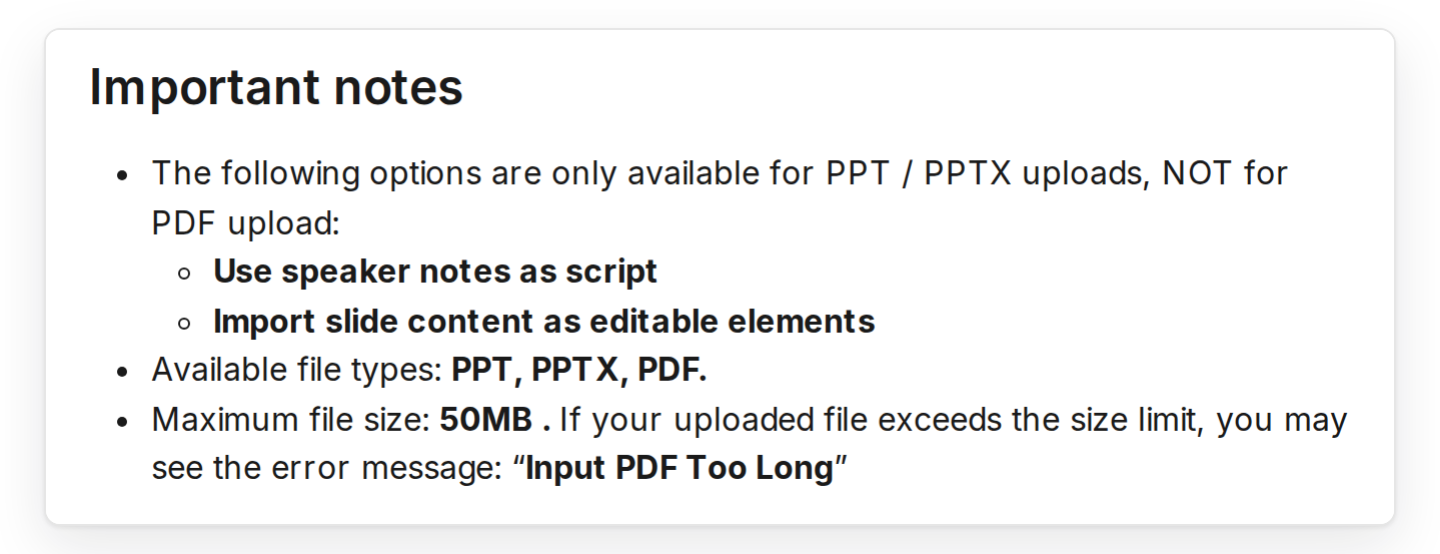
HeyGen's PPT/PDF to Video takes PPT, PPTX or PDF files up to 50 MB and imports the first 50 slides. You choose the avatar before generation, and it appears as a circular overlay in the bottom-right corner of each scene. "Use speaker notes as script" works only for PPT and PPTX uploads, so a PDF deck starts without a script.
The free plan makes 3 watermarked videos a month of up to 1 minute each. HeyGen Creator is $29 a month and exports in 1080p without branding. SCORM export and LMS integrations come with Business, $149 a month.
5. iSpring Suite
Best for: a course your LMS can track, built inside PowerPoint.
iSpring Suite runs as a PowerPoint add-in. It keeps your slides and adds quizzes, interactions and narration, then publishes to SCORM, xAPI, cmi5 or AICC, or exports an MP4 for YouTube. AI text-to-speech covers 53 languages, or you record your own audio.
It is the only tool here built around completion tracking, which is why safety and compliance teams pick it. It is also the most expensive: iSpring Suite is $970 per author a year, and Suite AI, with AI avatars and lifelike text-to-speech, is $1,290. A 14-day free trial is available.
6. Canva
Best for: a quick, free MP4 when you want to redesign the slides first.
Canva's PPT to video converter imports a PPT, lets you edit it with Canva's design tools, and downloads it as an MP4 for free. For narration you can generate an AI voiceover from text you write, upload audio, or record with Present and Record.
The voiceover is only as good as the text you give it, and Canva writes none of it for you. Canva Pro, at US$18 a month for one person, adds premium content and AI features, but the MP4 download itself is free.
7. Fliki
Best for: narration in many voices and languages from an existing deck.
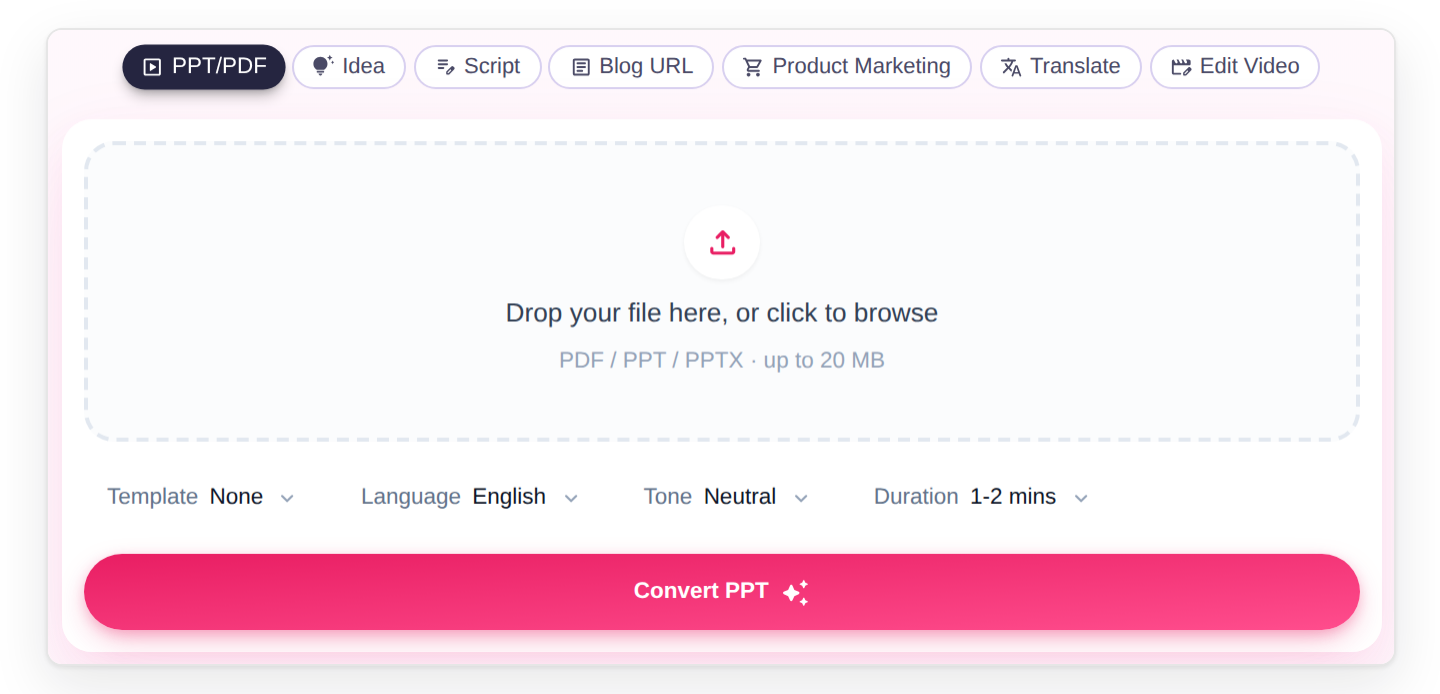
Fliki's PPT to video tool takes a PDF, PPT or PPTX of up to 20 MB. It reads the text, headings and speaker notes and writes a voiceover script per slide, with an optional AI avatar and a 1080p MP4 at the end.
The free plan exports 720p with a watermark, caps exports at 5 minutes and marks PPT to video as limited. Fliki Standard is $28 a month for 1080p and videos up to 15 minutes.
If your deck lives in Google Slides, Google has its own route: Google Vids can convert a Slides deck, covered in how to turn Google Slides into a video.
What Do the Free and Paid Plans Cost?
Most of these converters have a free plan that watermarks or limits the video; a clean MP4 starts on the first paid plan.
| Tool | Free plan | First paid plan with an unwatermarked MP4 |
|---|---|---|
| Synthesia | Basic: 10 minutes of video a month, watermarked | Starter, $19 a month |
| Microsoft PowerPoint | Included with desktop PowerPoint | Included |
| Scrimba Explain | A free account keeps five explainers | Pro, price shown in the upgrade dialog |
| HeyGen | 3 videos a month, up to 1 minute, watermarked | Creator, $29 a month |
| iSpring Suite | 14-day trial | Suite, $970 per author a year |
| Canva | MP4 download included | Free |
| Fliki | 720p, watermarked, 5-minute exports | Standard, $28 a month |
Prices and plans from each vendor's own pricing page, Nov 2026.
Scrimba Explain's terms in full: a free Scrimba account keeps five explainers for the life of the account, and a course counts as one, however many lessons it has. Explainers made in ChatGPT are not capped; the five is how many of them you can claim into your account, and with your Scrimba account connected each one is claimed, and counted, as it is made. Downloading the MP4 and commercial use come with Scrimba Pro, and the upgrade dialog on scrimba.com/explain shows the current price.
A worked case: a trainer who needs a SCORM package for the LMS. Synthesia Business is $99 a month for one member and HeyGen Business is $149 a month, so a year costs $1,188 or $1,788. iSpring Suite is $970 per author a year, the cheapest of the three for one author.
Which PowerPoint to Video Converter Fits Your Deck?
The right converter depends on what your viewers need from the slides: a presenter, your voice, a tracked course, or an explanation.
- You want an AI presenter and your notes are written: Synthesia. For a broader list of training tools, see the best AI video generators for training.
- You will narrate it yourself: PowerPoint's own export.
- Your slides are headlines and the explanation lived in your head: Scrimba Explain.
- You want an avatar in the corner of every slide: HeyGen.
- Your LMS must record who finished: iSpring Suite.
- You want to redesign the deck and download it free: Canva.
- You need many voices from one deck: Fliki.
Whichever you pick, the step-by-step routes cover the export itself.
Frequently Asked Questions
What is the best PowerPoint to video converter?
It depends on what should happen to your slides. Synthesia is the strongest choice for an AI presenter reading your notes. PowerPoint's own export is best when you narrate yourself. Scrimba Explain fits a deck of headlines that needs explaining. iSpring Suite fits teams that need SCORM tracking.
Can I convert a PowerPoint to video for free?
Yes. PowerPoint's Create a Video export comes with desktop PowerPoint, and Canva downloads an imported deck as an MP4 for free. Synthesia, HeyGen and Fliki have free plans with watermarks or length limits. Scrimba Explain is free to start, and its MP4 download comes with Scrimba Pro.
Can AI turn a PowerPoint into a video with voiceover?
Yes. Synthesia, HeyGen and Fliki turn your speaker notes or slide text into an AI voiceover, with an AI avatar (optional in Synthesia and Fliki). Scrimba Explain writes its own script, so slides with only headlines still get a full explanation. Canva generates an AI voiceover from text you type, so you still write the script yourself.
Which converter keeps my PowerPoint animations?
PowerPoint's own Create a Video export keeps your animations and transitions, because the video is the slide show itself. Synthesia does not import PowerPoint animations, though it can add its own. Canva lets you add animations and transitions after import.
Can Canva convert a PowerPoint to video?
Yes. Upload the PPT to Canva, edit it if you like, then choose Share, Download and MP4, which costs nothing. For narration, generate an AI voiceover from your own text, upload a recording, or record yourself with Present and Record while the slides play.
Key Takeaways
- PowerPoint to video converters differ most in where the narration comes from: your voice, your speaker notes, the slide text, or a new script.
- Synthesia leads for presenter-led training; its import uses speaker notes and falls back to slide text when a slide has none.
- PowerPoint's own export keeps animations and needs recorded narration, or each slide shows for 5 seconds.
- Scrimba Explain turns a deck of headlines into a narrated lesson with diagrams and an optional quiz.
- For SCORM tracking, iSpring Suite costs less over a year for one author than Synthesia Business or HeyGen Business at their monthly list prices.
- Canva gives a free MP4 of an imported deck; the voiceover still needs text you write.
Sources
- Microsoft Support. "Turn your presentation into a video." https://support.microsoft.com/en-us/powerpoint/turn-your-presentation-into-a-video
- Microsoft Support. "Record a slide show with narration and slide timings." https://support.microsoft.com/en-us/powerpoint/training/record-a-slide-show-with-narration-and-slide-timings
- Synthesia Docs. "Import PowerPoint." https://docs.synthesia.io/docs/import-powerpoint
- Synthesia. "Pricing." Read Nov 2026. https://www.synthesia.io/pricing
- HeyGen Help Center. "PPT/PDF to Video." https://help.heygen.com/en/articles/13007313-ppt-pdf-to-video
- HeyGen. "Pricing." Read Nov 2026. https://www.heygen.com/pricing
- iSpring. "iSpring Suite features." https://www.ispringsolutions.com/ispring-suite/features
- iSpring. "iSpring Suite pricing." Read Nov 2026. https://www.ispringsolutions.com/ispring-suite/pricing
- Canva. "Free PPT to Video Converter." https://www.canva.com/features/ppt-to-video-converter/
- Canva. "Pricing." Read Nov 2026. https://www.canva.com/pricing/
- Fliki. "PPT to video." https://fliki.ai/features/ppt-to-video
- Fliki. "Pricing." Read Nov 2026. https://fliki.ai/pricing
- Google Docs Editors Help. "Convert Google Slides into Google Vids." https://support.google.com/docs/answer/15577408?hl=en
- Scrimba. "Scrimba Explain." https://scrimba.com/explain