How to Install and Use a ChatGPT Plugin: A Video Example
A ChatGPT plugin does nothing until you install it. The full route from the plugin directory to a finished result, with both outcomes recorded on 8 September 2026.

A ChatGPT plugin does nothing until you install it. Until then its name is just a word in your prompt, and ChatGPT answers in ordinary text as though you had never mentioned it. The route is short: open Plugins, open the listing, select Install plugin, complete the connect step if one appears, then @ mention the plugin in a chat. This guide walks that route once, end to end, using Scrimba Explain, listed in ChatGPT's plugin directory as Explain Video Generator, as the worked example. Both outcomes below were recorded on 8 September 2026: the run where nothing was installed and nothing happened, and the run where the same request, with the plugin named, produced a narrated explainer.
Disclosure: Scrimba publishes this article and makes the plugin used as the example. It is the example because every step of the route could be recorded first hand rather than paraphrased from a help page. If you want a survey of what else is in the directory, the roundup of video plugins covers that ground and this page does not.
What Happens If You Skip the Install
Start with the failure, because it is the reason this page exists.
Signed out, with nothing installed, the plugin's name went into a prompt asking it to explain how photosynthesis converts light into sugar. ChatGPT answered, and answered well. It also answered in plain text, with no plugin involved at all.
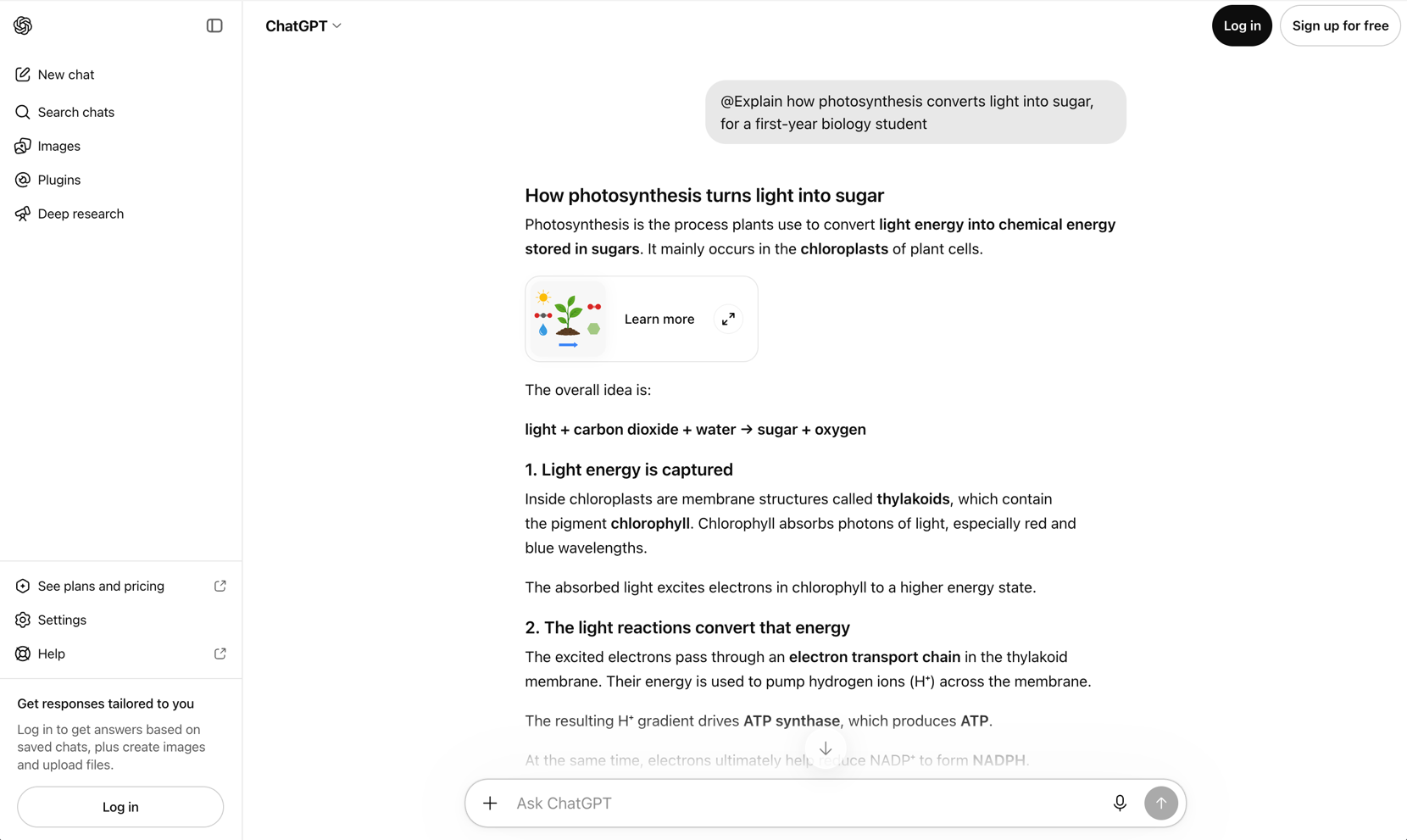
There is no error message, no warning, and nothing that says the plugin was skipped. The model simply read the word and carried on. That is the trap in most published advice about ChatGPT plugins. It tells you to type an @ mention and stops there, so a reader who has installed nothing gets a normal answer, decides the plugin is broken or fake, and never comes back.
Nothing was wired up, so there was nothing to call.
OpenAI's own help center is blunt about how many things sit between a reader and a working plugin:
App availability depends on the app, your ChatGPT plan, region, workspace, role, model, and the ChatGPT interface you use.
Worth being precise about what that test does and does not show. The comparison was signed out with nothing installed against signed in with the plugin installed. It establishes that installation is what changes the outcome. It does not establish which ChatGPT plan you need, and this article makes no claim either way. If a plugin refuses to appear on your account after you have followed the steps below, the plan is one of several possible reasons and not the obvious one.
A Plugin, an App and the 2023 Confusion
The vocabulary changed recently, which is why so much of what you will find is wrong.
As of 9 July 2026, OpenAI migrated the app directory to the Plugin directory. Plugins are now the primary way to discover capabilities across ChatGPT and Codex. A plugin can include skills, which are instructions and workflow guidance, connected apps, which link an external account and its actions, and app templates, which help administrators configure apps for a workspace. Apps did not go away. They are still the integrations that connect ChatGPT to outside data and actions, and a plugin is the wrapper that makes them easier to turn on.
The practical consequence for a reader: some plugins carry no app connection at all and install in a single step, while others start an authorization flow the moment you install them. You do not know which you have until you open the listing.
One sentence on history, because it explains the bad results you will find elsewhere: the plugins of 2023 were a different system that OpenAI retired, so walkthroughs from that era describe menus that no longer exist.
Underneath a modern plugin sits the Model Context Protocol, the open standard that lets a model call tools built by someone else. You do not need to understand it to install anything, but it explains why the same tool often works in ChatGPT, in Codex and in other agents. The guide to MCP servers for developers covers that layer if you want it.
Step 1: Find the Listing in the Plugin Directory
Go to Plugins in ChatGPT, or open the directory directly at chatgpt.com/plugins, and search for the plugin by name.
Search rather than browse, and this is not a preference. OpenAI's developer documentation says that plugins appear on the directory's main pages only when OpenAI selects them for enhanced distribution, and tells developers to confirm publication by searching the exact publication name or opening the directory URL. What you can browse is a curated slice. What you can search is everything.
Which sets up the trap that catches people at this exact step: the product name a vendor uses and the name its listing carries in the directory are often different. Scrimba's product is called Scrimba Explain. Its listing is called Explain Video Generator. Searching for "Scrimba" is not the move. Search for the listing name, or skip the search and open the listing directly:
https://chatgpt.com/plugins/plugin_asdk_app_69c50381a40081919232f5027201beef
That URL was checked on 8 September 2026 and opens without an account. The listing page shows the title, the tagline Free AI video maker by Scrimba, an Install plugin control, and three example cards: turn an employee onboarding PDF into a video, teach me about sleep cycles, and create a video of the pull request I am reviewing. Lower down, an Information block gives the developer as Scrimba AS, the category as Education and Research, and the version as 5.1.0.
Two things to read before you install anything. The example cards, which are the fastest honest summary of what a plugin is for and are written by the people who built it. And the OpenAI Verified badge, which some listings carry: OpenAI reviews those plugins for quality, reliability and usefulness, though it says plainly that the badge does not replace your organization's own privacy and security review.
Step 2: Install It and Connect the App If Asked
OpenAI publishes the sequence, and it is worth following exactly rather than improvising:
- Go to Plugins in ChatGPT or Codex. If your account shows Apps instead, use the app options shown for your account.
- Select the plugin and review its included apps.
- Select Install plugin if it is shown. Installing may start the app's setup or authorization flow.
- If prompted, select Connect for an app that requires account authorization.
- Sign in to the provider account only when individual authorization is actually required.
One line from that same help page explains most stuck installs better than any troubleshooting list: installing a plugin cannot bypass provider or workspace permissions. The install control is not a master key. It puts the plugin in front of you and hands the rest of the decision to the vendor and, on a managed account, to your administrator.
Which brings up the case that catches people at work and at school. Administrators manage plugin installation in Workspace settings > Plugins, where a plugin can be set to Available, meaning eligible members may install it, or Installed, meaning it is installed for them automatically. Business workspaces have apps enabled by default. New Enterprise and Edu workspaces start with a selected set enabled rather than everything. So an install control that does nothing on a work account is often policy working as designed, not a fault.
One last thing before you press it. The listing states plainly that when you are connected to Explain Video Generator, ChatGPT may share relevant chats and memories with the app to give it context, under Scrimba's own terms and privacy policy. Every plugin carries a version of that notice. Read it once rather than never.
Step 3: Call It in a Chat and Watch the First Result
Once the plugin is installed, there are two ways to call it: @ mention it by name, or open + in the composer and select More, where those controls are available for your surface and for that particular plugin.
The same request that had produced plain prose earlier went in again, this time with the plugin installed. It fired.
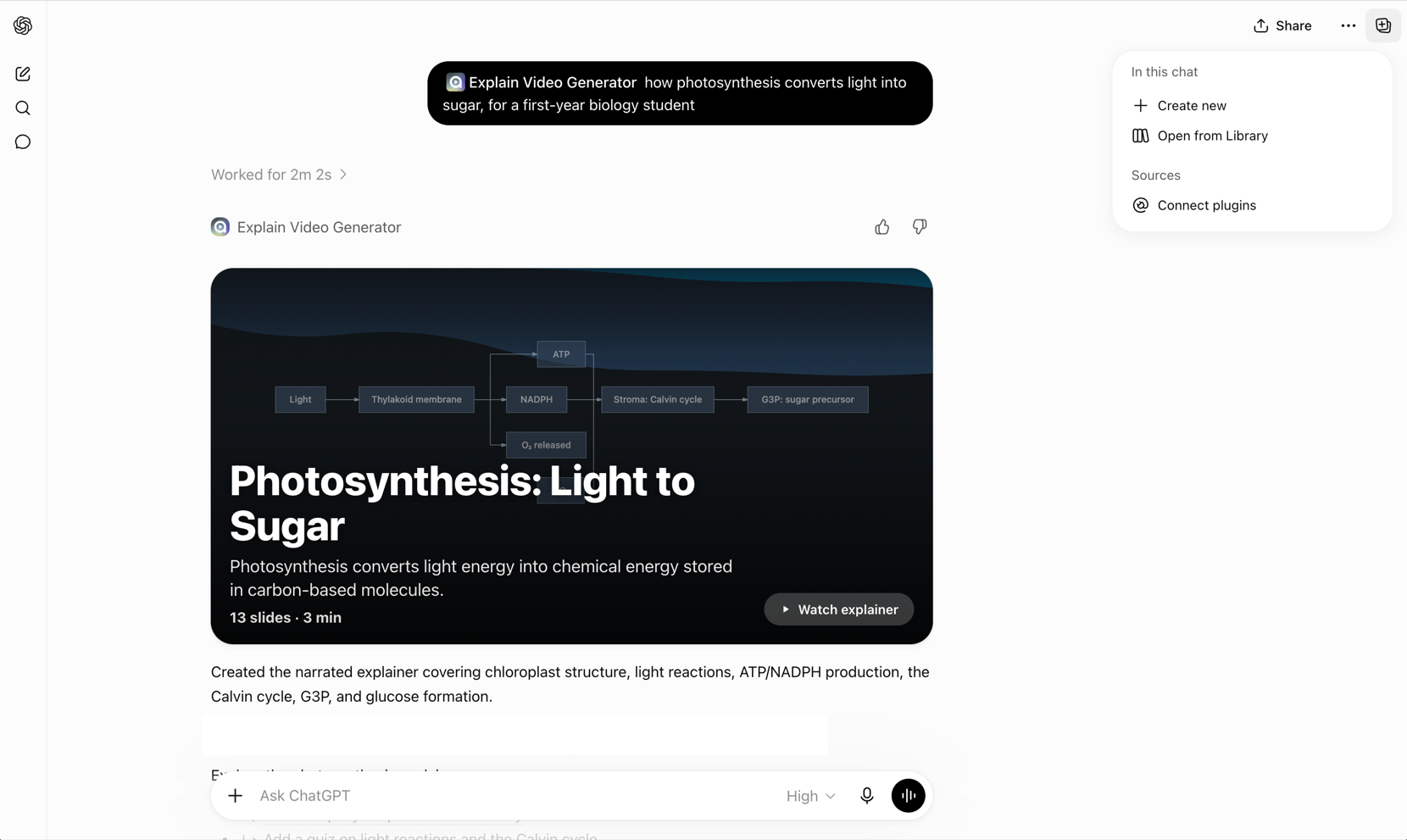
The status line read Worked for 2m 2s. What came back was not a paragraph but a card: a title, 13 slides, a three minute runtime, a diagram tracing light through the thylakoid to ATP and NADPH and on to the Calvin cycle, and a control to watch the explainer inline. That is one run, so treat the runtime and the slide count as a description of that output rather than a promised format.
Two runs, one variable:
| What was typed | What came back | What was different |
|---|---|---|
| The plugin name, then the request, signed out with nothing installed | A plain prose answer about photosynthesis. No card, no run indicator, no error | The name was read as an ordinary word |
| The same request naming the plugin, signed in with it installed | Worked for 2m 2s, then a narrated explainer card with 13 slides and a diagram | The plugin was installed on the account |
That is the whole lesson of the page. The request was not the problem, and no amount of rewording would have fixed the first row.
For the record on what this particular plugin does: Scrimba Explain turns a question, a document, a webpage or a codebase into a narrated explainer video, and it is free during its open beta. The full product guide covers the other ways to reach it, including through a coding agent.
Step 4: Check the Result Before You Trust It
A video that plays is not the same as a video that is right, and the check is easy enough that skipping it is a choice.
Ask the plugin to test you on what it just said.
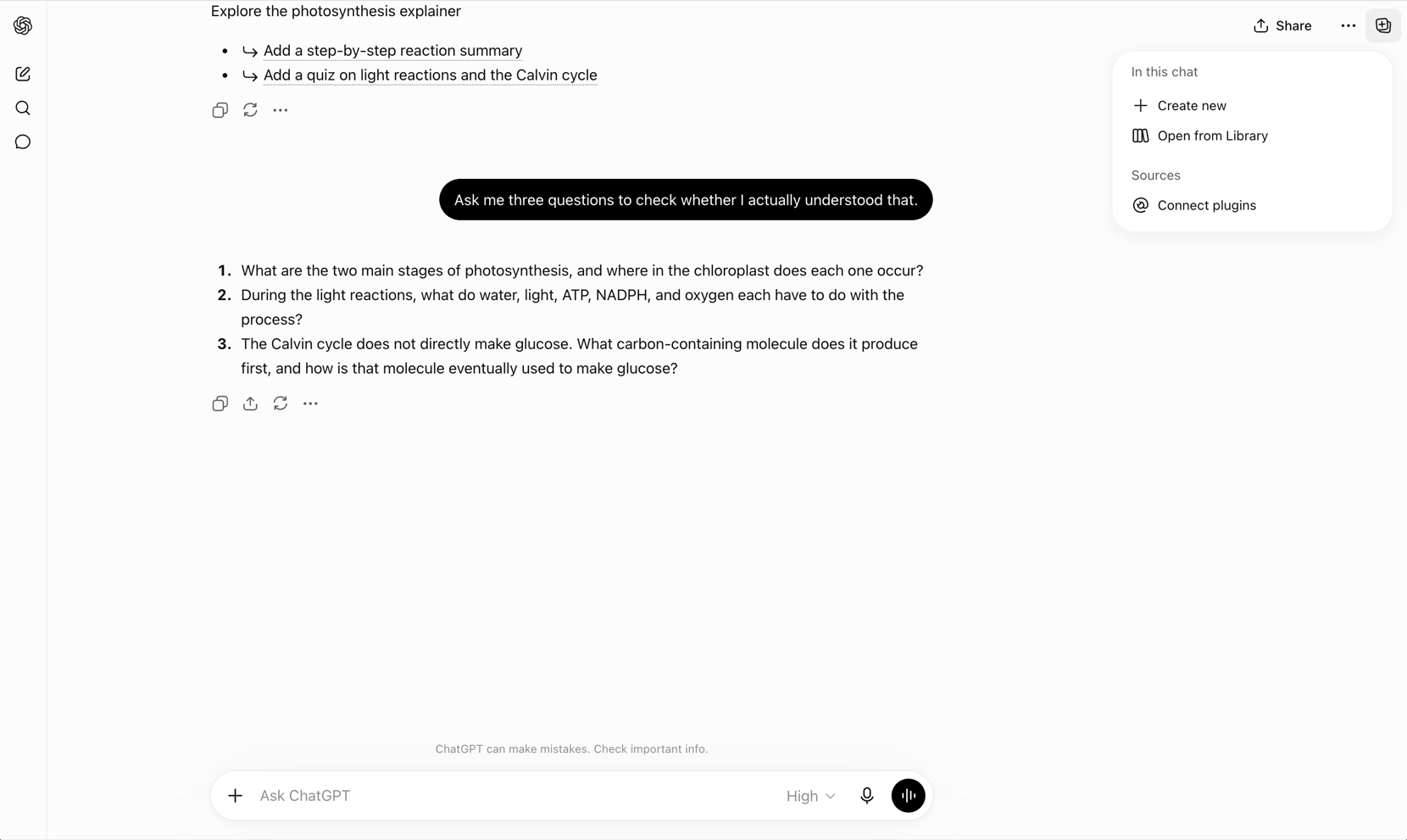
Three questions came back, and the third is the useful one. It asks why the Calvin cycle does not directly produce glucose, which is exactly the point a confident but shallow summary tends to get wrong. If you can answer all three from the source material rather than from the video, the explanation held. If you cannot, you have found the gap.
Check the claims against the source, not against the video. Scrimba's own FAQ says the tool can make mistakes and that anything important should be double-checked, which is the correct posture for every plugin in the directory rather than a peculiarity of this one. The same discipline applies when the input is a document rather than a question: the guide to turning a PDF into a video covers what survives that conversion and what does not.
How to Tell Whether the Plugin Actually Fired
If you are not sure whether anything happened, these are the tells:
- A call that fired returns a component. You get a run indicator and a card, a preview or an interactive element, not only text.
- A tidy paragraph is the signature of a plugin that did not fire. ChatGPT answering your question well, in prose, is the failure mode. It looks like success.
- The plugin is missing from the + menu. Either it is not installed on this account, or the controls are not available on the surface you are using.
- Retype using the exact listing name. The product name and the listing name may differ, and the listing name is the one that resolves.
- Check which interface you are in. Availability varies by interface, so a plugin that works in one place may be absent in another.
- On a work or school account, ask about policy. Installation may be controlled by an administrator in workspace settings.
What Installing a Plugin Does Not Buy You
A short and unglamorous list, because the marketing rarely leads with it.
A plugin is a remote control. The work happens on the vendor's side, on the vendor's account, against the vendor's quota, so a ChatGPT subscription buys none of it. Installing is per account rather than a global switch you flip once for everyone you work with. And installation says nothing about output quality, which is why step 4 exists.
For this plugin specifically, the boundary is worth stating: it produces explainer video from a question or a document. It does not do avatars, stock footage or brand templates, so it is not a substitute for a marketing video tool. If that is the job you actually have, the comparison of free AI video generators is the better starting point.
Frequently Asked Questions
Do you have to install a ChatGPT plugin before you can use it?
Yes. Until a plugin is installed on your account, mentioning its name has no effect at all. ChatGPT reads the name as ordinary words and answers in plain text, with no error and no warning that anything was skipped. Install it from the plugin directory first, then mention it in a chat.
How do you install a plugin in ChatGPT?
Go to Plugins in ChatGPT or Codex, select the plugin and review its included apps, then select Install plugin. Installing may start a setup or authorization flow, in which case select Connect and sign in to the provider account when individual authorization is required. Installation cannot bypass provider or workspace permissions.
Why is a ChatGPT plugin not responding when you mention it?
The most common reason is that it is not installed on the account you are using. Check whether it appears in the plus menu, retype the exact listing name rather than the company's product name, and confirm the interface you are in supports it. On a work or school account, an administrator may control installation.
What is Explain Video Generator?
Explain Video Generator is the ChatGPT plugin directory listing for Scrimba Explain, tagged "Free AI video maker by Scrimba" and published by Scrimba AS under Education and Research. It turns a question, document, webpage or codebase into a narrated explainer video you can watch inside the chat. It is free during its open beta.
What is the difference between a plugin and an app in ChatGPT?
As of 9 July 2026, OpenAI migrated the app directory to the Plugin directory. A plugin is the package you install, and it can contain skills, connected apps and app templates. An app is the integration that connects ChatGPT to external data and actions. Some plugins carry no app connection at all.
Key Takeaways
- A plugin does nothing until it is installed. Signed out with nothing installed, the plugin name in a prompt returned ordinary prose and no error, which is why so many people conclude a plugin is broken.
- OpenAI states the constraint directly: app availability depends on the app, your plan, region, workspace, role, model and the interface you use.
- Search the directory by listing name, not product name. Only plugins selected for enhanced distribution appear on the directory's main pages, and Scrimba Explain is listed as Explain Video Generator.
- The install sequence is five steps: open Plugins, select the plugin, select Install plugin, Connect if prompted, sign in only where individual authorization is required.
- A returned card means it fired. A tidy paragraph means it did not. Check the output against the source rather than against the video.
Sources
- OpenAI Help Center. "Plugins in ChatGPT and Codex." Accessed 8 September 2026. https://help.openai.com/en/articles/20001256-plugins-in-chatgpt-and-codex
- OpenAI Help Center. "Apps in ChatGPT." Accessed 8 September 2026. https://help.openai.com/en/articles/11487775-connectors-in-chatgpt
- OpenAI. "Plugin review and publication." Accessed 8 September 2026. https://developers.openai.com/plugins/deploy/app-review
- ChatGPT plugin directory. "Explain Video Generator." Accessed 8 September 2026. https://chatgpt.com/plugins/plugin_asdk_app_69c50381a40081919232f5027201beef
- Scrimba. "Explain." 2026. https://explain.new/