How to Turn a Webpage into an Explainer Video with ChatGPT
A webpage is an address, not a file, and something has to fetch it. The two routes from a URL to a narrated explainer, why the fetch fails, and how to check the result.

Turning a PDF into a video means handing over a file. Turning a webpage into a video means handing over an address and hoping something can go and get it. That difference is small on paper and enormous in practice, and it is where almost every first attempt fails.
There are two routes, and the only real difference is who does the fetching. You can paste the URL into ChatGPT and let a plugin retrieve the page. Or you can use a browser extension, which does not need to fetch anything: the page is already open in front of you, already rendered, already signed in.
This guide covers both, the four ways the fetch goes wrong, and the checks that tell you whether the explainer is actually about the page you sent. Scrimba publishes this article and makes the tool used as the example, which is also why an honest comparison of the two routes is possible: they belong to the same product.
Two Routes, and the Only Difference That Matters
The tool in both cases is Scrimba Explain, listed in ChatGPT's plugin directory as Explain Video Generator and in the Chrome Web Store as Turn Articles into Videos - Explain by Scrimba. It is free to start: 1 explainer without an account, 5 on a free account, 100 a month on Pro. What changes between the routes is not the output but where the page comes from, and what happens to the result afterwards.
| ChatGPT plugin | Chrome extension | |
|---|---|---|
| Who gets the page | A fetcher retrieves the URL | Your browser already has it |
| Works on a page you are signed in to | No | Yes |
| Result's default visibility | Unlisted | Public |
| Best for | A public page you want explained inside a conversation | The page open in front of you right now |
Before the ChatGPT route can do anything, the plugin has to be installed on your account. That is the most common reason people conclude the tool does not work: tested on 8 September 2026, signed out with nothing installed, typing the plugin's name into a prompt returned ordinary prose. No card, no error, no sign anything had been skipped. Install it from the directory listing first, then mention it.
The listing is public and opens without an account:
https://chatgpt.com/plugins/plugin_asdk_app_69c50381a40081919232f5027201beef
Its description states the supported inputs: turn any topic, document, webpage, codebase or product brief into a video with voiceover, diagrams, animations, images and code walkthroughs. A webpage is on that list, which is why this is its own article and not a paragraph in the PDF to video guide.
Route 1: The Chrome Extension, When the Page Is Already Open
This route's premise is that your browser already solved the access problem. You are looking at the page. It rendered. If it needed a login, you are logged in.
Install it from the Chrome Web Store, published by scrimba.com at version 0.1.1, updated 18 September 2026. The listing is plain about the requirement: all you need is a Scrimba account.
From there, Scrimba's documentation describes a single click. On any article, documentation page or blog post, click the extension. It reads the page and builds an explainer that streams in while you watch, in an overlay on top of the page rather than a new tab, so closing it puts you back where you were. An Open on Scrimba button carries the result to your account to save, share and ask follow up questions.
One line in those docs matters more than it looks: if someone has already made an explainer of the same page, you get that one instantly instead of a fresh build. The documentation does not say whether it is rebuilt when the page underneath changes, which is a reason to check what you are watching against the page.
Now the part that is easy to skip and should not be. The extension's data notice, verbatim from its store listing:
When you click the extension, the active page's URL, title, and readable text are sent to Scrimba and processed using Google Gemini. Generated explainers are public by default. Do not use Explain on pages containing private, confidential, or sensitive information.
Scrimba's docs say the same in their own words: page explainers made through the extension are public, so the link is shareable as it stands. The trade is clear. The route that can see a page behind a login is also the route whose output is public by default. A company wiki, a client's staging site, a medical portal, an internal ticket: none belong here.
Route 2: The ChatGPT Plugin, When the Page Belongs in a Conversation
The other route keeps everything inside a chat you are already having. Install the plugin once from the directory listing and it works in both ChatGPT and Codex, which share a plugin catalog. Then @ mention it, say what you want explained, and give it the URL. It writes the lesson itself, the slides, the narration script and the diagrams, and replies with a link that builds in front of you.
Use this route when the page is public and the explanation should be shaped by context your browser does not have: a conversation where you have already worked something out, a page set against another source, an explainer in a different language than the page. Scrimba's docs note it works best at the end of a conversation, where the model has already reasoned through the material with you.
Visibility works differently here, and in your favor. An explainer created through the plugin is unlisted: anyone with the link can watch it, but it is not listed or searchable anywhere. Sign in when you open it and claim it, and it becomes yours. Public, unlisted and private are Scrimba's three levels, and claiming puts you in charge of which applies.
For a survey of what else does this job, the roundup of video plugins covers it, and the product guide covers Explain's other routes.
What Goes Wrong When Something Has to Fetch the Page
Everything in this section applies to route 2 only, which is where most first attempts happen.
A Login or a Paywall Is In Front of It
The fetcher does not have your session. It arrives at the URL as a stranger and gets what a stranger gets, which is the gate rather than the article.
The symptom is unmistakable once you know it: an explainer about subscription options, or one built from a headline and an abstract, confidently missing the body. Nothing errors, because nothing failed. A page was fetched, just the wrong one.
The fix is route 1, which sees what you see. Not a fix: asking the model to work around the gate. If you are entitled to the text, use the text.
The Page Is Built in the Browser
Some pages send you an article. Others send a program that then draws the article, and a fetcher that does not run the program gets an empty shell.
Two pages from the same company, both fetched on 8 September 2026:
| Page | Raw HTML | Visible words in that HTML |
|---|---|---|
scrimba.com/explain |
7,895 bytes | 2 |
docs.scrimba.com/explain/chrome-extension |
101,450 bytes | 334 |
The first is an application interface and is supposed to be a program, so this is no flaw in it. But to anything that fetches without rendering, that page contains two words. The second ships its text.
The ten second test works on any URL: view the page source and search it for a sentence you can see on screen. If it is not there, no fetcher will find it either. The tell in the output is an explainer that is vague in a particular way, correct about the general subject and empty of anything specific to the page.
The Site Refuses Automated Fetchers
Sites state what automated clients may take in a robots.txt file, standardized as RFC 9309. OpenAI's crawlers are managed there: GPTBot for training, OAI-SearchBot for search results.
The nuance most people have backwards is what happens when you ask for a page. OpenAI's documentation says ChatGPT-User visits a page in response to a user action, is not used for automatic crawling, and adds:
Because these actions are initiated by a user, robots.txt rules may not apply.
So a refusal you hit while asking about one specific page is usually not robots.txt. It is the network layer in front of the site, and that layer got stricter: on 1 July 2025 Cloudflare changed its default to block AI crawlers unless they pay creators for the content, moving a large share of the web at once. A page can be entirely public to you in a browser and still be closed to anything that is not one.
The Page Changed After the Explainer Was Made
An explainer is a fixed artifact. A webpage is not. Pricing pages change, documentation gets versioned, news articles are corrected, and none of it reaches a video rendered last month.
The fix costs nothing: record the date you generated it, and treat a material edit to the source as a reason to generate again.
The whole section as a lookup table:
| What you saw | What it probably is | What to do |
|---|---|---|
| An explainer about signing up or subscribing | A login or paywall | Use the extension route |
| Fluent, correct, and about nothing on the page | Client rendered page, empty shell | Check the page source, then use the extension route |
| "I could not access that link" | Network layer blocking the fetcher | Use the extension route, or find the same content on a page that ships its text |
| Right about an older version of the page | The page changed since | Generate again and date it |
Check the Explainer Against the Page
Three checks, in ascending order of how often they catch something.
Is everything in the video on the page? The ordinary accuracy check, least likely to fire.
Is everything important on the page in the video? A five minute page becomes a two minute explainer by leaving things out, and the question is whether it left out the right ones. Scan the page's headings and confirm each is represented or fairly skipped.
Is the video about this page, or about the topic? This check earns its keep and almost nobody runs it. When a fetch quietly returns nothing usable, the model does not stop. It answers from general knowledge, fluently, under the page's title. The tell is an explainer containing no number, no name and no example that appears on the page. It is a general answer wearing your URL as a hat, and it reads as a success.
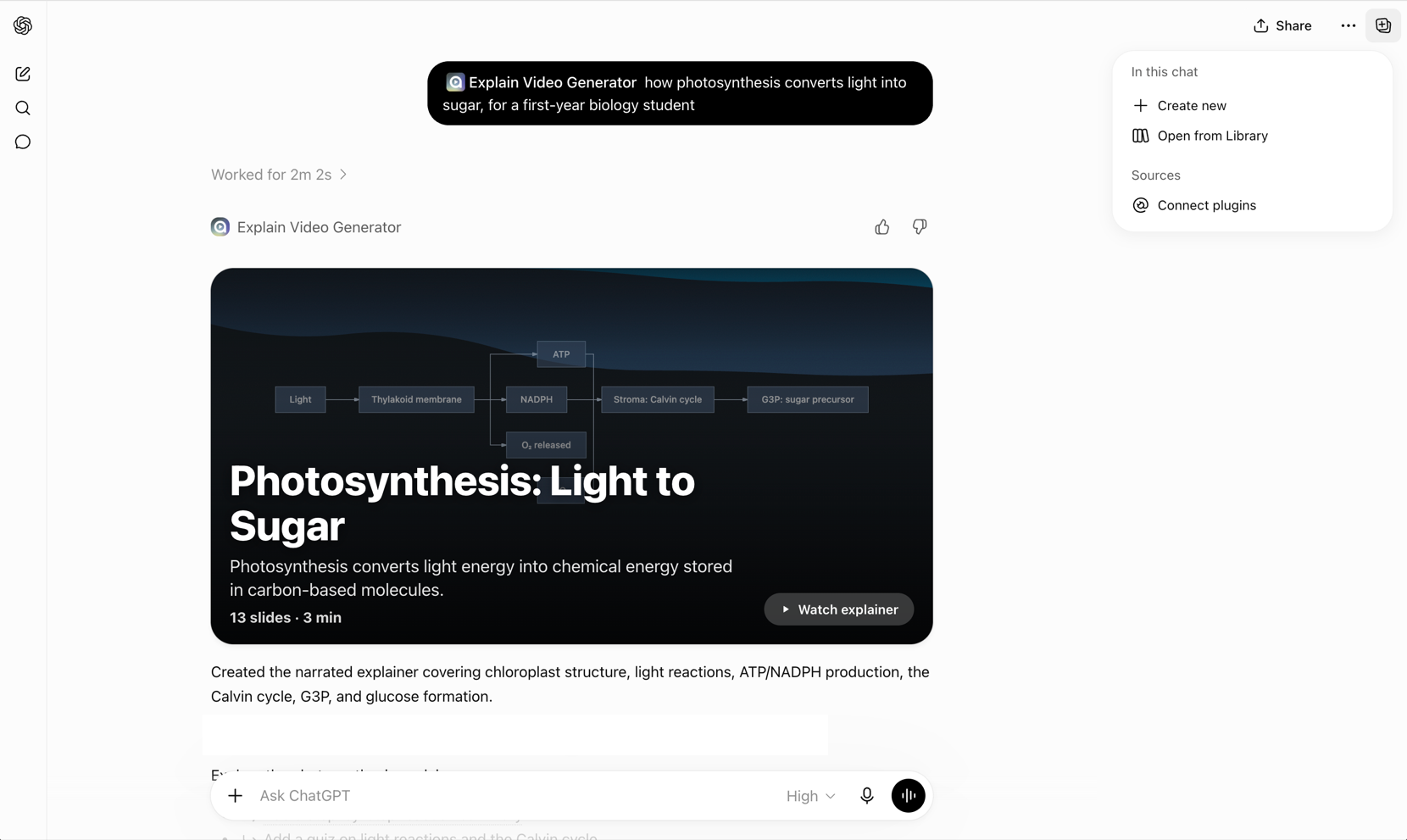
That is what a finished explainer looks like when it comes back. To be exact: this run was produced from a typed question about photosynthesis, not from a webpage, and the slide count and runtime describe that one output rather than a fixed format. The webpage routes return the same kind of card. For finished output made by other people, the gallery on Scrimba's Explain hub is public and holds roughly 150 published explainers with authors and runtimes.
The fastest version of all three is to ask for a test. Request three questions about what you just watched, then answer them from the page rather than the video. Anything you cannot answer from the page is something the explainer added. Scrimba's own FAQ puts it plainly: like any AI tool, it can make mistakes, so double-check anything important.
When the Page Cannot Be Fetched at All
In order, cheapest first.
Use the extension route. It answers most of this section, because it sidesteps fetching entirely. Just not for anything private.
Find the same content on a page that ships its text. Documentation, a print view, a plain permalink. The page source test tells you which you have.
Save the page as a PDF and upload it. Scrimba's upload accepts PDFs and images, which turns an access problem into a document problem. The PDF guide covers what survives.
Paste the text you are entitled to use. Unglamorous, always available, and it removes every variable at once.
One boundary, because the category name misleads. This is not text to video: nothing here invents footage from a description, and how text to video actually works explains why that family cannot read your page at all. If you only want the gist rather than something watchable, a summarizer is cheaper, and the roundup of AI video summarizers covers those.
Frequently Asked Questions
Can ChatGPT turn a webpage into a video?
Yes, with a plugin installed. Scrimba Explain, listed as Explain Video Generator, names a webpage among its supported inputs and returns a narrated explainer with slides, diagrams and voiceover. The plugin must be installed on your account first; until it is, mentioning its name returns ordinary text with no error.
Why can ChatGPT not open the link I pasted?
Usually because something between the fetcher and the page refused it, or because the page is drawn in the browser and contains almost nothing until JavaScript runs. OpenAI notes that robots.txt rules may not apply to user-initiated visits, so a refusal more often comes from the network layer in front of the site.
Do you need to install anything to turn a webpage into a video?
Yes, one of two things. The ChatGPT route needs the plugin installed from the plugin directory. The browser route needs the Chrome extension and a Scrimba account. Neither works by typing a name into a chat and hoping.
Can you make a video from a page behind a login?
Only through the browser extension, because your browser is already signed in and a fetcher is not. Its store listing says the active page's URL, title and readable text are sent to Scrimba, and that generated explainers are public by default, so it should not be used on private, confidential or sensitive pages.
Is a webpage explainer private?
It depends on the route. Explainers made through the ChatGPT plugin are unlisted: anyone with the link can watch, but they are not listed or searchable. Page explainers made through the Chrome extension are public. Signing in and claiming an explainer lets you set it to public, unlisted or private.
Key Takeaways
- A webpage is an address, not a file. Something has to fetch it, and that trip is where webpage to video fails.
- The two routes differ only in who gets the page. The ChatGPT plugin fetches the URL; the Chrome extension uses the page already open in your browser.
- The route that can see a login is the route whose output is public by default. Scrimba's store listing says so, which rules the extension out for anything confidential.
- Four things break a fetch: a login or paywall, a client rendered page that ships an empty shell, a network layer that refuses automated clients, and a page that changed after the explainer was made.
- Check that the explainer is about the page, not the topic. A fluent video containing no number, name or example from the page is the signature of a fetch that returned nothing.
Sources
- Chrome Web Store. "Turn Articles into Videos - Explain by Scrimba." Accessed 23 October 2026. https://chromewebstore.google.com/detail/turn-articles-into-videos/inggjdboiclegclbbfjbhbdmbenkjemf
- Scrimba Docs. "Plans and pricing." Accessed 23 October 2026. https://docs.scrimba.com/explain/limits-and-plans
- Scrimba Docs. "Attaching documents." Accessed 23 October 2026. https://docs.scrimba.com/explain/attaching-documents
- Scrimba Docs. "Chrome extension." Accessed 8 September 2026. https://docs.scrimba.com/explain/chrome-extension
- Scrimba Docs. "Privacy, claiming and sharing." Accessed 8 September 2026. https://docs.scrimba.com/explain/privacy-and-sharing
- Scrimba Docs. "ChatGPT / Codex." Accessed 8 September 2026. https://docs.scrimba.com/explain/chatgpt-codex
- ChatGPT plugin directory. "Explain Video Generator." Accessed 8 September 2026. https://chatgpt.com/plugins/plugin_asdk_app_69c50381a40081919232f5027201beef
- OpenAI. "OpenAI Crawlers." Accessed 8 September 2026. https://developers.openai.com/api/docs/bots
- Cloudflare. "Content Independence Day: no AI crawl without compensation." 1 July 2025. https://blog.cloudflare.com/content-independence-day-no-ai-crawl-without-compensation/
- RFC 9309. "Robots Exclusion Protocol." IETF, September 2022. https://www.rfc-editor.org/rfc/rfc9309.html
- Scrimba. "Explain." Accessed 8 September 2026. https://explain.new/