How to Turn a PDF into a Video [2026]
Four ways to turn a PDF into a video, what each tool accepts and costs, and how to get an MP4 out. Every free plan and limit checked on the vendor's own page.

![How to Turn a PDF into a Video [2026]](/articles/content/images/size/w1200/2026/08/141-hero.jpg)
Short answer: upload the PDF to a tool that reads it and narrates an explanation, such as Scrimba Explain (listed in ChatGPT as Explain Video Generator), Gemini Notebook, or the PDF converters from HeyGen, Synthesia and Pictory. Check the transcript against the document, then download an MP4. If every word has to be signed off, turn the pages into slides and record your own narration in PowerPoint. Text to video models are the wrong tool: they never read the file.
Last verified September 28, 2026: every price, free plan, file limit and export format below was re-read that day on the vendor's own pages, and every Explain detail on Scrimba's docs and its ChatGPT listing.
Disclosure: Scrimba publishes this article and makes Scrimba Explain, one of the tools in it.
What Does "Turning a PDF into a Video" Actually Mean?
Turning a PDF into a video means converting a document into narrated, watchable form, either by explaining its content, presenting its pages, or performing a script drawn from it.
Those three verbs are the whole decision. Explaining means something reads the document and builds an account of it. Presenting means the pages appear while a voice reads them. Performing means a presenter, real or synthetic, delivers a script. Most disappointment with PDF to video tools comes from wanting the first and buying the third.
| Route | What you supply | What comes out | Cost |
|---|---|---|---|
| AI that reads the document | The file and what to explain | Narrated explainer with diagrams | Free to start |
| Avatar tools and PDF converters | The file, then script edits | A presenter or stock scenes reading a condensed script | Capped free plans, paid from $19/mo |
| Slides to video | Slides and your own narration | Exactly what you put on screen | Free if you have Office |
| Text to video models | A prompt describing footage | Invented footage unrelated to your file | Wrong tool |
Who This Guide Is For
This page covers the general job: a PDF people should understand without reading it, such as IRS guidance for clients, a 30-page client report, an implementation guide nobody opens, a pharmacology handout or an architecture PDF. Three jobs have their own guides:
- Trainers with an SOP or manual: how to turn an SOP or manual into a training video.
- HR with an employee handbook: how to make employee onboarding videos from your handbook.
- Lecturers with a slide PDF: how to make lecture recap videos from your slides and notes.
If the deck is still a PowerPoint file, read PowerPoint to video instead.
Step 1: Check What Is Actually Inside Your PDF
Try to select a sentence with your cursor. If nothing highlights, you have a scanned PDF: a photograph of a document, and nothing can read it until it has been through OCR.
Selectable text is not structure either. The PDF Association puts it plainly: an untagged PDF is a description of appearance, marks positioned on a page, with nothing declaring that this run of text is a heading or that those cells form a table.
A table collapses into a wall of unformatted text, its row-and-column relationships, the entire point of a table, gone.
PDF Association
OCR does not bring that structure back. Google asks for files of 2 MB or smaller with text at least 10 pixels high, and warns that lists, tables, columns, footnotes and endnotes are not likely to be detected. Adobe puts "Turn scans into editable PDFs" on Acrobat Pro at US$19.99/mo, not on Standard.
Five minutes of preparation changes the output more than any tool choice:
- Confirm the headings are real headings. Text that is merely bigger and bolder is invisible as structure.
- Pull complex tables out as images. A screenshot beats a mangled paraphrase in the narration.
- Cut appendices, boilerplate and revision histories.
Step 2: Decide What the Video Has to Do
A 60-page policy document runs to roughly 20,000 words. Three minutes of narration is around 450. That is more than forty to one, and no tool resolves it for you. The document is not the script. Something has to choose which 2 percent a viewer hears.
- Client and customer briefings. Two to four minutes on what changed and what to do, with the PDF left as the reference.
- Study notes and papers. The value is in explanation, not coverage.
- Announcements. You want a performance, so write the script yourself.
If you only need the gist, a summarizer is cheaper; Scrimba's roundup of AI video summarizers covers that case.
Option 1: Let an AI Read the Document and Narrate It Back
This route hands the document to a tool that reads it and narrates an explanation: no editor, timeline or script.
Scrimba Explain: Upload the PDF on scrimba.com
Scrimba Explain turns a PDF into typed slides with diagrams, animations and images, plus a voiceover. Nothing is filmed, so there is no presenter and no camera. On scrimba.com/explain you attach a PDF or images to your prompt.
- Set visibility first. Signed in, a new explainer starts as Public and is listed in Scrimba's community. For a client report, pick Unlisted (anyone with the link) before you create it. Private explainers cannot be exported.
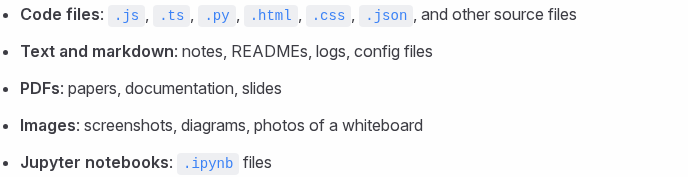
- Attach the PDF and say who it is for. The docs list PDFs as "papers, documentation, slides"; save a Word file as PDF first. "Explain this guidance for clients who are not accountants" beats "summarize this".
- Watch it build. The first slide appears within seconds. Narration covers 33 languages, and on scrimba.com you can ask for a short quiz at the end.
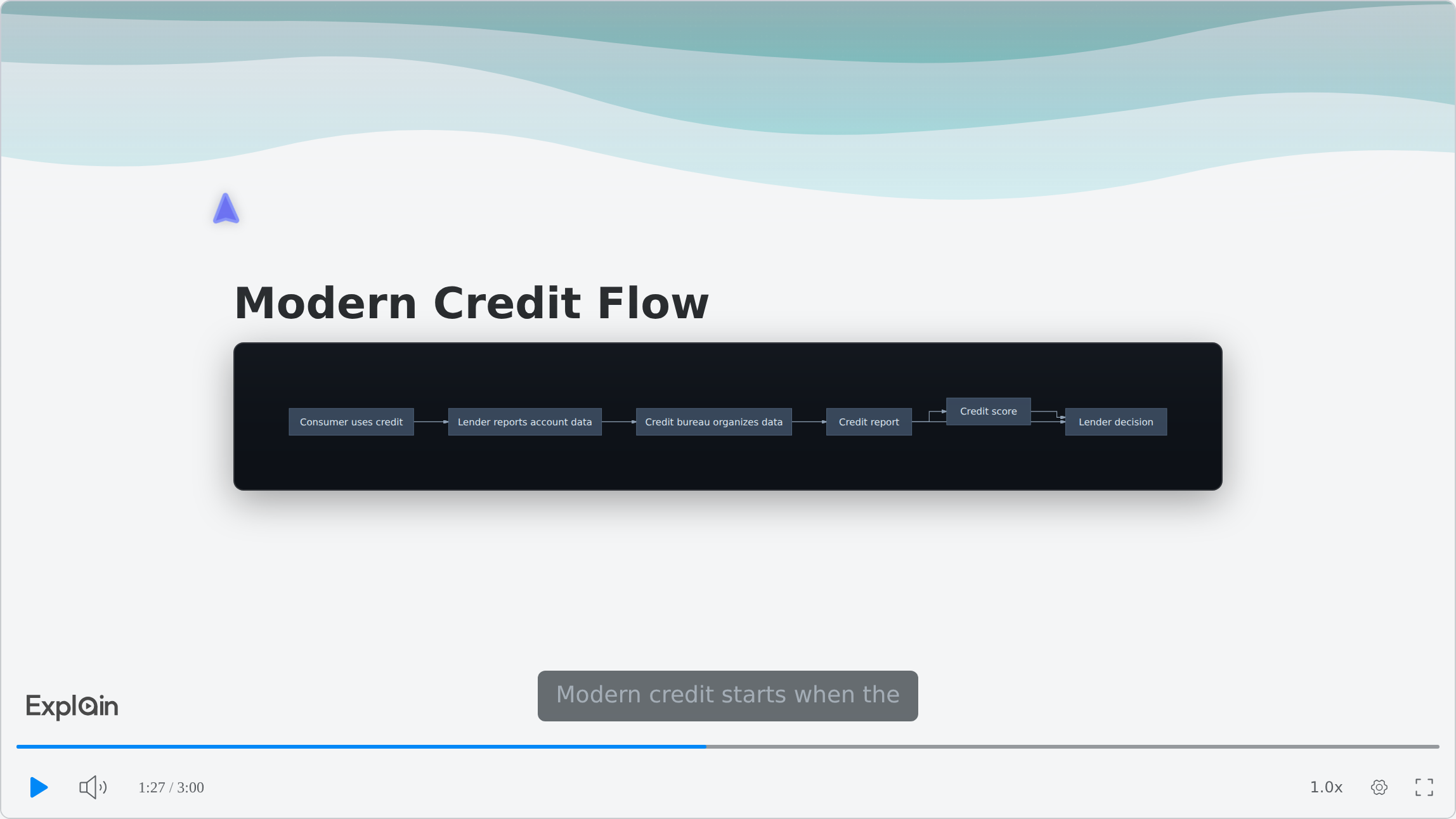
That slide is from Credit: From Trust to Scores, an example on Scrimba's use-cases page. Explain draws flowcharts, sequence and state diagrams.
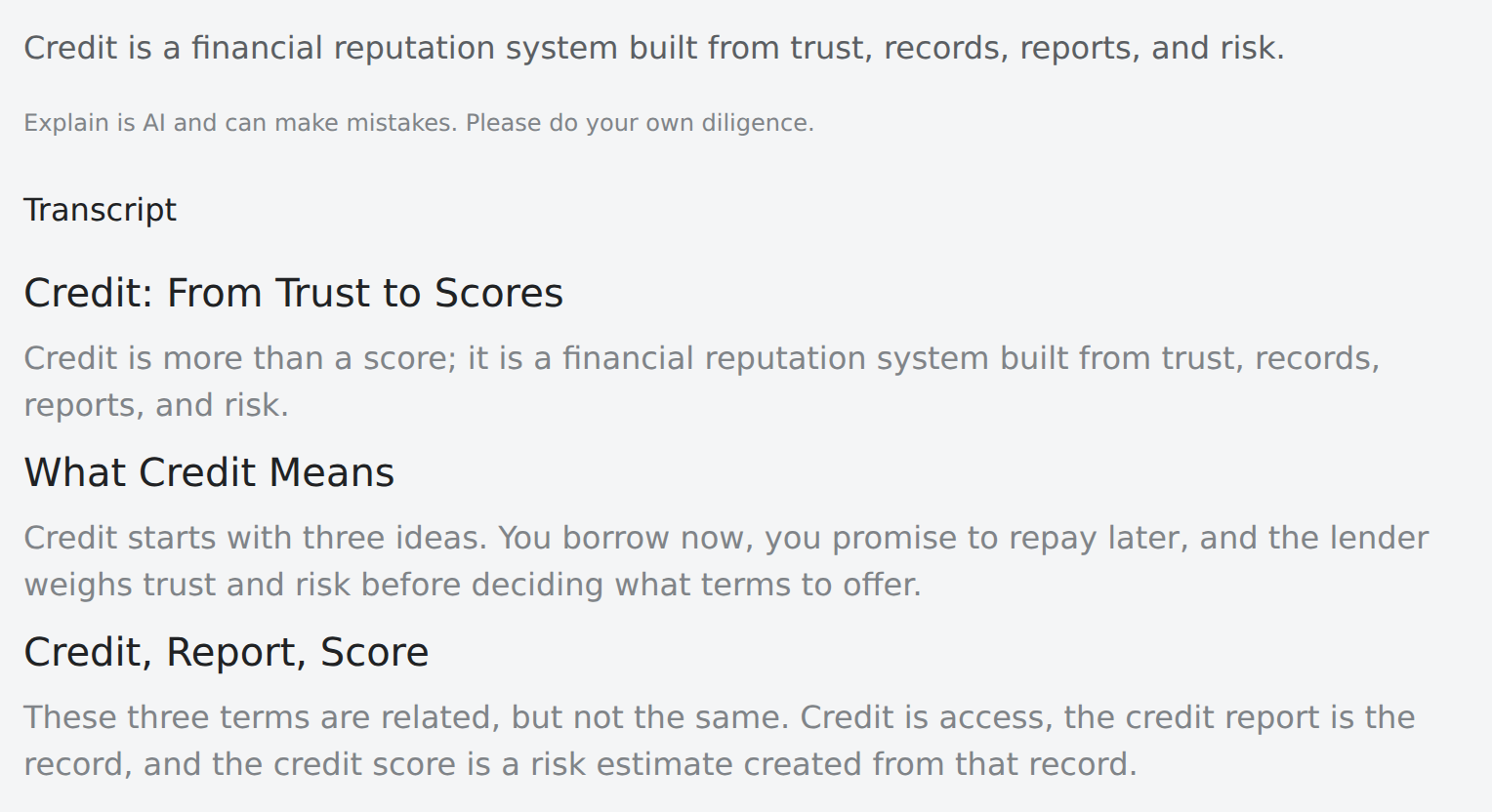
- Check the transcript against the PDF. Every explainer page shows the narration as text under Transcript, below Scrimba's own warning. Fix a weak slide by writing the change in the box under the player; free accounts get three edits per explainer. For tax, legal, medical or safety material, have a qualified professional review the explainer before it goes to clients.
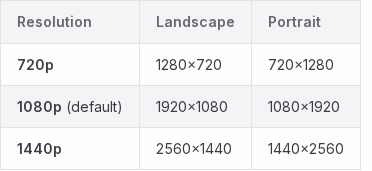
- Export the MP4. On an explainer you own, click Download at the top right of the player. The exported file defaults to 1080p at 60 frames per second, with 1440p (2560×1440) under Options, plus captions inside it and as a .vtt file. A free account exports one explainer.
Limits: Explain is free to start: the docs allow 1 explainer without an account, 5 for the life of a free account and 100 a month on Pro. No page limit is documented, so do not count on a 60-page PDF being covered end to end. Split it by section, or ask for a playlist. Scrimba's guide to using Explain covers what to ask it.
Explain Video Generator Inside ChatGPT
If the PDF is already in a ChatGPT conversation, the same product runs there as Explain Video Generator, tagline "Free AI explainer video maker". Its first example card is this exact job: Turn this employee onboarding PDF into an explainer video.
- Install it first, in a signed-in ChatGPT session. Signed out, mentioning it does nothing.
- Attach the PDF, then write
@Explain Video Generatorand what to explain. The model you are chatting with writes the lesson. - Claim it to keep it. The draft is unlisted and needs no Scrimba login. Editing or exporting it also requires claiming it into a Scrimba account, which counts toward the allowance.
Quizzes and teaching styles exist only on scrimba.com. Before you attach client or company documents, read the listing's data notice:
"When connected to Explain Video Generator, ChatGPT may share relevant chats and memories with this app to help provide context for your requests."
Gemini Notebook Video Overviews
Google's notebook product, renamed from NotebookLM on July 16, 2026, does the same job from a document workspace. A source can run to 500,000 words or 200 MB. A Video Overview is an AI-narrated video, as an Explainer, a roughly 60 second Short, or an English-only Cinematic for users 18 and over. The free plan allows 3 a day, generation sometimes takes more than 30 minutes, and Google warns that overviews "may contain inaccuracies or audio glitches."
Option 2: Avatar Tools and PDF Converters
HeyGen, Synthesia and Pictory now read a PDF too. Each drafts a script from it and builds scenes, with an optional synthetic presenter. You still review that script line by line.
HeyGen's PPT/PDF to Video accepts PPT, PPTX or PDF up to 50 MB and takes only the first 50 slides. Speaker notes as the script and editable slide elements are PowerPoint only, not available for PDF uploads. Its PDF to video page says it can skip the on-screen presenter. The free plan makes 3 videos a month, up to 1 minute each; Creator is $29/mo, or $24/mo billed yearly.
Synthesia's free PDF to video tool takes a PDF up to 50 MB on the Basic plan, 10 minutes of video a month. The catch: Basic users cannot download videos. Paid plans start at $19/mo, or $14/mo billed yearly, with 1080p MP4 downloads.
Pictory's Doc to Video is the most candid about length: PDF only, 50 MB, and "PDFs under 50 pages give the best results" because summary quality drops as documents grow. It has a 14-day free trial; Starter is $25/mo billed yearly.
Every free AI video plan here is a metered sample, not a free product.
Option 3: Slides to Video, the Manual Route
The manual route turns your document into slides with your own narration: the most time, and the most control. If the PDF began life as a deck, it is nearly free. In PowerPoint, choosing File, then Export, then Create a Video produces an .mp4 or .wmv at up to Ultra HD 4K, using your recorded timings and narration; without them each slide holds for five seconds (Microsoft). Canva imports PDFs of up to 500 pages, but scanned PDFs arrive as a single flattened image.
Option 4: Why Text to Video Models Cannot Read Your PDF
Text to video models generate invented footage from a written description. They never read your document, and no prompt makes them. How text to video works explains why. The category is also unstable: OpenAI discontinued the Sora web and app experiences on April 26, 2026 and the Sora API on September 24, 2026 (OpenAI). For footage, see Scrimba's roundup of AI video generators.
Which PDF to Video Route Should You Pick?
Pick by the job: Scrimba Explain or Gemini Notebook to explain the document, HeyGen or Synthesia for a presenter, PowerPoint when every word must be signed off. Every fact below is from the vendor's own page, checked September 28, 2026.
| Tool | Takes | Free to start | Presenter | Download | Stated limit |
|---|---|---|---|---|---|
| Scrimba Explain | PDF, images | 1 signed out, 5 per free account | None | MP4, 1080p (up to 1440p), .vtt; 1 explainer on free | None documented |
| Explain Video Generator (ChatGPT) | Files in the chat | Drafts count only once claimed | None | MP4 after claiming | Plugin installed |
| Gemini Notebook | PDFs and other sources | 3 Video Overviews a day | None | Yes | 500,000 words per source |
| HeyGen PPT/PDF to Video | PPT, PPTX, PDF | 3 one-minute videos a month | Optional | MP4 | 50 MB, first 50 slides |
| Synthesia PDF to video | 10 minutes a month | AI avatar | 1080p MP4, paid only | 50 MB | |
| Pictory Doc to Video | PDF only | 14-day trial | Optional | Yes | 50 MB, best under 50 pages |
| PowerPoint export | The original deck | With Office | Only you | MP4 or WMV, up to 4K | 5 seconds a slide untimed |
When Another Tool Fits Better
Scrimba Explain fits when someone needs the document explained. It has no presenter, brand kit, SCORM package or completion tracking, and its AI can be wrong. Pick something else when:
- It needs a presenter: HeyGen or Synthesia.
- You need to know who finished it: an LMS or SCORM authoring tool, with the MP4 inside. Explain counts only views and likes.
- Every word must be signed off, or it is regulated or safety critical: slides you record yourself (Option 3).
- It must carry your brand template: slides built in it.
- It is confidential or about one patient: do not upload it. Record slides yourself, or use the provider's patient-education system.
Frequently Asked Questions
Can you turn a PDF into an MP4 video for free?
Yes, within limits. Scrimba Explain is free to start, with 1 explainer without an account and 5 for the life of a free account, which can export one of them as a 1080p MP4 with a .vtt file once it is in your account. Gemini Notebook allows 3 downloadable Video Overviews a day free, HeyGen 3 one-minute videos a month. Synthesia's free 10 minutes a month cannot be downloaded.
Which PDF to video tool actually works through the tables in a handbook like NFPA 13?
None promises to. No tool here documents how it reads a PDF's tables, and an untagged PDF stores a table as positioned text. Screenshot the tables that matter, attach them as images for Scrimba Explain to put on its slides, and check every value against the handbook.
What is the best PDF to video tool for a 30-page client report delivered as short modules?
One that splits it. Make one Scrimba Explain lesson per section, or ask for a playlist; each lesson has its own link and, on Pro, its own MP4, since playlists cannot yet export as one video. No tool promises full coverage, and Pictory says PDFs under 50 pages give the best results.
Is there a tool that turns a pathology or pharmacology lecture PDF into a video I can rewatch slowly?
Yes. Attach the PDF on scrimba.com/explain: the player slows to 0.8x, captions highlight each word, and formulas render as real notation. Gemini Notebook is another free option. Check every dose against your course material, because both vendors warn their output can be wrong.
Is a PDF to video approach worth trying for an implementation guide nobody reads?
Often. Cover only what customers must act on first and keep the PDF as the reference. An unlisted explainer works as a link or an embed, with no viewer account, but an embed shows only the player, without the transcript or Scrimba's AI warning, so add your own review note next to it.
Which PDF to video tool can turn IRS guidance into a client briefing this week?
Scrimba Explain can. Attach the guidance on scrimba.com/explain, pick Unlisted, and ask for two to four minutes on what changed and what clients must do. The first slide appears within seconds; the time goes into review by a qualified tax professional before clients see it.
Is there a PDF to video tool I can use now for a buyer disclosure my clients never open?
Yes. Attach the disclosure on scrimba.com/explain, plus your own property photos if you like, pick Unlisted, and ask for a plain walkthrough of what the buyer is being told. It is legal material, so have your broker or a real estate attorney check the transcript before you send the link.
What is the best PDF to video tool for an architecture or system design PDF?
One that draws diagrams instead of reading bullets. Scrimba Explain renders flowcharts, sequence, state and entity-relationship diagrams, and the prompt sets the audience, such as "for product and sales, not engineers". HeyGen or Synthesia fit better when you need a presenter.
Can AI read a PDF and narrate it accurately?
Usually, but not reliably enough to skip review. Scrimba says "Explain is AI and can make mistakes", and Google says Video Overviews "may contain inaccuracies". Read the transcript against the source and check every number, date and instruction.
Key Takeaways
- Turning a PDF into a video has four routes: a tool that explains it, an avatar tool or converter, slides you record, and text to video, which cannot read the file.
- Scrimba Explain, listed in ChatGPT as Explain Video Generator, takes a PDF and exports an MP4; it is free to start.
- Every AI route warns that its output can be wrong, so check the transcript against the PDF.
Sources
All pages accessed September 28, 2026.
- PDF Association, tagged PDFs: https://pdfa.org/you-tagged-pdfs-for-screen-readers-turns-out-the-machines-needed-it-too/
- Google Drive, OCR: https://support.google.com/drive/answer/176692
- Adobe, Acrobat pricing: https://www.adobe.com/acrobat/pricing.html
- Scrimba, Explain: https://scrimba.com/explain
- Scrimba docs, attaching documents: https://docs.scrimba.com/explain/attaching-documents
- Scrimba docs, exporting: https://docs.scrimba.com/explain/exporting
- Scrimba docs, plans and pricing: https://docs.scrimba.com/explain/limits-and-plans
- Scrimba docs, transcript: https://docs.scrimba.com/explain/transcript
- Explain Video Generator listing: https://chatgpt.com/plugins/plugin_asdk_app_69c50381a40081919232f5027201beef
- Google, Gemini Notebook rename: https://blog.google/innovation-and-ai/products/gemini-notebook/notebooklm-gemini-notebook/
- Google, sources: https://support.google.com/gemininotebook/answer/16215270
- Google, Video Overviews: https://support.google.com/gemininotebook/answer/16454555
- Google, plan limits: https://support.google.com/gemininotebook/answer/16213268
- HeyGen, pricing: https://www.heygen.com/pricing
- HeyGen, PPT/PDF to Video: https://help.heygen.com/en/articles/13007313-ppt-pdf-to-video
- HeyGen, PDF to video: https://www.heygen.com/tool/pdf-to-video
- Synthesia, pricing: https://www.synthesia.io/pricing
- Synthesia, PDF to video: https://www.synthesia.io/tools/pdf-to-video
- Synthesia, downloads: https://help.synthesia.io/en/articles/9317524-how-do-i-download-my-synthesia-video
- Pictory, Doc to Video: https://kb.pictory.ai/en/articles/15137793-turn-a-document-into-a-video-doc-to-video
- Pictory, pricing: https://www.pictory.ai/pricing
- Microsoft, presentation to video: https://support.microsoft.com/en-US/PowerPoint/turn-your-presentation-into-a-video
- Canva, PDF import: https://www.canva.com/help/import-and-edit-pdfs-canva/
- OpenAI, Sora discontinuation: https://help.openai.com/en/articles/20001152-what-to-know-about-the-sora-discontinuation