PowerPoint to Video: Export, Avatar or Explainer?
Three ways to turn a PowerPoint into a video: export it with your own voice, import it into an avatar tool, or let an explainer narrate it. Steps and limits.

Short answer: there are three ways to turn a PowerPoint into a video, and they make three different videos. Export it from PowerPoint after recording your own voice over the slides: File > Export > Create a Video saves an MP4. Import the .pptx into an avatar tool such as Synthesia or HeyGen, which turns your speaker notes into a script for an AI presenter. Or export the deck to PDF and let an explainer tool, such as Scrimba Explain (listed in ChatGPT as Explain Video Generator), write new slides and narrate what the deck means. Choose by one thing: should the video read your slides, or explain them?
Last verified September 28, 2026: the steps come from Microsoft's, Apple's, Google's, Synthesia's and HeyGen's own help pages, the free allowances from each vendor's pricing page, all read that day, and the Explain facts from Scrimba's documentation and its ChatGPT listing, rechecked October 23, 2026. "Not stated" in the table means the vendor page checked does not say.
Scrimba publishes this article and makes Explain, one of the three routes. The other two win for several kinds of deck, and this guide says which ones.
Which Route Fits Your Deck?
Pick the route by who should talk: you, an AI presenter reading your notes, or an explainer writing new narration from the deck.
| Route | Who narrates | On screen | Speaker notes | Quiz or SCORM | Free allowance | Languages | In ChatGPT | Export |
|---|---|---|---|---|---|---|---|---|
| PowerPoint: record, then Create a Video | You | Your camera, optional | Teleprompter while you record | Not stated | No extra cost in desktop PowerPoint | Yours | No, you record in PowerPoint | MP4 or WMV, up to 3840 x 2160 |
| Synthesia: Import PowerPoint | AI voice | AI avatar, optional per scene | Become the script | SCORM export on Enterprise | Basic: 10 minutes of video a month | 140+ | Yes, a beta plugin; needs a paid Synthesia account | MP4 in Full HD; downloads from Starter ($19 a month) |
| HeyGen: PPT/PDF to Video | AI voice or your own audio | AI avatar overlay | Become the script (PPT and PPTX only) | Quizzes and SCORM on Business ($149 a month) | Free: 3 videos a month, up to 1 minute each | 30+ on Free | HeyGen has a ChatGPT plugin | 1080p and watermark removal from Creator ($29 a month) |
| Scrimba Explain: the deck as a PDF | AI voice, new script | No presenter | Source text, if printed into the PDF | Quiz on scrimba.com only; no SCORM | Free to start: 1 without an account, 5 for the life of a free account, 100 a month on Pro | 33 narrated | Yes, as Explain Video Generator | MP4, 1080p by default, up to 2560 x 1440, .vtt subtitles; one export on a free account |
None needs filming: PowerPoint's camera is optional, avatar tools put an AI presenter on screen, and an explainer has none. Quick picks:
- Your voice, your slides, tonight: record in PowerPoint (route 1).
- One presenter across a course, or a SCORM package for the LMS: an avatar tool (route 2).
- A thin deck that needs explaining, not reading aloud: an explainer from the PDF (route 3).
Route 1: Save a PowerPoint as a Video with Your Own Voice
You narrate, PowerPoint records the timing, and Microsoft's export makes the file.
- Open the Record tab and select Record. If the slides have notes, Microsoft's recording guide says "they're turned into text at the top of the screen so you can use them like a teleprompter as you record."
- Turn the camera off if you want no one on screen. Narration does not record during slide transitions, so let those play before you speak.
- When you finish, select Export > Export Video, or go to File > Export > Create a Video.
- Pick a quality: Ultra HD (4K) at 3840 x 2160, Full HD (1080p), HD (720p) or Standard (480p). Keep Use Recorded Timings and Narrations; without a recording, each slide gets 5 seconds.
- Save as MPEG-4 Video. Microsoft's video export page warns the render "can take up to several hours," and viewers do not need PowerPoint to watch.
In Keynote, record a slideshow, then export it through File > Export To > Movie with Slideshow Recording under Playback. For Google Slides to video, File > Convert to Video opens Google Vids on an eligible Workspace or Google AI plan: Gemini writes a script (Replace with speaker notes uses yours) and adds an AI voiceover or avatar, up to 10 minutes and 45 slides. Canva's free converter imports a PPT and downloads it as an MP4.
Route 1 keeps your deck and your voice exactly, and leaves you the hard part: if the slides need explaining, you explain them.
Route 2: Import the PPTX into an Avatar Tool
Avatar tools rebuild the deck as scenes with an AI presenter, and the script comes from your speaker notes.
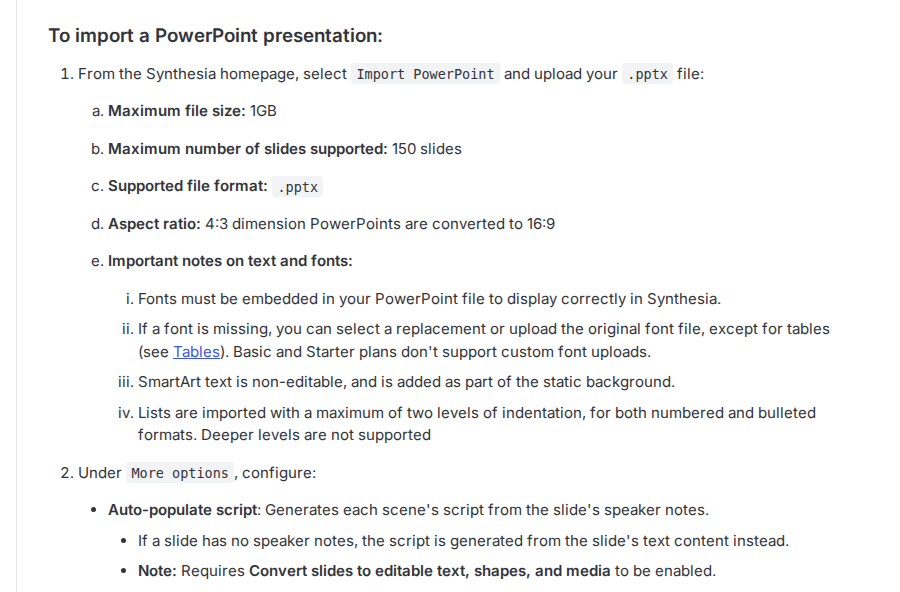
Synthesia. On the homepage, select Import PowerPoint and upload a .pptx of up to 1 GB and 150 slides. Under More options, Auto-populate script builds each scene's script from the slide's speaker notes, and from the slide's text when there are none. An avatar in every scene is optional, PowerPoint animations are not imported, and 4:3 decks become 16:9.
HeyGen. Open PPT/PDF to Video from the Avatar tab, choose an avatar (it sits as a circular overlay in the corner of each scene) and upload a PPT, PPTX or PDF of up to 50 MB. Only the first 50 slides come in. Use speaker notes as script works for PPT and PPTX, not PDF, and any segment can take your own recorded audio instead.
Choose this route for the same presenter in every module, or a SCORM package for the LMS (Synthesia's Enterprise plan, HeyGen's Business plan). If your notes hold three words per slide, so does the avatar.
Route 3: Export to PDF and Let Explain Write the Explanation
Explain's documented uploads include no .pptx. Its attach list names slides only as a kind of PDF, so the deck goes in as a PDF and Explain writes a new lesson from it: typed slides, diagrams and narration, no presenter. "An explainer is not a screen recording," as the docs put it. The guide to turning a PDF into a video covers other tools that take a PDF.
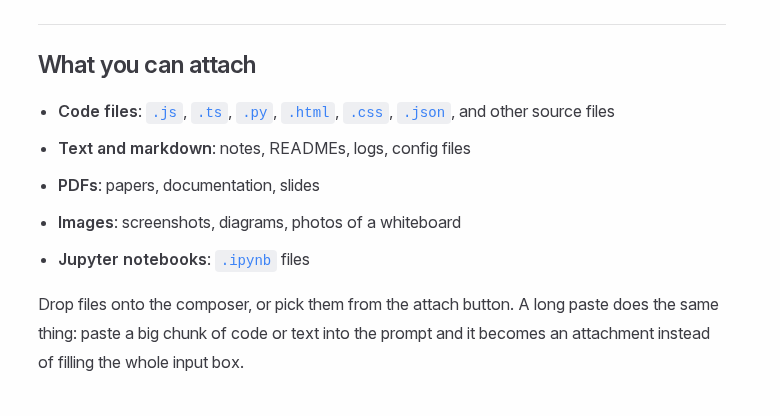
- Export with the speaker notes. A default PDF drops them, and they are the half with sentences. In Google Slides, open Print settings and preview, choose 1 slide with notes, then print to PDF. In PowerPoint for Windows, go to File > Export > Create PDF/XPS Document > Options, where Publish what switches from plain slides to notes pages. In Keynote, tick the presenter notes checkbox. In PowerPoint for Mac, Save as PDF drops notes (Microsoft lists "saving notes" among features that "aren't available"), so use File > Print, choose Notes under Layout, then PDF > Save as PDF.
- Check that the text is real. Select a sentence in the PDF; if nothing highlights, the slides are pictures.
- Cut what only worked live: the agenda, dividers, the thank-you slide, and ask for the conclusion first. Split a long deck by section into a playlist. No length limit is documented, so never assume a 60-slide deck fits one explainer.
- Upload on scrimba.com/explain and pick one of seven teaching styles, such as Explain ("Simple words, small steps.") or TLDR. Signed in, a new explainer starts Public and is listed in the community, so choose Unlisted or Private first for training, class or client material.
- Or use ChatGPT. Install the plugin first, in a signed-in ChatGPT session (how to install a ChatGPT plugin); mentioned without installing, it does nothing. Then attach the PDF and mention @Explain Video Generator. The chat model writes the lesson, with no style picker and no quiz. The draft is unlisted and counts toward the allowance once saved to your Scrimba account, which editing or exporting requires.
- Check every slide against the deck, fix a weak one in the edit box under the player (three edits per explainer on free), then export an MP4, 1080p by default, with a .vtt subtitles file (public or unlisted only; one exported explainer on free), or embed it where viewers need no account.
Before you attach a company or client deck in ChatGPT, read the listing's data notice:
"When connected to Explain Video Generator, ChatGPT may share relevant chats and memories with this app to help provide context for your requests."
A prompt that carries what the deck leaves out:
Attached: our onboarding deck as a PDF, with the speaker notes under each slide.
Audience: new joiners in their first week, no context on our tools.
Goal: they can finish their first task without asking anyone.
Explain why each step matters; do not read the bullets back.
Put the conclusion first. Skip the agenda and thank-you slides.
Where a note and a slide disagree, follow the note.
Explains, Not Reads: What the Lecturer Is Asking For
"Is there a PowerPoint to video tool that explains my lecture slides rather than just reading the bullets?" The answer depends on where the words come from. Routes 1 and 2 start from words that already exist: yours, or your speaker notes. When a slide has no notes, Synthesia builds the script from "the slide's text content." A script built from headlines sounds like a video and teaches little.
A deck is a prompt for a person, not a record of an explanation. It leaves out the reasoning between two slides, the numbers behind a pasted chart, the acronym everyone in the room knew, and why the recommendation is the recommendation. An explainer has to write that layer, so the speaker notes, plus a line on acronyms and chart sources, change the result more than prompt wording does.
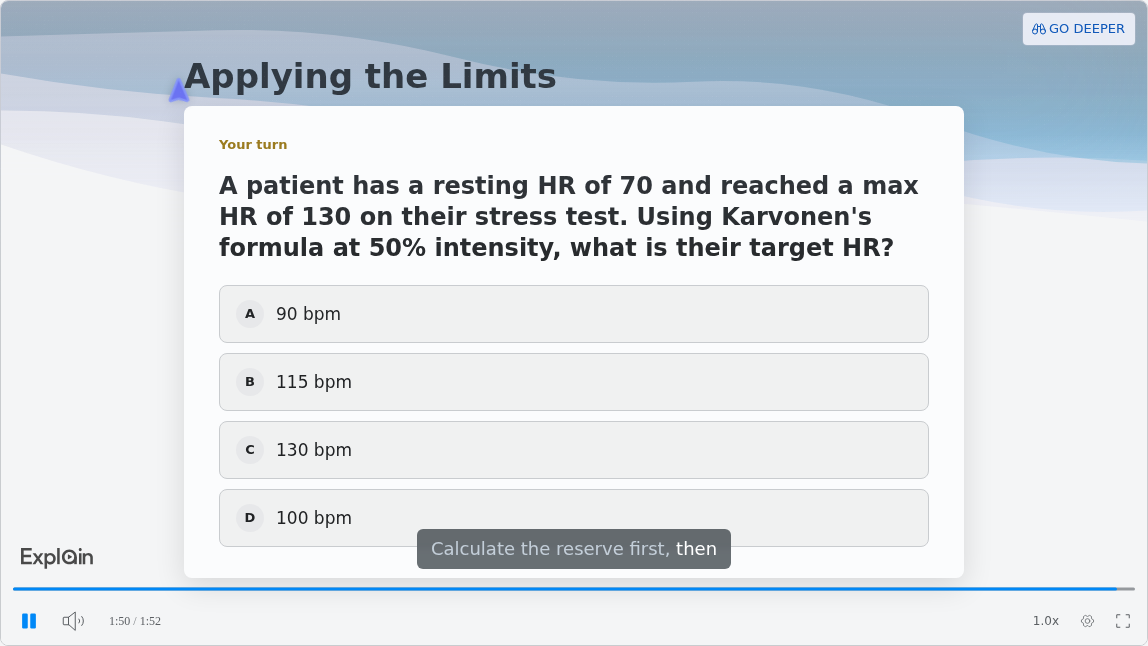
Scrimba publishes no deck-based example. The closest public match is Cardiac Prescription Logic, the Healthcare example in Scrimba's use-case gallery: dense, with formulas. The formula slide renders as real notation:
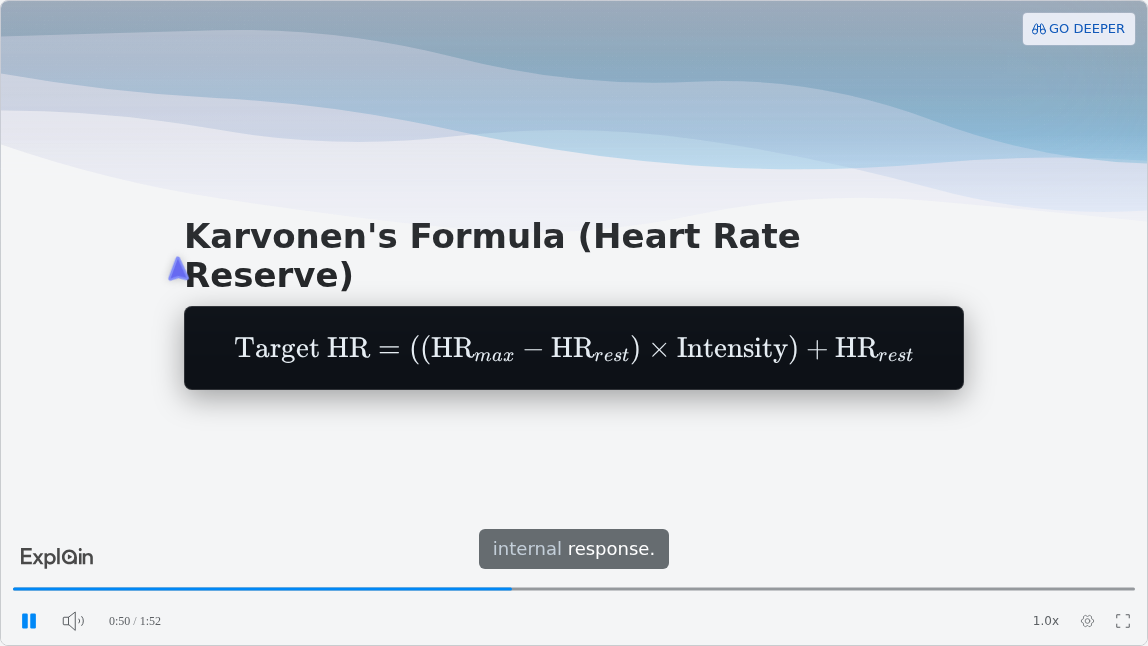
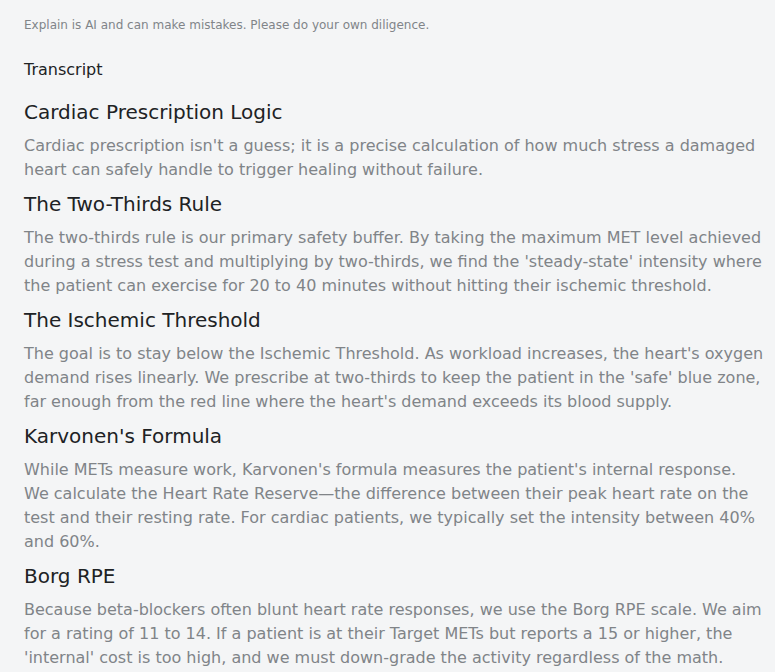
The narration says why. The transcript under the player reads "Because beta-blockers often blunt heart rate responses, we use the Borg RPE scale," a reason no bullet would carry. The same page shows Scrimba's own caution: "Explain is AI and can make mistakes. Please do your own diligence."
Made on scrimba.com, an explainer can end with a short multiple-choice quiz; this one closes on a "Your turn" card. Explainers made through ChatGPT get none.
When Another Route Fits Better
- The LMS must record completions or scores. Explain has no SCORM, xAPI or completion tracking, only view and like counts. Use an avatar tool's SCORM export, or put Explain's MP4 inside a tracked course.
- Every module needs the same presenter or brand look. Explain has no avatars, brand kits or fixed template across videos.
- You want your own voice or face. Explain's voices are Scrimba's. Record in PowerPoint or Keynote.
- The design is the point, such as a client-approved layout. PowerPoint's export keeps it; an explainer replaces it.
- The deck teaches clicks in software. A screen recording shows the real interface.
Which Guide for Which Deck
- Training decks and SOPs: the best AI video generators for training and turning an SOP into a training video.
- An orientation deck: onboarding videos from your handbook.
- Science slides for class: a lesson opener video.
- Course decks you sell, or a client workshop delivered as modules: course material into video modules.
- Lecture slides: lecture recap videos.
- A customer onboarding deck that should stop being a live call: how-it-works videos for SaaS.
- Onboarding decks for engineers: AI tools for developer onboarding. For a system design deck you study from, Explain draws sequence and state diagrams.
- A client briefing on new pension rules: any route, then a qualified adviser checks every figure. An embedded explainer shows only the player, without Scrimba's caution line.
Frequently Asked Questions
What is the best PowerPoint to video tool for existing training decks, narration included, no filming?
If the LMS must track completions, an avatar tool with SCORM export: Synthesia on Enterprise or HeyGen on Business. If the decks need explaining more than reading, export them to PDF and build explainers in Scrimba Explain, with no presenter and no camera. Neither films anyone.
We already have the orientation PowerPoint. Is there a tool new hires would actually watch?
New hires watch short lessons that answer first. Cut the agenda, split the deck by topic into a playlist, and share an unlisted link; viewers need no Scrimba account. Set the visibility before you create, because signed-in explainers start Public.
Is there a PowerPoint to video tool that explains my lecture slides rather than just reading the bullets?
Yes: that is the difference between an explainer and an import. Avatar tools build the script from your speaker notes, or from the slide text when there are none. Scrimba Explain writes a new lesson from the PDF, with diagrams and real notation. It can make mistakes, so check each slide.
I need a PowerPoint to video converter with real narration for my science slides before class tomorrow. What is fastest?
If you can talk for ten minutes, record in PowerPoint and export an MP4, leaving time for the render. For narration written for you, upload the PDF on scrimba.com/explain; the first slide appears within seconds, and Copy fullscreen link shows it to a class.
Our professor shared her pharmacology PPT. Is there a PPT to video tool I can use tonight?
Export it to PDF and upload it to Scrimba Explain: one explainer needs no account, and a free account keeps 5. Ask for the mechanism behind each drug, not a summary. Signed in, set it to Private first, and check every dose against her notes.
What PowerPoint to video tool works best for lecture decks with pathways and diagrams when I need the explanation?
An explainer, because an avatar tool reads the notes or slide text back. Export the deck to PDF with the notes and upload it to Scrimba Explain: its diagrams include flowcharts and sequence diagrams, formulas render as real notation, and the narration explains each step rather than reading the labels. Split a long deck by topic into a playlist. Signed in, set it to Private first, and check every slide against the lecture, because it can make mistakes.
What is the best PowerPoint to video tool for turning 12 course decks into consistent narrated modules I can sell?
For one presenter and one look, an avatar tool: HeyGen offers to save the brand colors and fonts it detects in a PowerPoint, and Synthesia lists brand kits on Enterprise. For modules that explain, Explain makes each deck a playlist lesson with its own MP4, with no fixed template and, on Pro, 100 explainers a month and commercial use.
Which PowerPoint to video tool is best for a PE exam review deck with worked problems and formulas?
PowerPoint's own export keeps your equations exactly as typed, with your voice working each problem. Scrimba Explain renders formulas "as real mathematical notation" and narrates each step, but check every number, because it can make mistakes.
Can you upload a PowerPoint file to an AI video tool, and is it free?
Synthesia takes .pptx, HeyGen takes PPT, PPTX and PDF, and Scrimba Explain takes a deck only as a PDF. On September 28, 2026, Synthesia's Basic plan allowed 10 minutes of video a month and HeyGen's Free plan 3 one-minute videos. Explain is free to start: 1 explainer without an account, 5 for the life of a free account, and 100 a month on Pro.
Key Takeaways
- Three routes, three videos. An export plays your slides in your voice, an avatar tool reads your notes, an explainer narrates what the deck means.
- Slides go into Explain as a PDF. Export with the speaker notes; on a Mac, print the Notes layout to PDF.
- Tracking and presenters belong to avatar tools. SCORM export comes with Synthesia's Enterprise and HeyGen's Business plans.
- Set visibility first. On scrimba.com, signed-in explainers start Public; choose Unlisted or Private for class or client decks.
- Check every slide. Explain can make mistakes, and Scrimba says so under every explainer.
Sources
- Microsoft Support, Turn your presentation into a video. https://support.microsoft.com/en-us/powerpoint/turn-your-presentation-into-a-video (2026-09-28)
- Microsoft Support, Record a slide show with narration and slide timings. https://support.microsoft.com/en-us/powerpoint/training/record-a-slide-show-with-narration-and-slide-timings (2026-09-28)
- Microsoft Support, Save PowerPoint presentations as PDF files. https://support.microsoft.com/en-us/office/save-powerpoint-presentations-as-pdf-files-9b5c786b-9c6e-4fe6-81f6-9372f77c47c8 (2026-09-28)
- Microsoft Support, Print your PowerPoint slides, handouts, or notes. https://support.microsoft.com/en-us/office/print-your-powerpoint-slides-handouts-or-notes-194d4320-aa03-478b-9300-df25f0d15dc4 (2026-09-28)
- Apple Support, Save a document as a PDF on Mac. https://support.apple.com/guide/mac-help/save-a-document-as-a-pdf-on-mac-mchlp1531/mac (2026-09-28)
- Apple, Export to PowerPoint or another file format in Keynote on Mac. https://support.apple.com/guide/keynote/export-to-powerpoint-or-another-file-format-tana0d19882a/mac (2026-09-28)
- Google Docs Editors Help, Convert Google Slides into Google Vids. https://support.google.com/docs/answer/15577408 (2026-09-28)
- Google Docs Editors Help, Print a file. https://support.google.com/docs/answer/143346 (2026-09-28)
- Canva, Free PPT to Video Converter. https://www.canva.com/features/ppt-to-video-converter/ (2026-09-28)
- Synthesia Docs, Import PowerPoint Presentations. https://docs.synthesia.io/docs/import-powerpoint (2026-09-28)
- Synthesia, Pricing. https://www.synthesia.io/pricing (2026-09-28)
- ChatGPT plugin directory, Synthesia. https://chatgpt.com/plugins/plugin_asdk_app_6a6c6ebc8f74819197497c772358751b (2026-09-28)
- HeyGen Help Center, PPT/PDF to Video. https://help.heygen.com/en/articles/13007313-ppt-pdf-to-video (2026-09-28)
- HeyGen, Pricing. https://www.heygen.com/pricing (2026-09-28)
- OpenAI, HeyGen plugin for ChatGPT. https://openai.com/business/plugins/heygen (2026-09-28)
- Scrimba Explain documentation. https://docs.scrimba.com/explain/introduction (rechecked 2026-10-23)
- Explain Video Generator listing. https://chatgpt.com/plugins/plugin_asdk_app_69c50381a40081919232f5027201beef (2026-10-23)
- Scrimba Explain, Cardiac Prescription Logic. https://scrimba.com/explain/guide037vrn9fg (2026-09-28)