How to Turn Your Course Material into Video Modules
Turn a workbook, script or one big PDF into numbered, narrated video modules: split by section, build in ChatGPT or on scrimba.com, check, export and upload.

The short answer: split what you already wrote into one section per module, then turn each section into a narrated explainer video. Tonight, you can do that inside ChatGPT with Scrimba Explain, listed there as the Explain Video Generator plugin, without paying for another tool. To keep, fix and export the lessons, build them on scrimba.com: attach each section as a PDF, use one teaching style for every lesson, check each module against your source, and export one MP4 per lesson for your course platform.
Last verified: September 28, 2026. Checked that day: Scrimba's Explain documentation and plugin listing, OpenAI's help center, the pricing pages of HeyGen and Synthesia, and the help centers of Udemy, Teachable and Adobe Acrobat. Scrimba's plans, editing and export docs were re-checked on October 23, 2026.
Scrimba publishes this article and makes Scrimba Explain, listed in ChatGPT as Explain Video Generator. Where another tool fits a course creator's job better, this guide names it.
No presenter, no camera: an explainer is typed slides, diagrams and narration.
Which Route Fits Your Material?
Pick by what you need: a quick draft tonight in ChatGPT, a finished course on scrimba.com, or a presenter from an avatar tool.
| Route | Best for | Presenter | Quiz | Free allowance | Languages | Inside ChatGPT | Export | SCORM |
|---|---|---|---|---|---|---|---|---|
| Explain in ChatGPT | A first module tonight | No, narrated slides | No | Drafts free until claimed | 33 narrated | Yes, plugin | After claiming, as below | No |
| Explain on scrimba.com | Keeping, fixing and exporting the course | No, narrated slides | More likely if you ask | 1 without an account; 5 for the life of a free account; 100 a month on Pro | 33 narrated | No | MP4 per lesson, 1080p by default (up to 2560×1440), plus .vtt; 1 exported explainer on free | No |
| HeyGen | A presenter, or your cloned voice | Yes, 500+ stock avatars | Business, $149/mo | 3 videos a month, up to 1 min each | 30+ free, 175+ on Creator | Yes, app with a HeyGen account | 1080p from Creator, $29/mo | Business, $149/mo |
| Synthesia | Your script read word for word | Yes, AI avatars | Enterprise | 10 min of video a month; downloads from Starter, $19/mo | 140+ | Yes, beta plugin (paid account) | MP4 at 1080p | Enterprise |
Competitor cells come from HeyGen's pricing and ChatGPT app page, and from Synthesia's pricing and ChatGPT plugin listing. Explain's cells come from Scrimba's docs.
The two Explain routes work as a pair: draft in ChatGPT tonight, then keep, fix and export the lessons that work in a Scrimba account.
Step 1: Split Your Material into Modules
One section of your material becomes one module, and one module becomes one short video. Do this before you open any tool.
Short is not a compromise. In a study of 6.9 million video-watching sessions across four edX courses, Guo, Kim and Rubin found that median engagement time was at most 6 minutes, whatever the video's length, and that students often got less than halfway through videos longer than 9 minutes. Their advice to course producers:
"Invest heavily in pre-production lesson planning to segment videos into chunks shorter than 6 minutes."
How you split depends on what you have:
- One big PDF. If the curriculum has chapter bookmarks, Adobe Acrobat can split the PDF at its top-level bookmarks: one file per chapter. Split long chapters again by page count.
- A workbook. Save each chapter as its own PDF. If you wrote it in Word, save it as PDF first.
- A full script. Cut it at the section breaks you already wrote, and read the script caveat under When Another Tool Fits Better before you pick a tool.
- Slides. Export the deck to PDF first. No PowerPoint upload is documented; Scrimba's guide on turning a slide deck into a video covers the export.
Scrimba documents no length or page limit for attachments, and no rule for how much of a long document one explainer covers. So never hand one explainer the whole curriculum and expect every page in the video. Name the files in order (01, 02, 03) now. Your course platform does the numbering later.
Step 2A: Build a Module Tonight in ChatGPT
ChatGPT cannot make video by itself, but a plugin can, and Explain Video Generator makes narrated lessons without a new subscription. OpenAI discontinued Sora's web and app experiences on April 26, 2026, and its help center set September 24, 2026 as the end of the Sora API. Video in ChatGPT now comes from plugins, as Scrimba's answer to whether ChatGPT can make videos explains.
- Install the plugin while signed in to ChatGPT. Open the Explain Video Generator listing (tagline: "Free AI explainer video maker") and choose Install plugin. Until it is installed, typing its name does nothing. OpenAI's plugins article says the directory "is available across ChatGPT plans", though access varies by plan and workspace. Scrimba's guide on how to install a plugin in ChatGPT walks through it.
- Send one module per request. Type @, pick Explain Video Generator, attach or paste one section, and say where it sits: module 3 of 8, for complete beginners.
- Watch it build. The explainer streams from the first slide and comes back unlisted: anyone with the link can watch it, but it is not listed anywhere.
Per Scrimba's ChatGPT docs, "the model you're chatting with writes the lesson and the narration", so a stronger model gives a better module.
What does tonight cost? Explain is free to start. A draft needs no Scrimba login, and drafts made through ChatGPT count against nothing until you claim them. Claiming, which means signing in to Scrimba and adding the explainer to your account, is what lets you keep, edit or export a lesson.
Two limits apply. Teaching styles and end-of-lesson quizzes exist only on scrimba.com, so a plugin explainer has neither. And before you paste a paid course into a chat, read the listing's data notice: "When connected to Explain Video Generator, ChatGPT may share relevant chats and memories with this app to help provide context for your requests."
Step 2B: Build and Keep the Course on scrimba.com
On scrimba.com you attach each section, keep one teaching style for the whole course, and get lessons you own, fix and export.
- Set visibility first. Signed-in explainers start Public and are listed in Scrimba's community. Before you create each module, pick Unlisted in the picker next to the Explain button; Private blocks export.
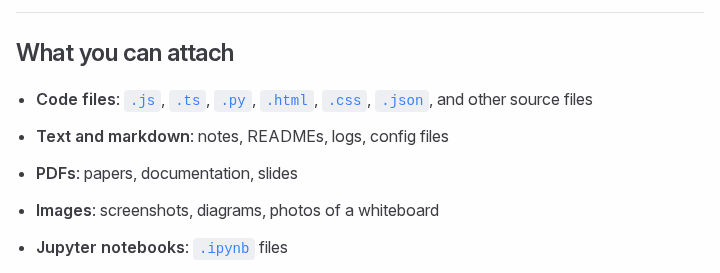
- Pick one teaching style and keep it. Each style "writes the lesson differently and narrates it with its own voice", per the teaching styles page, so switching styles between modules makes a course sound like it has several teachers. The default, Explain, uses "Simple words, small steps."
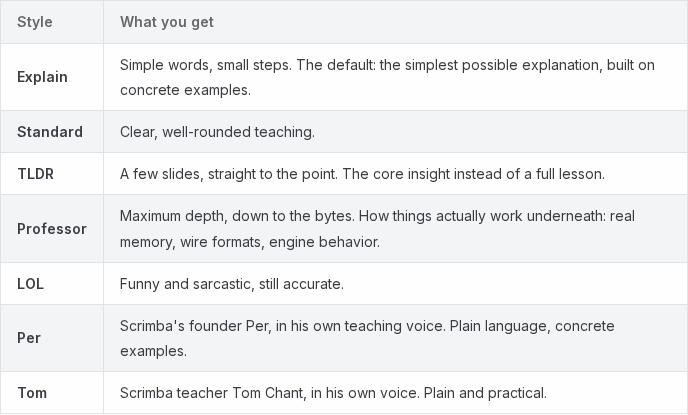
- Attach the section as a PDF. Save a Word file as PDF first: the attaching documents page lists PDFs as "papers, documentation, slides", next to images, code and text files, and names no Word format. A picture you attach, such as your own diagram, can appear on a slide instead of a generated one.
- Ask for the check. Add end with a quiz to the prompt, which makes one more likely. The quiz is one multiple-choice question on the core idea, scored per viewer: "a ten-second check that you understood the lesson, not an exam." A TLDR lesson never gets one.
Your workbook also gains diagrams: Explain draws flowcharts, sequence diagrams, state diagrams, and class and entity-relationship diagrams, plus short animations built from shapes, arrows and labels. For a course planned from a description instead of your own pages, switch the composer to playlist mode, and Explain builds a series of explainers "planned as a curriculum and built lesson by lesson." When every lesson must follow your workbook or script, make one explainer per section instead. The plugin listing says you can "combine your explainers into full courses and playlists"; Scrimba's docs don't show how, so order the lessons on your course platform (Step 4).
Budget for the course size. Scrimba's plans and pricing page allows 1 explainer without an account, 5 for the life of a free account and 100 a month on Pro. A 12-module course is past the free 5, a free account exports only one explainer as video, and each follow-up question you ask counts as a new explainer. If you sell the course, note that the same page lists commercial use of explainers under Pro.
Step 3: Check Every Module Against Your Source
Watch each module with your source open, because the AI writes the lesson and can get details wrong. Every explainer page carries this line above the transcript:
"Explain is AI and can make mistakes. Please do your own diligence."
The transcript under the player shows the full narration as text, easy to read against your workbook. When one slide is wrong, go to it, write what should change in the edit box under the player, Change anything about this explainer…, and press Enter; slides you don't mention stay as they are. An edit can also add, delete, reorder or translate slides, and a free account gets three edits per explainer.
When the words are fine and the audio is not, regenerate the narration. Scrimba notes that it "picks the narration voice again", so a module can end up with a different voice from its neighbors. Scrimba documents no timeline editor and no way to upload your own audio.
If you sell on Udemy, the review is also part of its rules. Udemy's AI policy accepts text-to-speech and AI-made video, but "Udemy does not accept courses that are entirely AI-generated", and instructors must disclose AI use in the course description.
Step 4: Export, Number and Upload Your Modules
Export each checked module as its own MP4, then upload the files in order to your course platform, which does the numbering. Open an explainer you own and click Download at the top right of the player. Per Scrimba's export docs, the MP4 is "1080p at 60 fps" by default, with 720p and 1440p (2560×1440) under Options, plus a separate .vtt subtitles file and the subtitles as a track inside the MP4.
Four export rules set the order of work:
- The explainer must be public or unlisted; a private one can't be exported.
- "Playlists can't be exported as a single video yet", so a course is always one file per lesson.
- An export is a snapshot. Editing the explainer or regenerating its narration retires the file, so export after the check, not before.
- A free account can export one explainer; exporting the same one again doesn't count, and Pro exports are unlimited.
On Teachable, sections contain lessons and you reorder both by drag and drop. Its recommended video settings are .mp4, .mov or .avi files at 1080p and 24 to 30 frames per second, with a 2GB maximum per video. Udemy's file types page recommends MP4 for video lectures.
You can also skip the file. Each lesson has its own embed code, which goes into a Teachable lesson's Custom Code block, and viewers need no Scrimba account. An embed shows only the player, without the transcript or the AI note, so add your own line under it.
What One Finished Module Looks Like
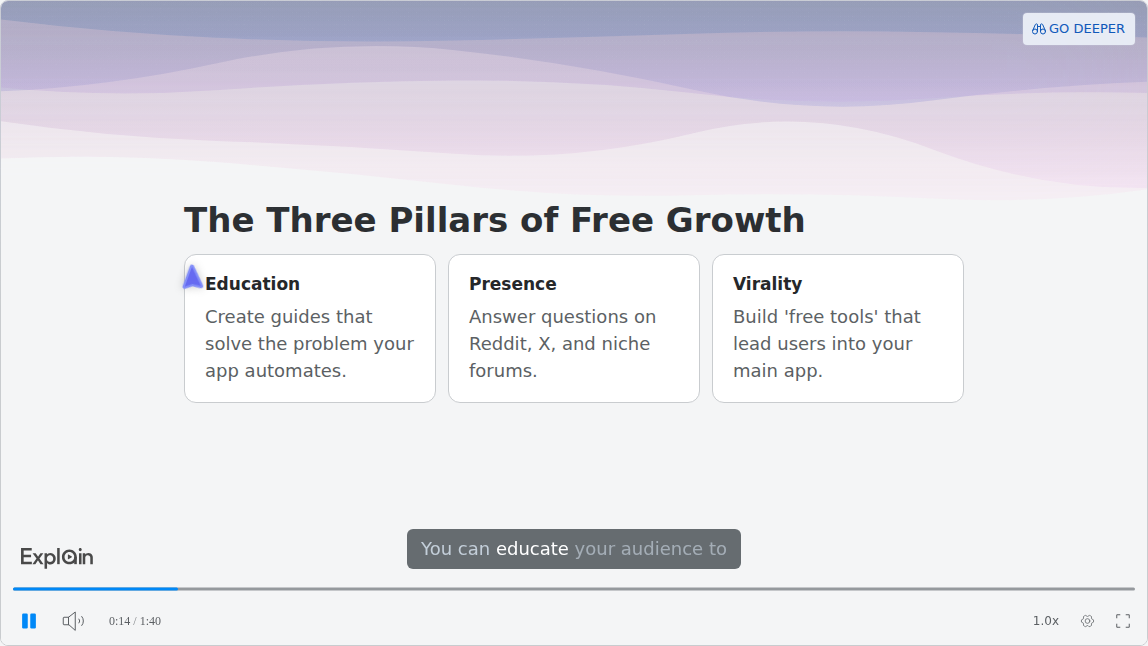
A finished module is a narrated lesson built from typed slides, often a minute or a few long. The published example "Zero-Budget SaaS Growth", from Scrimba's use-case gallery, runs under two minutes and could be one module of a course on marketing a small app: three cards for three growth levers, narration with captions, and no one on screen.
When Another Tool Fits Better
Explain is the wrong tool for four kinds of course:
- Your script, read word for word. Explain writes its own lesson from your material, and Scrimba documents no way to narrate your text verbatim or upload your own audio. Synthesia's Import a script uses a script "exactly as written, word-for-word", through the AI Video Assistant that Synthesia's pricing lists from the Starter plan. Or record the narration yourself.
- Your face or your own voice. HeyGen's Creator plan, at $29 a month, adds voice cloning, 1080p export and watermark removal.
- Quizzes and completions inside an LMS. HeyGen's Business plan lists interactive quizzes, SCORM export and LMS integrations; Synthesia puts SCORM export on Enterprise. Explain exports video only and counts views and likes.
- One locked visual look. Explain has no brand kit or visual template; its teaching style keeps the voice steady, not the colors. Synthesia offers brand kits on Enterprise.
For a side-by-side of six tools, see Scrimba's best AI video generators for online courses; for the wider field, its best AI video generators; for a single PDF, how to turn a PDF into a video.
Frequently Asked Questions
Is there an AI video creator that could rebuild my workbook as a numbered course with narration and diagrams?
Yes. Scrimba Explain turns each workbook section, attached as a PDF on scrimba.com, into a narrated lesson with diagrams and animations. Make one explainer per section, keep one teaching style, then export each lesson as an MP4 and number the lessons on your course platform.
Is there a ChatGPT video generator I can use tonight to build course modules without another subscription?
Yes. Sora is gone, but you can install Explain Video Generator in a signed-in ChatGPT session and mention it with one section per request. Drafts need no Scrimba login and cost nothing until claimed. Keeping, editing or exporting a lesson means claiming it into a free Scrimba account, which holds 5 explainers for life.
I wrote the whole course as a script. Can a text to video AI turn each section into a narrated module?
Yes, with one distinction. Scrimba Explain turns each section into a narrated lesson but writes its own narration from your script. If every word must stay yours, Synthesia's Import a script uses a script word for word on paid plans, or you can record the narration yourself.
My whole curriculum is one big PDF. Which PDF to video tool can I start with this week?
Split the PDF first, one file per module; Adobe Acrobat can split at top-level bookmarks. Then attach each file on scrimba.com, where Explain is free to start: 1 explainer without an account, 5 on a free account, 100 a month on Pro. No length limit is documented, so do not expect one video to cover the whole PDF.
How long should each video module be?
Aim for under 6 minutes. A study of 6.9 million edX video sessions found median engagement of at most 6 minutes regardless of video length, and students often stopped before halfway in videos longer than 9 minutes. Split long sections into two modules.
Can I export the whole course as one video?
Not from Scrimba Explain. Each lesson exports as its own MP4 with a .vtt captions file, and Scrimba's docs say playlists can't be exported as a single video yet. Course platforms such as Teachable organize a course as separate lessons anyway.
Key Takeaways
- Split first: one section of your material per module, each ideally under 6 minutes.
- ChatGPT has no video model of its own since Sora closed; the Explain Video Generator plugin drafts narrated modules tonight, free until you claim them.
- scrimba.com is where modules are kept, checked, fixed with an edit and exported, one MP4 (1080p by default) plus a .vtt file per lesson.
- A free Scrimba account keeps 5 explainers for life and exports one; a longer course needs Pro's 100 a month.
- Explain has no presenter, no brand kit, no SCORM and no documented word-for-word script mode; an avatar tool or your own recording covers those.
Sources
- OpenAI, What to know about the Sora discontinuation and Plugins in ChatGPT and Codex
- Guo, Kim and Rubin, "How Video Production Affects Student Engagement", Learning at Scale 2014
- Adobe, Split PDFs in Acrobat
- Udemy, Course Quality Checklist: Use of AI and Supported File Types
- Teachable, Sections and Lessons, Content File Types and Embed Forms and Other Content into Lessons
- HeyGen, pricing and ChatGPT app
- Synthesia, pricing, AI Video Assistant docs and ChatGPT plugin
- Scrimba, Explain documentation and the Explain Video Generator listing
Vendor pages accessed September 28, 2026.