How to Turn an SOP or Manual into a Training Video
Turn an SOP or a 40-page manual into short training modules: split by section, build from the document, check each slide, sign off, and export MP4s to your LMS.

Direct answer: split the SOP by section, build one short narrated module per section from the document itself, check every slide against the written procedure, get the procedure owner's sign-off, then upload one MP4 per module to your LMS. Scrimba Explain, listed in ChatGPT as Explain Video Generator, handles the build with no presenter and no camera, and it is free to start. If the LMS must record who completed the training, use a tool with SCORM export: Colossyan from Professional, Synthesia on Enterprise, HeyGen on Business.
Last verified: September 28, 2026. Competitor plans come from each vendor's own pricing or product page, loaded that day; "Not stated" means those pages do not say. Explain's facts come from Scrimba's docs, re-read the same day, and its ChatGPT listing, checked September 25, 2026.
Scrimba publishes this article and makes Explain, which is described in the third person like the other tools.
Which Tool Fits Your SOP?
The right tool for an SOP video depends on two checks: must the LMS record completions, and does the module need a person on screen?
| Tool | Presenter or avatar | SCORM or LMS tracking | Quiz | Free allowance | Languages | Inside ChatGPT | Export |
|---|---|---|---|---|---|---|---|
| Scrimba Explain | No presenter: narrated slides, diagrams and images | No SCORM; views and likes only | Can end with a multiple-choice quiz (ask for one), scrimba.com only | 1 explainer without an account; 10 for the life of a free account | 33 narrated | Yes, as Explain Video Generator | MP4 at 2560x1440 plus a .vtt captions file |
| Knowlify | Avatars from Max | SCORM and LMS integrations on Enterprise | Enterprise | 60 credits, or 20 seconds of document to video; watermarked | Translation into 30+ languages | Not stated | MP4 with captions and transcript |
| Synthesia | Yes, AI avatars | SCORM export on Enterprise | Quizzes on Enterprise | Basic: 10 minutes a month; downloads start on Starter | 160+ | Yes, a beta plugin that needs a paid Synthesia account | MP4 at 1920x1080 from Starter |
| HeyGen | Yes, 500+ stock avatars on free | SCORM and LMS integrations on Business | Interactive quizzes on Business | 3 videos a month, up to 1 minute each | 30+ free; 175+ from Creator | Yes, with a free HeyGen account and its credits | 1080p on Creator, 4K on Pro |
| Colossyan | Yes, 300+ stock avatars | 5 SCORM exports a month on Professional; unlimited, plus completion analytics, on Enterprise | 10 interactive videos a month on free Starter | Starter: 20 minutes a month | 120+ | Apps for assessments and course outlines, not video | Up to 1080p; unlimited MP4 downloads from Professional |
Every tool here starts from a document; they differ on LMS reporting, a presenter and what a long manual costs. Synthesia's free web tool rejects documents over 4,500 words, according to its own page, another reason to split a manual first. The tool-by-tool comparison is in Best AI Video Generators for Training Videos.
How to Turn an SOP into a Training Video, Step by Step
Turning an SOP into a training video takes seven steps, and an AI tool does only one of them: the build. The other six make the video safe to show staff.
Step 1. Start from the Approved, Current Revision
The EPA's Guidance for Preparing Standard Operating Procedures defines an SOP as "a set of written instructions that document a routine or repetitive activity followed by an organization" and says SOPs "can be used as a part of a personnel training program". They are reviewed, "that is, validated", by people "with appropriate training and experience with the process", and re-approved whenever procedures change.
Check the revision first. A video made from last year's draft teaches last year's procedure. Note the revision number: it goes into every module title and file name.
Step 2. Cut the Manual into Modules, One Section Each
EPA's advice to SOP writers applies to the video too: "Where possible break the information into a series of logical steps to avoid a long list." A meta-analysis by Rey and colleagues of 56 investigations agrees: people learn better from meaningful and coherent segments than from one continuous unit. Across 6.9 million edX sessions, Guo, Kim and Rubin found that "shorter videos are much more engaging".
A worked example: EPA's guidance, published as QA/G-6, runs its main text to page 13, then adds five example SOPs in appendices A to E. Its body maps to six modules:
- What an SOP is and why it matters (sections 1.1 to 1.3)
- Writing style (1.4)
- Preparation, review and approval (2.1 and 2.2)
- Revisions, checklists and document control (2.3 to 2.6)
- The general format (3.0)
- Technical and administrative SOPs (4.0)
The appendices stay out: EPA says its examples "should not be cited or followed as actual procedure specification or guidance".
The same map works for a 40-page quality manual or a 60-page operations manual: one module per section, and a long section splits again. No length or coverage limit is documented for Explain, so never upload a whole manual at once and assume every step came through. An employee handbook is a different job; see Scrimba's guide to employee onboarding videos.
Step 3. Build Each Module from Its Section
On scrimba.com. Sign in and set the composer's visibility to Unlisted or Private before you send the prompt, because signed-in explainers start Public and are listed in Scrimba's community. Attach the section as a PDF or Word file, or paste it; a long paste becomes an attachment. An SOP kept as slides goes in as a PDF export, as the slide deck guide explains.
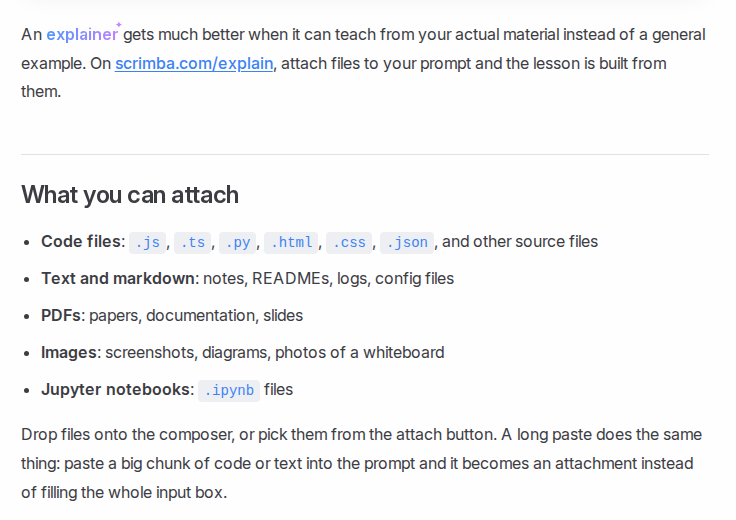
A prompt that keeps the SOP in charge:
Turn this section of our SOP into a short explainer for new quality
technicians. Keep the steps in the order written, use the SOP's own
terms and numbers, and end with a quiz.
Asking to "end with a quiz" makes the closing multiple-choice check more likely; Scrimba's quiz docs call it "a ten-second check that you understood the lesson, not an exam". Playlist mode plans a whole series on one topic, but the docs do not say how much of an attached manual it covers, so for procedures build one explainer per section. Then gather the modules into one playlist: Explain's ChatGPT listing says you can "combine your explainers into full courses and playlists", and each lesson keeps its own URL.
Inside ChatGPT. First install the plugin in a signed-in ChatGPT session, then mention @Explain Video Generator with the section pasted into the chat; the model you are chatting with writes the lesson. Before pasting company material, read the notice on the plugin listing: "When connected to Explain Video Generator, ChatGPT may share relevant chats and memories with this app to help provide context for your requests."
ChatGPT explainers start unlisted. To keep, edit or export one, claim it into a Scrimba account; drafts do not count toward the allowance until then. This route has no quiz and no teaching styles. Can ChatGPT Make Videos Now That Sora Is Gone? covers what changed in ChatGPT, and Scrimba's step-by-step guide covers making a training video in ChatGPT.
Either way, each module you keep counts toward Explain's allowance: free to start, one explainer without an account, 10 for the life of a free account and 100 a month on Pro. The six EPA modules fit a free account; a 60-page manual cut into 20 modules needs Pro.
For crews who do not all read English, Explain narrates in 33 languages, each with a native voice. OSHA's training policy statement says an employer "must instruct its employees using both a language and vocabulary that the employees can understand".
Step 4. Check Every Slide Against the SOP
This step makes an AI training video safe to release. Read the transcript under the player against the section: step order, numbers, warnings, the SOP's own terms. Scrimba prints its own warning above every transcript, as its transcript docs show:
"Explain is AI and can make mistakes. Please do your own diligence."
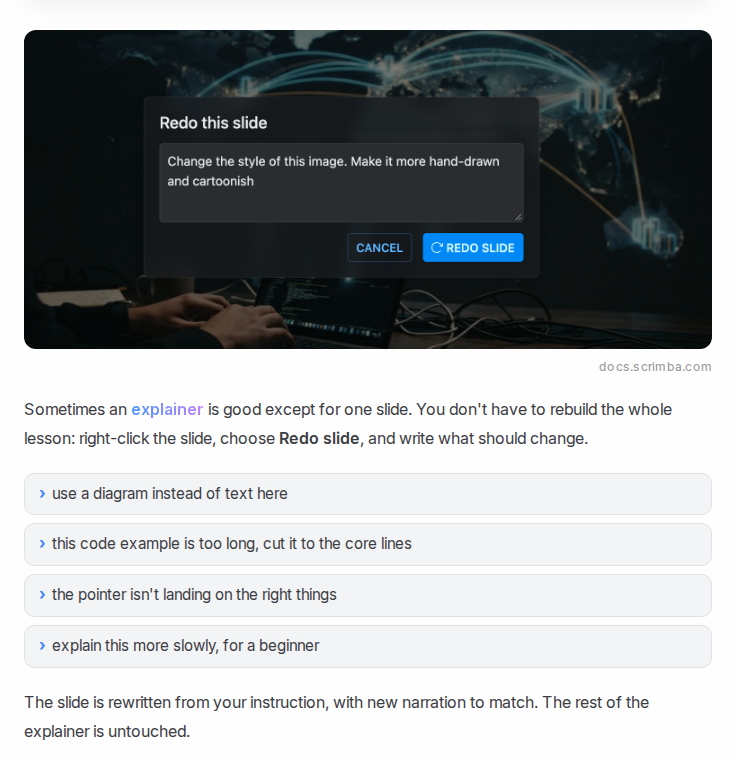
When one slide is wrong, fix that slide instead of rebuilding the lesson: right-click it, choose Redo slide, and write what should change. Scrimba's redo docs say the slide is rewritten with new narration while the rest stays untouched. Any slide except the intro can be redone.
Check the pictures too. Generated ones carry a "Generated image" tag; for your real equipment, attach your own photos, and an image slide can show them instead.
"The New Home Build Process", a published example on Scrimba's use-case page, walks through construction stages in order and ends with this check:
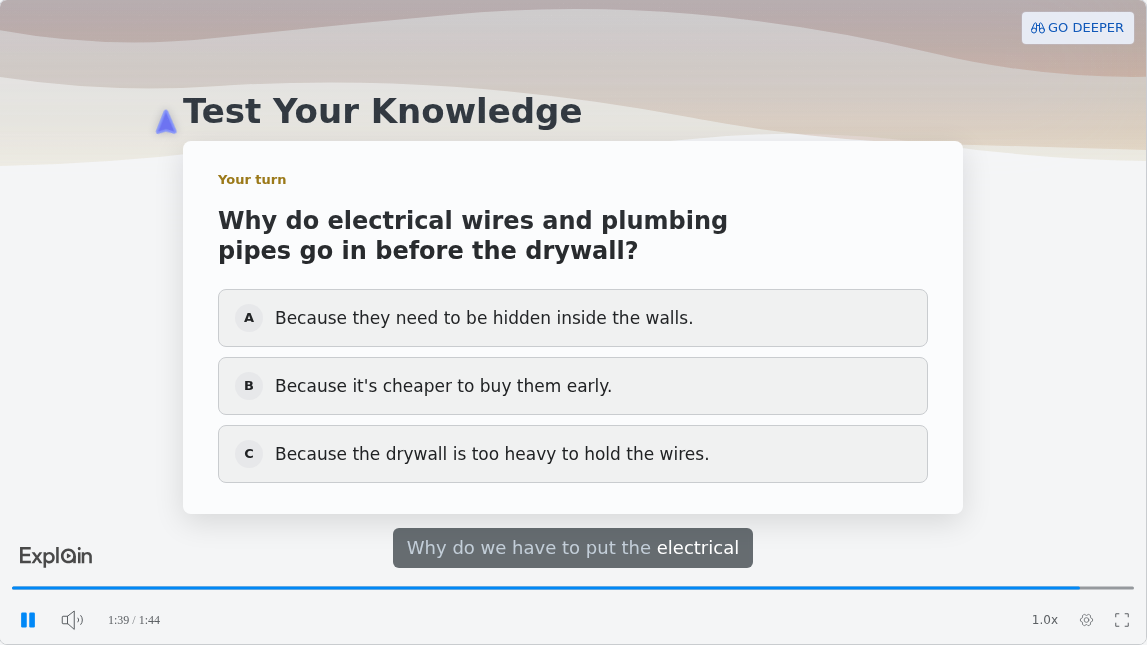
That is how an SOP module should end. Not "what is step 4" but why step 4 comes before step 5.
Step 5. Get a Qualified Sign-Off
The procedure owner, or someone with the experience EPA describes, watches every module before release. In drug manufacturing, 21 CFR 211.25 requires training "in the particular operations that the employee performs" and in good manufacturing practice, including written procedures, "conducted by qualified individuals on a continuing basis". A video can be part of that training; the qualified person is not optional.
Safety procedures keep their hands-on part. Scrimba's guide to AI safety training videos covers what the rules require.
Step 6. Export One MP4 per Module and Load It into the LMS
Scrimba's export docs list an MP4 at 2560x1440 and 60 frames per second, plus a separate .vtt captions file. The explainer must be public or unlisted to export, and a playlist cannot be exported as one video, so each module leaves as its own file.
Upload the .vtt with the MP4: WCAG 2.2 makes captions for "all prerecorded audio content in synchronized media" a Level A requirement. Name each file with the module number and SOP revision, for example QA-SOP-12 Rev 3, Module 2.
Tracking is not the video's job. SCORM defines how content "talks" to the LMS while it plays, as Rustici Software puts it; an MP4 has no such channel, and Explain counts only views and likes. If completions must be recorded, check what your LMS logs for a plain video, or use a SCORM tool.
Step 7. When the SOP Changes, Update Only That Module
Redo the affected slides in that module, then export again. An exported video is a snapshot: editing the explainer retires the old file, so only the new export matches the procedure. Replace the file in the LMS and update the revision in its name. EPA suggests the same discipline for the document itself: "modify only the pertinent section of an SOP and indicate the change date/revision number for that section".
When Another Tool Fits Better
Another tool fits better when training must prove completion, needs a person on screen, or teaches a task done by hand.
- Completion records. Colossyan includes 5 SCORM exports a month on Professional and completion analytics on Enterprise (Colossyan pricing). Synthesia lists SCORM export on Enterprise (Synthesia pricing), HeyGen on Business (HeyGen pricing). Or put the Explain MP4 inside a SCORM authoring tool.
- The same presenter in every module, or a brand kit. Synthesia, HeyGen and Colossyan offer avatars, and Colossyan lists brand kits even on its free Starter plan. Explain has neither.
- Click-by-click software procedures. Scrimba's docs say an explainer "is not a screen recording", so a screen recorder that captures the real interface teaches a software SOP better.
- Hands-on tasks. Lockout steps, PPE fitting or machine setup are learned by doing, with a qualified trainer on the real equipment. The video can prepare people for that session; it cannot replace it.
For a PDF that is not a procedure, the PDF to video guide compares the wider routes.
Frequently Asked Questions
How do people turn a 40 page quality manual into training videos? Is there a decent AI video maker for it?
Split the manual into short modules, one section each, build each from its section, check every slide against the manual, and have the procedure owner approve it. Synthesia, HeyGen, Colossyan and Knowlify add avatar presenters, and SCORM on paid plans. Scrimba Explain builds narrated modules with no presenter, free to start.
Is there an AI video creator that converts a 60 page operations manual into modules our crews will finish?
Yes, if you split the manual first: across 6.9 million edX sessions, shorter videos were much more engaging. Scrimba Explain builds one narrated explainer per section and narrates in 33 languages for mixed crews. Proof that crews finished has to come from SCORM or your LMS.
I have the SOP written out already. Which text to video AI turns it into training modules?
Any document-to-video tool can start from text you have; give it one section at a time. On scrimba.com, Scrimba Explain turns a pasted or attached SOP section into a narrated explainer and can end it with a short quiz. Synthesia, HeyGen and Colossyan turn the same text into avatar-led videos.
We have a 40 page SOP PDF. Is there a way to turn a PDF into a training video?
Yes. Split the PDF by section and upload each part to a document-to-video tool. Scrimba Explain accepts PDF and Word files on scrimba.com and exports each module as an MP4 with a captions file. Check each slide against the PDF: no tool guarantees it covered all 40 pages.
Can an SOP training video track who watched it?
Not by itself. An MP4 carries no tracking; completion records come from SCORM packages or your LMS. Colossyan, Synthesia and HeyGen export SCORM on paid plans. Scrimba Explain exports MP4 only and counts views and likes, nothing per person.
Do I need someone on camera to make an SOP training video?
No. A narrated explainer teaches a procedure with slides, diagrams and a voiceover: no presenter, no camera, no filming. Avatar tools such as Synthesia and HeyGen add a generated presenter if you want a face. For steps done by hand, film a real demonstration or train in person.
What do I do when the SOP changes?
Update only the module that covers the changed section. In Scrimba Explain, redo the affected slides, export a new MP4 and replace the old file in the LMS, because an exported video is a snapshot. Keep the SOP revision in the file name so each video matches the approved procedure.
Key Takeaways
- Split first. One module per SOP section; segmented lessons beat continuous ones.
- Build from the approved revision, and name every module with it.
- Check every slide against the SOP and fix weak slides one at a time; AI can make mistakes.
- A qualified person signs off before any module reaches staff.
- Tracking lives in the LMS or a SCORM package. Scrimba Explain exports MP4 with captions, free to start, with no presenter.
Sources
Primary Sources
- U.S. Environmental Protection Agency. "Guidance for Preparing Standard Operating Procedures (EPA QA/G-6)." April 2007. https://www.epa.gov/sites/default/files/2015-06/documents/g6-final.pdf
- U.S. Code of Federal Regulations. "21 CFR 211.25, Personnel qualifications." https://www.ecfr.gov/current/title-21/chapter-I/subchapter-C/part-211/subpart-B/section-211.25
- OSHA. "OSHA Training Standards Policy Statements." April 28, 2010. https://www.osha.gov/laws-regs/standardinterpretations/2010-04-28
- W3C. "Understanding SC 1.2.2: Captions (Prerecorded)." WCAG 2.2. https://www.w3.org/WAI/WCAG22/Understanding/captions-prerecorded.html
Research and Secondary Sources
- Rey, G. D., et al. "A Meta-analysis of the Segmenting Effect." Educational Psychology Review 31, 2019. https://link.springer.com/article/10.1007/s10648-018-9456-4
- Guo, P., Kim, J., and Rubin, R. "How video production affects student engagement." L@S 2014. https://dl.acm.org/doi/10.1145/2556325.2566239
- Rustici Software. "SCORM Explained." https://scorm.com/scorm-explained/
- Vendor pages, accessed September 28, 2026: Colossyan pricing, Colossyan ChatGPT apps, Synthesia pricing, Synthesia and ChatGPT, Synthesia ChatGPT plugin, HeyGen pricing, HeyGen ChatGPT app, Knowlify pricing.
- Scrimba docs, accessed September 28, 2026: attaching documents, playlists, redo slide, transcript, exporting, limits and plans, privacy and sharing, languages, images, use cases. Plugin listing, checked September 25, 2026: Explain Video Generator.